
PDF 1099 di Tradovate protetto da password (usi l'SSN)
Il suo PDF 1099 di Tradovate non si apre senza una password che nessuno le ha inviato. Ecco il numero esatto da digitare per il suo tipo di conto e cosa controllare se viene comunque rifiutato.
On This Page
- Perché il suo 1099 di Tradovate è protetto da password
- La password giusta per ogni tipo di conto
- Come aprire il 1099 bloccato, passo dopo passo
- Quando la password continua a non funzionare
- Non riesce a trovare il 1099 per cominciare?
- Mantenga il suo trading in pilota automatico tutto l'anno con PickMyTrade
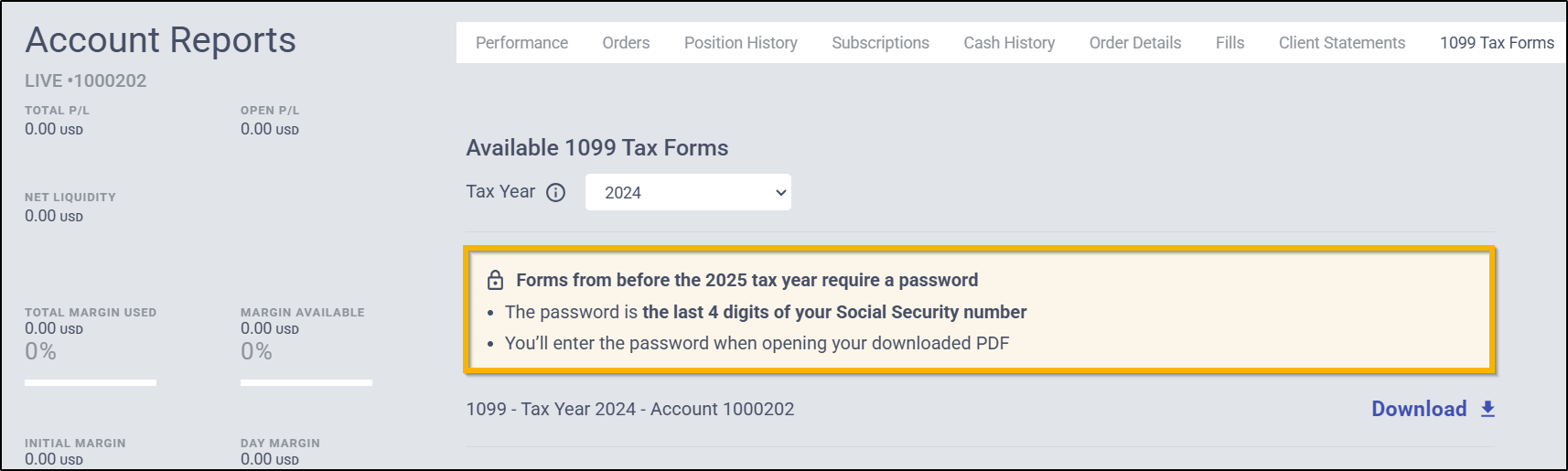
Ha finalmente trovato il suo 1099 di Tradovate, ha cliccato per aprirlo e, invece dei suoi dati fiscali, le è comparsa una finestra per la password. Nessuna password è stata inviata via e-mail, la pagina di download non ne parla e la stagione fiscale non lascia spazio a tentativi. Ecco la risposta rapida: per un conto individuale, la password è il suo Social Security Number digitato come nove cifre senza trattini né spazi. Se il suo SSN è 123-45-6789, digiti 123456789. Tutto qui: il file si apre e può proseguire con la sua dichiarazione.
Di seguito spiego esattamente perché il PDF è bloccato, qual è la password corretta per ogni tipo di conto (LLC, Trust e IRA sono diversi) e cosa fare quando il numero di cui è sicuro viene comunque rifiutato.
Soluzione rapida per la richiesta di password
- Conto individuale: inserisca il suo SSN completo di 9 cifre, senza trattini né spazi (123456789, non 123-45-6789).
- Lo digiti, non lo incolli, un valore copiato può portare con sé uno spazio nascosto che impedisce la corrispondenza.
- Lo apra su un computer con un vero lettore PDF (Adobe Acrobat Reader, Anteprima), non su uno smartphone o in un riquadro di anteprima del browser.
- Se nove cifre falliscono, provi con le ultime quattro cifre dell'SSN, alcuni documenti fiscali usano questo formato più breve.
- Conto aziendale o pensionistico? La password è un EIN, non il suo SSN personale. Veda la tabella qui sotto.
- Ancora bloccato? Faccia confermare il formato esatto dal supporto Tradovate prima di presumere che il file sia danneggiato.
Perché il suo 1099 di Tradovate è protetto da password
Non si tratta di un difetto, e il suo download non è arrivato danneggiato. Un 1099 è uno dei documenti più sensibili che gestirà durante l'anno: contiene il suo nome, il suo codice fiscale e un resoconto completo dei proventi del suo trading. Per proteggerlo, il PDF viene fornito crittografato, e la chiave di crittografia è legata all'identificativo fiscale del conto.
La logica è semplice. I moduli fiscali vengono inviati via e-mail, salvati su unità condivise e inoltrati ai commercialisti. Se un 1099 non crittografato finisse nella casella di posta sbagliata, chiunque potrebbe leggerlo. Bloccando il file con il numero che dovrebbe conoscere solo il titolare del conto, il documento resta inutilizzabile per chiunque altro. È lo stesso approccio che la maggior parte dei broker e delle stanze di compensazione usa per gli estratti fiscali di fine anno, quindi se opera con più di un intermediario, probabilmente ha già incontrato questa richiesta.
Il problema è che la password non compare quasi mai accanto al link di download e nessuna e-mail la indica. È questo silenzio a far cercare la maggior parte delle persone, non la crittografia in sé, ma la mancanza dell'indicazione che la chiave è il suo stesso codice fiscale.
La password giusta per ogni tipo di conto
L'identificativo dipende da come è registrato il conto. Se lo sceglie correttamente, il file si apre al primo tentativo. In ogni caso, elimini trattini e spazi: serve una semplice sequenza di cifre.
| Tipo di conto | Password da inserire | Formato |
|---|---|---|
| Individuale | Il suo Social Security Number | 9 cifre, senza trattini (123456789) |
| LLC / azienda | L'EIN della società | 9 cifre, senza trattini |
| Trust | SSN della persona che ha aperto il conto | 9 cifre, senza trattini |
| IRA | L'EIN del suo custode (non il suo SSN personale) | 9 cifre, senza trattini |
Una nota sulle IRA: la password è l'EIN del custode, quindi un numero che detiene il custode del suo conto pensionistico, non il suo SSN. Se non lo ha annotato, il suo custode può fornirglielo; è lo stesso EIN utilizzato nei documenti del suo conto. Custodi diversi hanno EIN diversi, quindi lo ricavi dai documenti del suo conto anziché da un numero visto citato online.
Come aprire il 1099 bloccato, passo dopo passo
Scarichi prima il file sul suo computer
Non provi ad aprire il 1099 dalla finestra pop-up di download o da un'anteprima del browser. Lo salvi prima sul desktop o nella cartella Download. I riquadri di anteprima del browser e le finestre di visualizzazione rapida a volte gestiscono male il livello della password e otterrà un errore generico invece di una richiesta chiara. Scaricando prima, lavora con un normale PDF che si comporta correttamente.
Lo apra con un lettore PDF adatto
Usi un lettore desktop completo: Adobe Acrobat Reader su Windows o Anteprima su Mac vanno entrambi bene. Si assicuri che il lettore sia aggiornato; una versione obsoleta può inciampare nella crittografia e mostrare un fuorviante messaggio di “file danneggiato” quando il file è perfettamente integro. Eviti di aprire il 1099 su uno smartphone o tablet per questo passaggio. I lettori PDF mobili sono la ragione più comune per cui una password corretta sembra “non funzionare”.
Digiti il suo codice fiscale come password
Quando compare la finestra, inserisca l'identificativo per il suo tipo di conto indicato nella tabella qui sopra; per la maggior parte delle persone è l'SSN di 9 cifre senza trattini. Lo digiti a mano anziché incollarlo. Un valore incollato può contenere uno spazio finale invisibile e il lettore lo rifiuterà senza dirle il motivo. Controlli di non aver aggiunto trattini per abitudine (123-45-6789 fallirà; 123456789 funzionerà).
Salvi una copia sbloccata per il suo commercialista
Una volta aperto il file, potrebbe volere una copia da condividere senza comunicare ogni volta il suo SSN. Nella maggior parte dei lettori può stampare il documento aperto in un nuovo PDF, oppure usare l'opzione “rimuovi protezione” del lettore, per salvare una versione che non richiede più la password. Conservi questa copia sbloccata in un luogo privato: è comoda per il suo commercialista, ma resta il suo estratto fiscale completo, quindi la tratti di conseguenza.
Quando la password continua a non funzionare
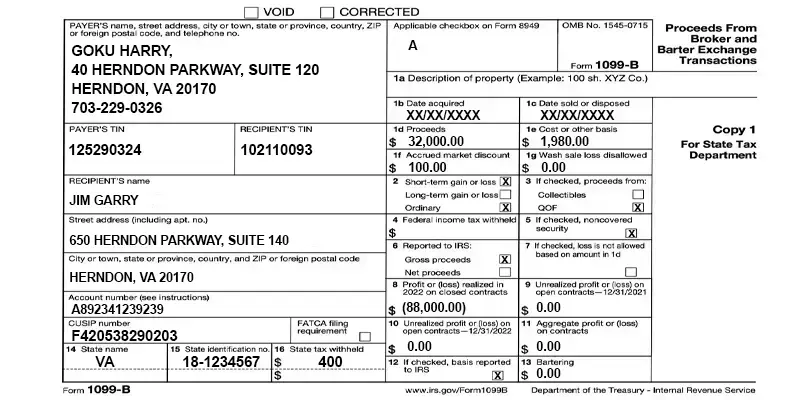
Se è certo di avere il numero giusto e il file non si apre comunque, scorra questo elenco prima di concludere che qualcosa non va.
| Sintomo | Causa probabile | Soluzione |
|---|---|---|
| Password rifiutata anche se l'SSN è corretto | Sono stati inclusi trattini o spazi | Inserisca solo 9 cifre, senza trattini né spazi (123456789) |
| Errore “danneggiato” o “impossibile aprire” | Lettore PDF obsoleto o incompatibile | Aggiorni Acrobat Reader / Anteprima, oppure provi un altro lettore desktop |
| La richiesta si ripete o non accetta nulla su uno smartphone | Il lettore PDF mobile gestisce male la crittografia | Apra il file su un portatile o un computer desktop |
| L'SSN fallisce su un conto aziendale | Identificativo errato per il tipo di conto | Usi l'EIN della società (LLC) o l'EIN del custode (IRA), senza trattini |
| Le 9 cifre complete vengono rifiutate | Il documento usa il formato breve | Provi con le ultime 4 cifre dell'SSN |
| Nulla funziona dopo tutto questo | Registrazione insolita o modulo riemesso | Contatti il supporto Tradovate per confermare la password esatta per il suo conto |
Un'ultima cosa da sapere: il fatto che il 1099 di un determinato anno fiscale arrivi crittografato può cambiare nel tempo. I PDF degli anni fiscali precedenti sono stati inviati come file protetti da password. Se un download più recente si apre senza alcuna richiesta, non è un errore, e se la richiede, la regola del codice fiscale per il suo tipo di conto continua a valere. In caso di dubbio, verifichi la procedura attuale nella documentazione di Tradovate sui moduli fiscali.

Non riesce a trovare il 1099 per cominciare?
Se la password non è il suo problema perché non riesce nemmeno a individuare il modulo, il 1099 si trova nell'area dei report del suo conto Tradovate live; un conto simulato o demo non ne ha. Acceda, apra la sezione Reports (o documenti del conto/fiscali), scelga l'anno fiscale che le serve e scarichi il PDF. La dicitura esatta del menu cambia di tanto in tanto, quindi cerchi l'area dei report o degli estratti conto anziché un pulsante con il nome identico a quello descritto da una vecchia guida. Per la procedura completa, veda Trovare & scaricare il suo modulo fiscale 1099 di Tradovate.
Mantenga il suo trading in pilota automatico tutto l'anno con PickMyTrade
La documentazione fiscale è un fastidio annuale. La sua esecuzione non dovrebbe esserlo ogni giorno. PickMyTrade prende le strategie che già esegue su TradingView e le invia direttamente a Tradovate, così non deve restare incollato a uno schermo ad aspettare di cliccare:
- Automazione da TradingView a Tradovate, i suoi alert diventano ordini live senza inserimento manuale.
- Esecuzione imposta e dimentica, le operazioni partono anche quando si è allontanato dalla scrivania.
- Controlli di quantità & rischio, mantenga gli ordini automatizzati entro i limiti di posizione e di rischio del suo conto.
- Sincronizzazione multi-conto, replichi una sola configurazione su tutti i conti che opera.
Automatizzi l'esecuzione su Tradovate tutto l'anno
La documentazione fiscale è un fastidio che torna una volta all'anno. Lasci che PickMyTrade trasformi le sue strategie di TradingView in un'esecuzione costante e automatica su Tradovate per gli altri 364 giorni.
Inizi la prova gratuita di 7 giorniDomande frequenti
Per un conto individuale, la password è il suo Social Security Number digitato come nove cifre senza trattini né spazi. Quindi 123-45-6789 diventa 123456789.
Inizi con l'SSN completo di nove cifre, senza trattini né spazi. Se viene rifiutato, provi con le ultime quattro cifre, poiché alcuni documenti fiscali usano questo formato più breve. Per un 1099 di Tradovate, il numero completo è quello da provare per primo.
Per una LLC, usi l'EIN della società senza trattini. Per un Trust, usi il Social Security Number (senza trattini) della persona che ha aperto il conto. Per una IRA, usi l'EIN del suo custode (custodian), che questi può fornirle se non lo ha a portata di mano.
Un 1099 contiene dati fiscali e di identità sensibili, quindi il file è crittografato. Legandolo al suo codice fiscale, se il PDF viene intercettato o inoltrato per errore, non può essere aperto senza il numero associato al conto.
Rimuova tutti i trattini e gli spazi, verifichi di usare l'identificativo corretto per il tipo di conto, aggiorni il suo lettore PDF alla versione attuale e apra il file su un computer anziché su uno smartphone o tablet. Se ancora non si apre, contatti il supporto Tradovate per confermare il formato esatto della password per il suo conto.
Acceda al suo conto Tradovate live, apra l'area Reports (documenti del conto/fiscali), scelga l'anno fiscale e scarichi il PDF del 1099. Le etichette esatte dei menu possono cambiare, quindi cerchi la sezione dei report o degli estratti conto del suo conto live.
I PDF 1099 degli anni fiscali precedenti sono stati distribuiti come file protetti da password. Il fatto che il PDF di un determinato anno sia crittografato può cambiare: se un download più recente si apre senza richiesta, è normale, e se la richiede, usi la regola del codice fiscale per il suo tipo di conto.
Questa guida ha esclusivamente scopo educativo e informativo e non costituisce consulenza finanziaria, di investimento o di trading. Il trading di futures e di altri prodotti a leva comporta un rischio di perdita sostanziale e non è adatto a tutti gli investitori. PickMyTrade è una piattaforma di automazione indipendente di terze parti e non è affiliata a Tradovate, Inc., né da essa approvata o sponsorizzata. "Tradovate" e tutti i nomi, loghi e marchi correlati sono di proprietà dei rispettivi titolari. Le funzionalità e i passaggi della piattaforma cambiano nel tempo, quindi verifichi sempre la procedura attuale nella piattaforma e nella documentazione ufficiali di Tradovate prima di agire.