
Inserire ordini nell’app mobile di Tradovate
Può inviare un ordine a mercato, lasciare un limit in attesa, incorniciare l’ingresso con uno stop e un target e chiudere una posizione, tutto dal telefono. Ecco il flusso completo, insieme al dettaglio che mette in difficoltà molti.
On This Page
L’app mobile di Tradovate gestisce gran parte di ciò che fa la piattaforma desktop quando è il momento di entrare o uscire da un trade. Può inviare un ordine a mercato, lasciare un limit in attesa, incorniciare l’ingresso con uno stop e un target e chiudere una posizione, tutto dal telefono. L’unico dettaglio da conoscere: la schermata da cui parte può cambiare silenziosamente ciò che si carica nel suo ticket ordini, quindi una rapida occhiata prima di inviare evita problemi. Ecco il flusso completo.
Come inserire un ordine su Tradovate mobile: passo dopo passo
Apra il ticket ordini
Ci sono tre modi per accedere al ticket, e tutti portano alla stessa schermata di inserimento ordini. Tocchi l’icona del menu in alto a sinistra e scelga Trade per un ticket nuovo. Oppure apra Markets, tocchi lo strumento desiderato e prema Trade nella sua schermata di dettaglio. Ha già un contratto in portafoglio? Lo tocchi nella schermata Positions per aprire un ticket precaricato con quel simbolo.
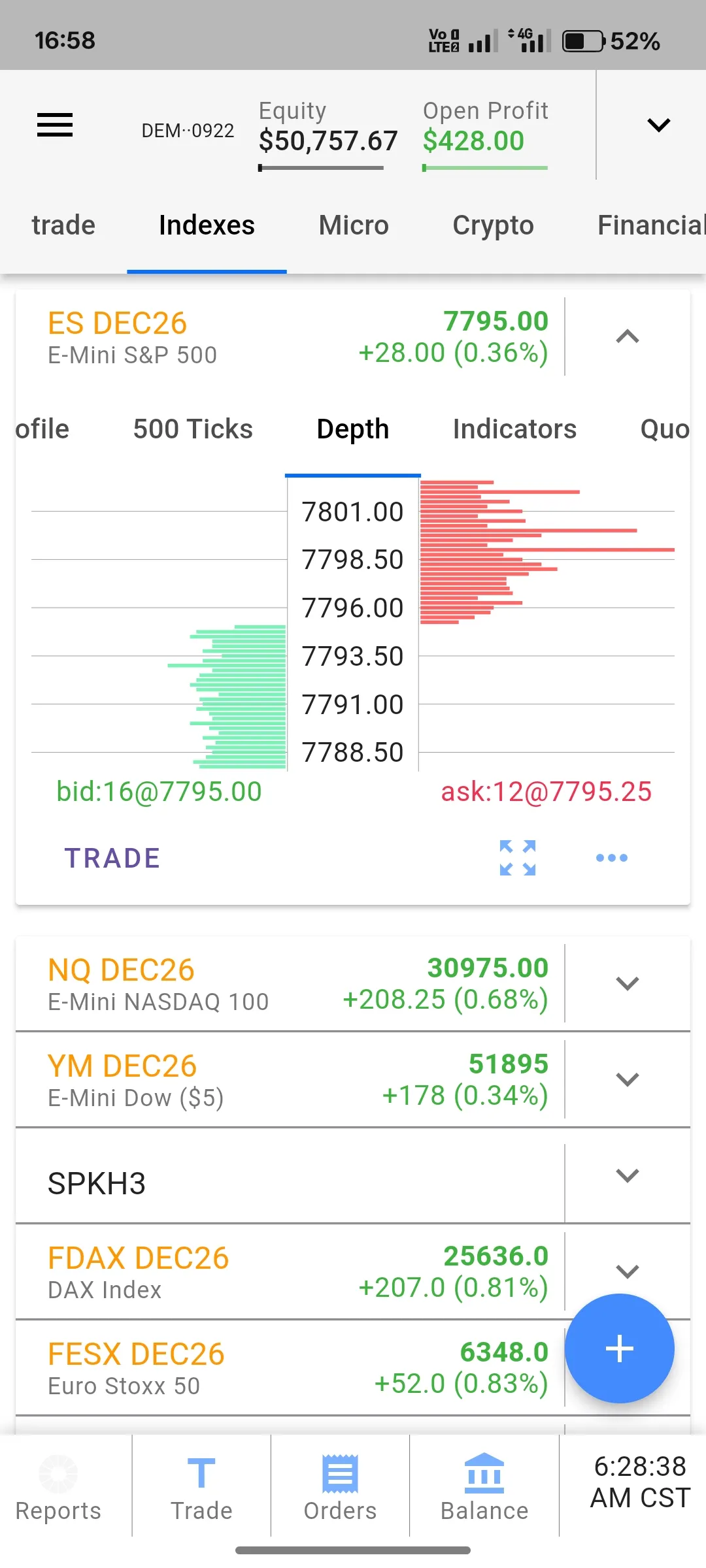
Scelga Buy o Sell e un tipo di ordine
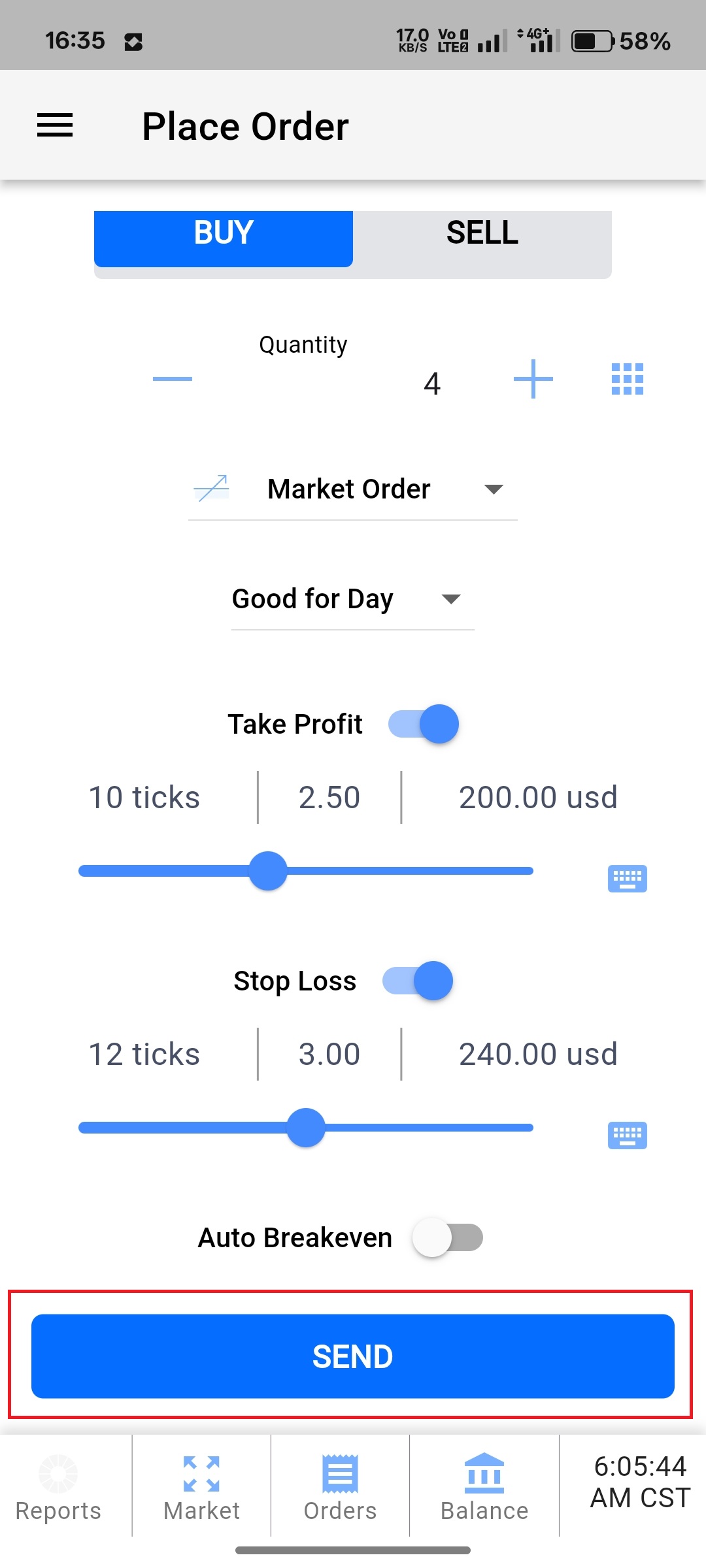
Imposti prima la direzione con il controllo Buy o Sell nella parte superiore del ticket. Poi scelga il tipo di ordine. Il ticket mobile offre Market, Limit, Stop Limit e MIT (Market If Touched). Usi Market quando vuole entrare subito e Limit quando preferisce attendere il suo prezzo. Stop Limit e MIT sono i suoi ingressi condizionali, che scattano solo quando il prezzo raggiunge un livello da lei impostato.
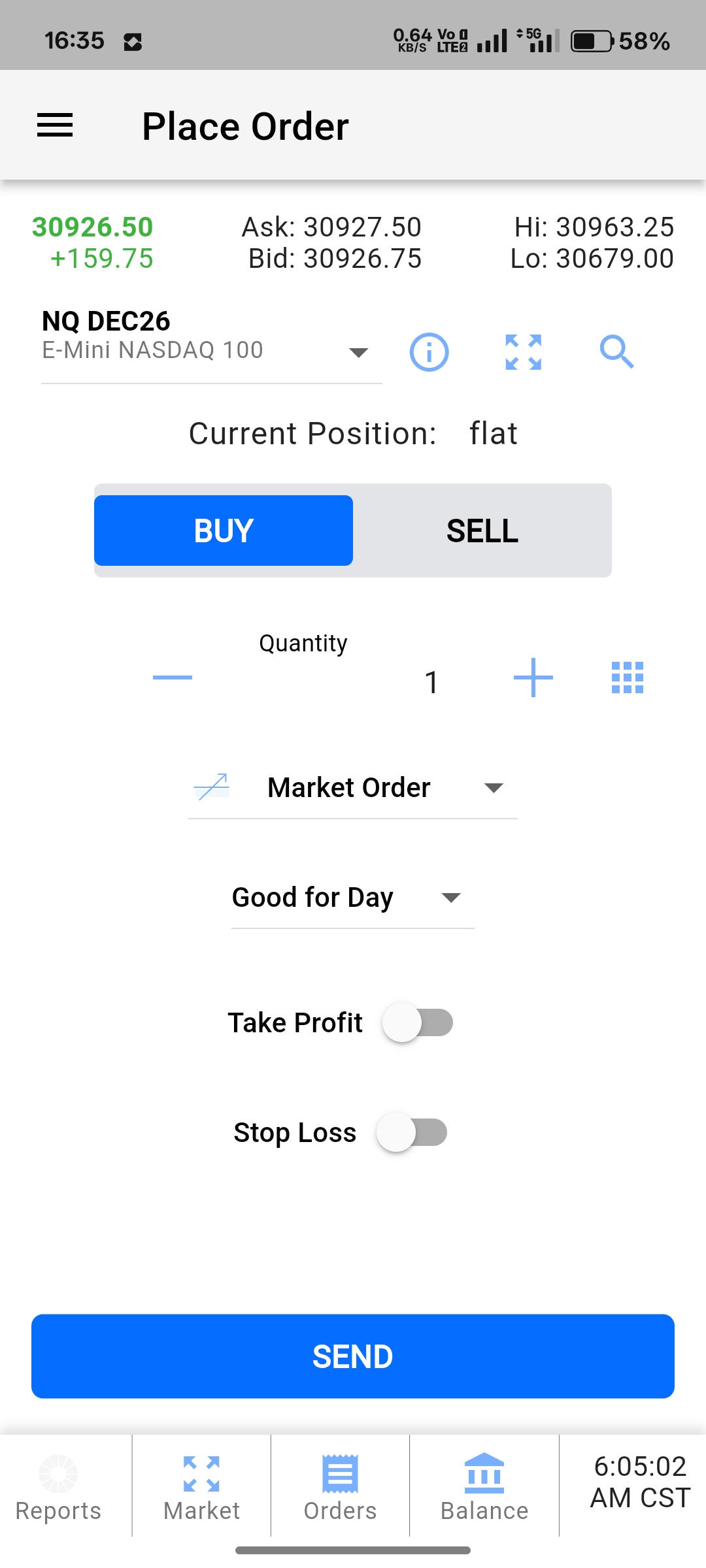
Imposti quantità e prezzo
Inserisca quanti contratti desidera nel campo quantità. Per un ordine Limit, Stop Limit o MIT, digiti il prezzo al quale l’ordine deve lavorare o attivarsi; un ordine Market salta questo passaggio e prende il miglior prezzo disponibile. Un aspetto da controllare su un conto finanziato o di valutazione: la dimensione massima dell’ordine e il limite di posizioni aperte variano in base alla società e alla dimensione del conto, quindi controlli le regole attuali della sua società prima di aumentare la size.
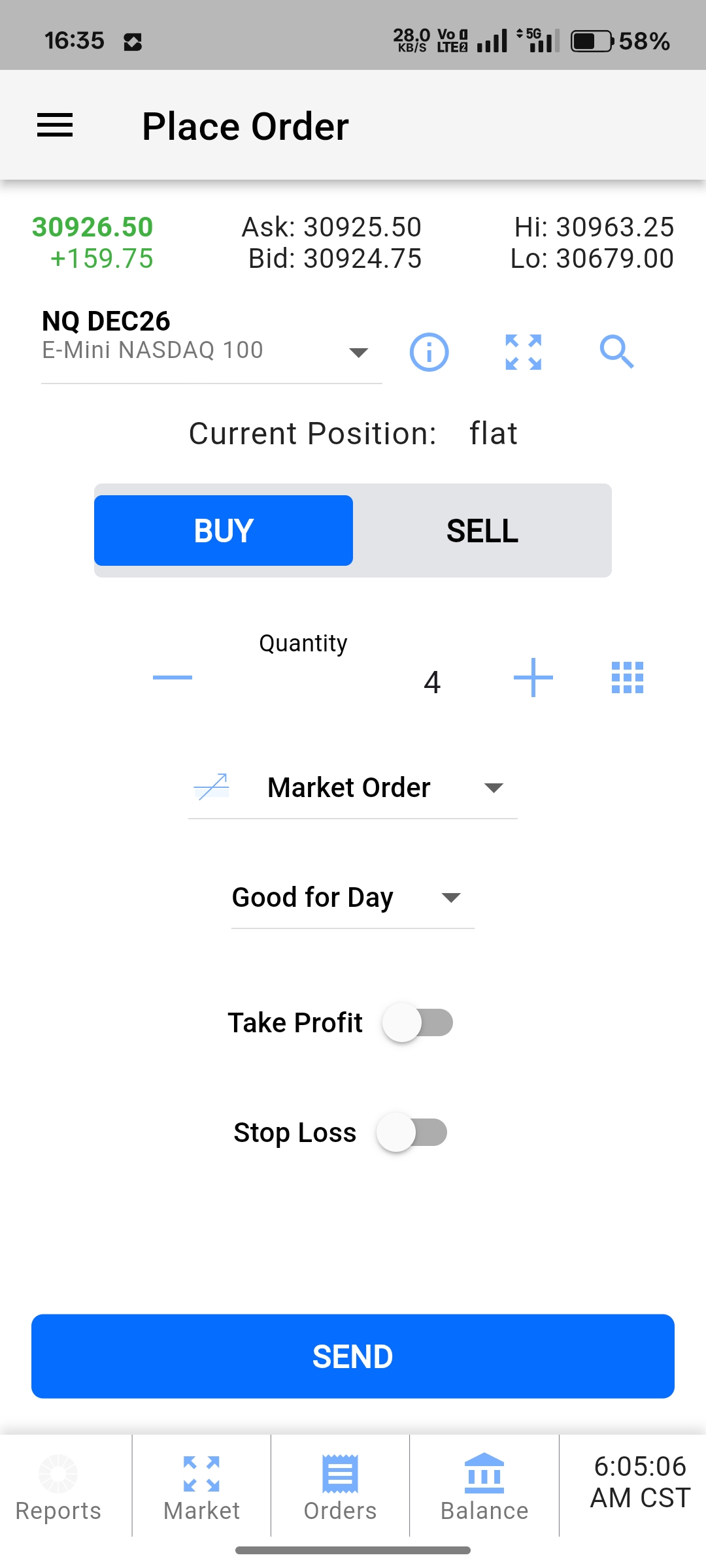
Alleghi un bracket per stop-loss e target
Non deve inviare un ingresso scoperto. Attivi il bracket e imposti uno stop-loss e un target di profitto, di solito in tick, a volte come prezzo. Anche qui è disponibile uno stop trailing se preferisce che lo stop segua il prezzo. Quando il suo ingresso viene eseguito, Tradovate inserisce entrambe le gambe come coppia OCO collegata, così quella che scatta annulla automaticamente l’altra.
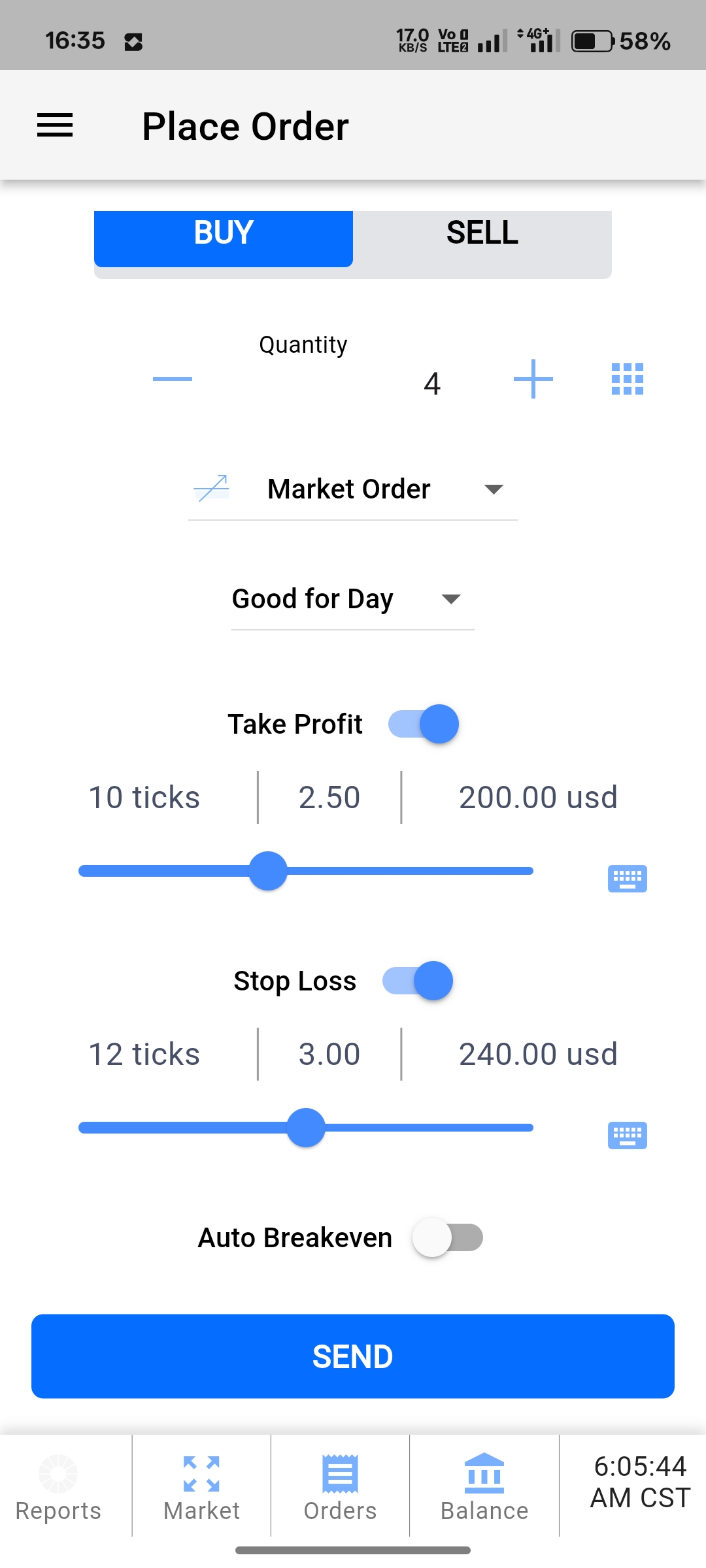
Controlli i valori predefiniti, poi invii
Questo è il passaggio che mette in difficoltà molti. Il ticket non si apre sempre con le stesse impostazioni: aprendolo da Markets potrebbe vedere una quantità e un bracket, entrando da un nuovo accesso o da Positions i valori predefiniti possono essere diversi, anche se non ha mai toccato la schermata del dimensionamento. Si prenda due secondi per confermare che quantità e bracket siano quelli che desidera davvero. Quando tutto è corretto, tocchi Send per inviare.
Gestisca o chiuda da Positions
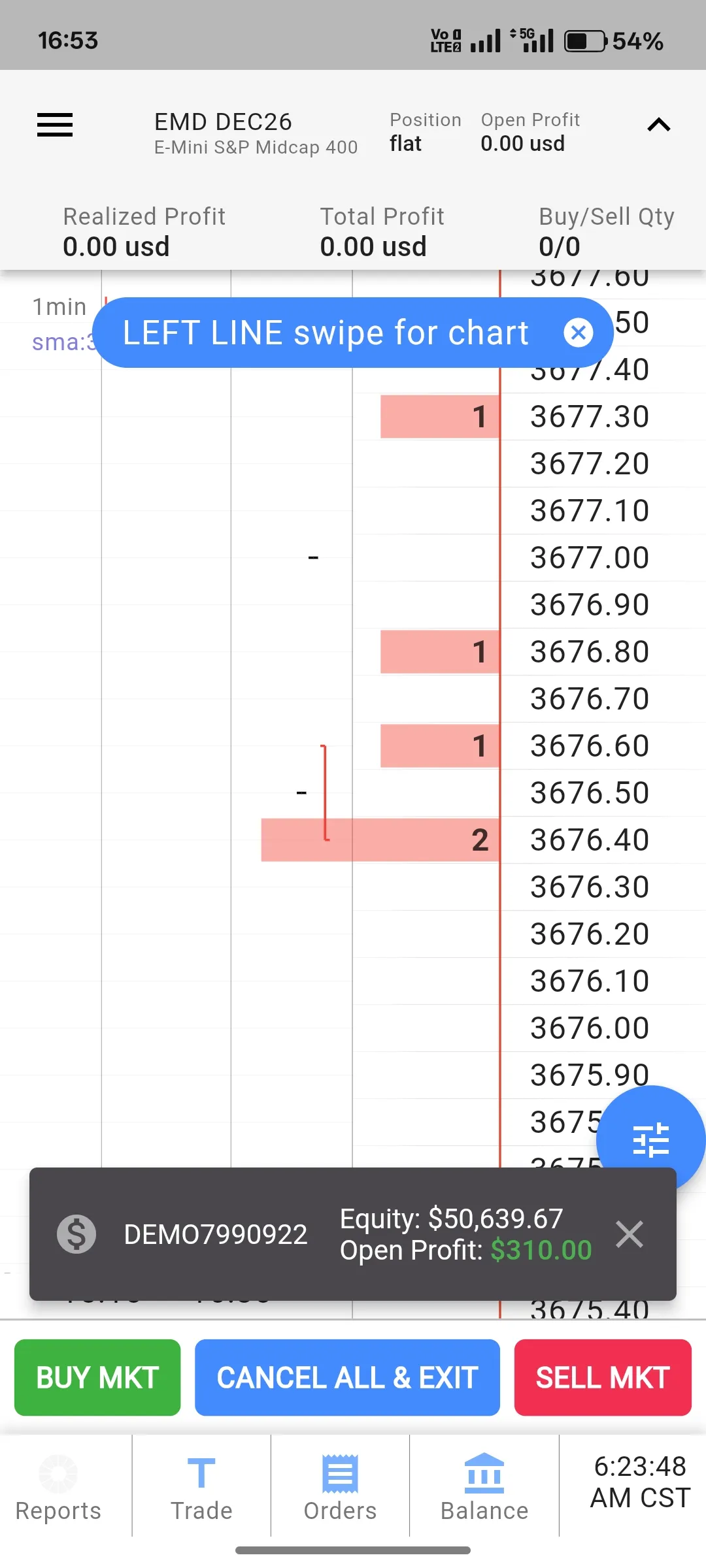
Una volta eseguito, passi alla schermata Positions per gestire il trade. Tocchi il suo contratto aperto per modificare il bracket in attesa, oppure usi i controlli di uscita per invertire o chiudere la posizione. Per uscire da tutto in una volta, Cancel All & Exit All elimina ogni ordine attivo e chiude la posizione con un solo tocco.
Operi meno dal telefono, non di più
Inserire ogni ordine con il pollice va bene finché un setup non scatta mentre è lontano dallo schermo. PickMyTrade instrada i suoi alert di TradingView direttamente al suo conto Tradovate, con ingresso, stop-loss e target allegati, così i segnali vengono eseguiti anche se l’app non è nemmeno aperta.
Lasci che i segnali si eseguano senza fatica del pollice
PickMyTrade instrada i suoi alert di TradingView direttamente a Tradovate con ingresso, stop-loss e target allegati, che l’app sia aperta o meno.
Inizi la prova gratuita di 7 giorniDomande frequenti
Il ticket può caricare impostazioni di quantità e bracket diverse a seconda che lo abbia aperto da Trade, Markets o Positions. Non è lei a modificarle; confermi semplicemente quantità e bracket ogni volta prima di toccare Send.
Il ticket ordini mobile supporta ordini Market, Limit, Stop Limit e MIT (Market If Touched), e può allegare all’ingresso un bracket di stop-loss e target.
Apra la schermata Positions, tocchi il contratto aperto e usi i controlli di uscita. Cancel All & Exit All annulla tutti gli ordini attivi e chiude la posizione in un colpo solo.
Questa guida ha esclusivamente scopo educativo e informativo e non costituisce consulenza finanziaria, di investimento o di trading. Il trading di futures e di altri prodotti a leva comporta un rischio di perdita sostanziale e non è adatto a tutti gli investitori. PickMyTrade è una piattaforma di automazione indipendente di terze parti e non è affiliata, approvata né sponsorizzata da Tradovate, Inc. «Tradovate» e tutti i nomi, loghi e marchi correlati sono di proprietà dei rispettivi titolari. Le funzionalità e i passaggi della piattaforma cambiano nel tempo, quindi confermi sempre la procedura aggiornata nella piattaforma e nella documentazione ufficiali di Tradovate prima di agire.