
Interne Benachrichtigungen in Tradovate Mobile löschen
Die kleinen Update-Meldungen, die sich in der Tradovate-Mobile-App stapeln, können Ihren Bildschirm schnell überladen. So löschen Sie interne Benachrichtigungen, und warum es dafür keinen einzelnen „Aus“-Schalter gibt.
On This Page
Die kleinen Update-Meldungen, die sich in der Tradovate-Mobile-App stapeln, können Ihren Bildschirm schnell überladen, besonders in einer hektischen Session. Wenn sie im Weg sind und Sie sie einfach loswerden möchten, erfahren Sie hier, wie Sie interne Benachrichtigungen auf dem Smartphone löschen, warum es keinen einzelnen „Aus“-Schalter dafür gibt und was Sie stattdessen tun können.
Was sind interne Benachrichtigungen in Tradovate Mobile?
Interne Benachrichtigungen sind die Update-Meldungen, die innerhalb der Tradovate-Mobile-App erscheinen, bannerartige Karten für Dinge wie Order- und Kontoaktualisierungen oder Plattformmitteilungen. Sie sind getrennt von Push-Benachrichtigungen, die außerhalb der App auf Ihrem Smartphone eintreffen, auf dem Sperrbildschirm oder im Benachrichtigungsbereich, auch wenn Tradovate geschlossen ist.
Der Haken dabei: Tradovate bietet keinen Hauptschalter, um interne Benachrichtigungen vollständig auszuschalten. Sie können sie aber einzeln mit einer kurzen Wischgeste löschen und aussetzen. Die beiden Arten werden etwas unterschiedlich behandelt, daher lohnt es sich, sie auseinanderzuhalten:
| Interne Benachrichtigungen | Push-Benachrichtigungen | |
|---|---|---|
| Wo sie erscheinen | In der Tradovate-Mobile-App | Auf Ihrem Smartphone außerhalb der App (Sperrbildschirm / Benachrichtigungsbereich) |
| Wie Sie sie steuern | Jede einzeln wegwischen; kein globaler Aus-Schalter | Schalter in den Geräteeinstellungen und in den Benachrichtigungseinstellungen des Traders |
Interne Benachrichtigungen in Tradovate Mobile löschen: Schritt für Schritt
App öffnen und die Benachrichtigung finden
Melden Sie sich in der Tradovate-Mobile-App an. Wenn eine interne Benachrichtigung ausgelöst wird, erscheint sie als Banner oder Meldungskarte direkt in der App. Suchen Sie die, die Sie loswerden möchten.
Zum Entfernen nach links wischen
Legen Sie den Finger auf die Benachrichtigung und wischen Sie nach links darüber. Wischen Sie weiter, bis die Karte über den Rand gleitet und verschwindet. Diese eine Geste setzt die Benachrichtigung aus und entfernt sie von Ihrem Bildschirm, ganz ohne Menüsuche.
Den Rest einzeln löschen
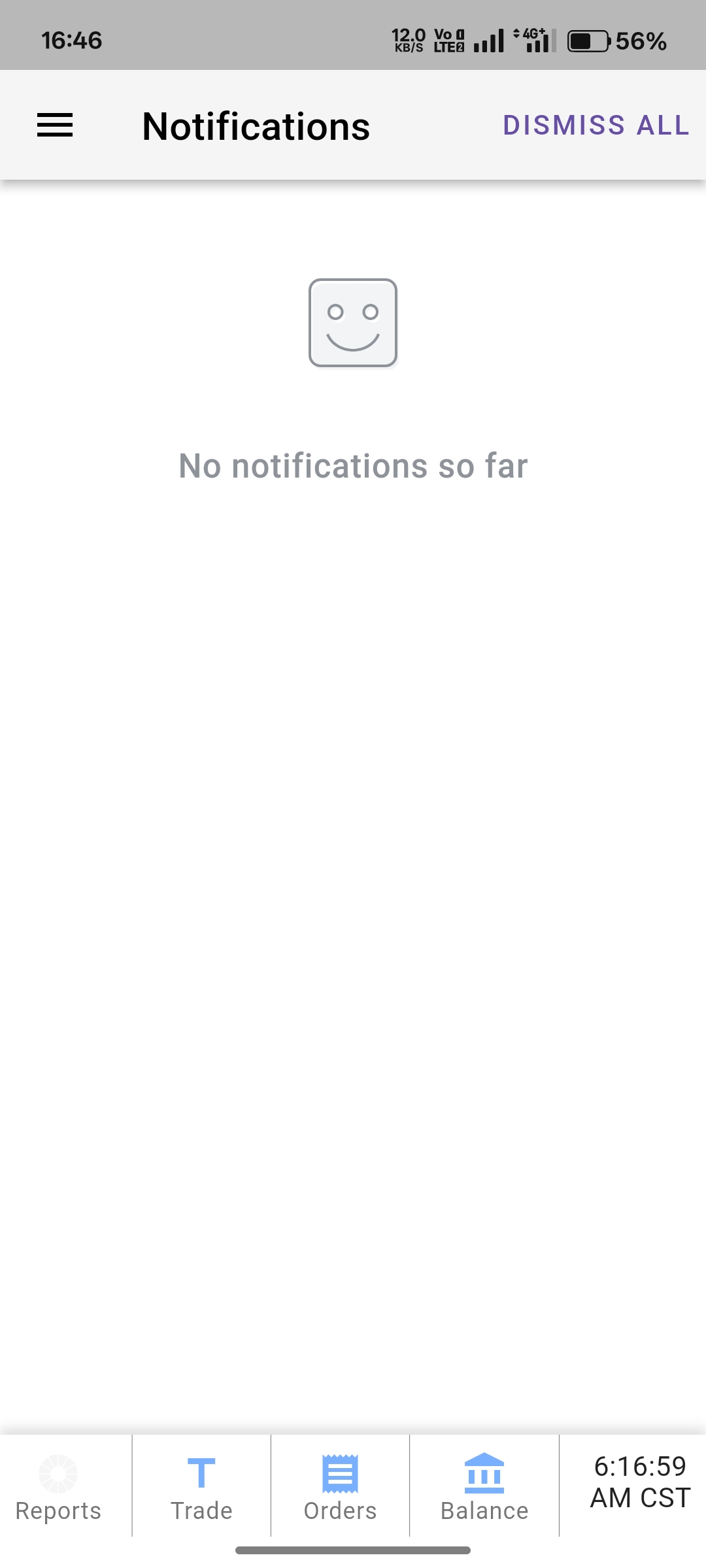
Es gibt keine Schaltfläche „Alle löschen“ und keine Einstellung, die interne Benachrichtigungen dauerhaft ausschaltet. Haben sich also mehrere angesammelt, wiederholen Sie einfach dieselbe Linkswischgeste bei jeder Karte, bis der Bildschirm sauber ist. Sobald Sie die Bewegung heraushaben, dauert es pro Benachrichtigung nur eine Sekunde.
Weniger Pings auf dem Smartphone? Push getrennt behandeln
Wenn Sie eigentlich stört, dass Ihr Smartphone aufleuchtet, während die App geschlossen ist, dann sind das Push-Benachrichtigungen, und die werden separat verwaltet. Zwei Stellen sind relevant: die Benachrichtigungseinstellungen Ihres Smartphones für die Tradovate-App und die Benachrichtigungseinstellungen im Trader (im Web oder auf dem Desktop unter Application Settings). Dort legen Sie fest, welche Ereignisse, etwa Order-Ausführungen und Alerts, Ihr Smartphone überhaupt erreichen dürfen.

Warum Sie sie löschen möchten
- Aufräumen mitten in der Session, Meldungskarten vom Bildschirm entfernen, damit Sie DOM und Chart klar lesen können.
- Veraltete Alerts löschen, eine Meldung wegwischen, auf die Sie bereits reagiert haben, damit sie Sie nicht weiter anstarrt.
- Konzentriert bleiben, das visuelle Rauschen reduzieren, während Sie eine offene Position managen.
- Ihre Optionen kennen, verstehen, dass Wischen heute die Lösung ist, da es keinen Ein/Aus-Schalter für interne Benachrichtigungen gibt.
Automatisieren Sie das mit PickMyTrade
Wenn Sie ständig an der App hängen und Pings löschen, weil Sie auf jedes Signal reagieren wollen, nimmt Ihnen Automatisierung das ab. PickMyTrade leitet Ihre TradingView-Alerts direkt an Ihr Tradovate-Konto weiter, sodass Einstiege, Ausstiege und Brackets von selbst ausgelöst werden. Sie können weiterhin jederzeit nachsehen, Sie hüten nur nicht mehr den Bildschirm auf die nächste Benachrichtigung.
Hören Sie auf, den Bildschirm zu hüten
Lassen Sie PickMyTrade Ihre TradingView-Alerts direkt an Ihr Tradovate-Konto weiterleiten, damit Einstiege, Ausstiege und Brackets von selbst ausgelöst werden.
Starten Sie Ihre kostenlose 7-Tage-TestphaseHäufig gestellte Fragen
Nicht mit einem einzelnen Schalter. Tradovate bietet keinen globalen Schalter zum Deaktivieren interner Benachrichtigungen, daher löschen Sie sie einzeln, indem Sie jede nach links wischen, bis sie vom Bildschirm verschwunden ist.
Nein. Interne Benachrichtigungen erscheinen in der App und werden per Wischen gelöscht. Push-Benachrichtigungen erscheinen außerhalb der App auf Ihrem Smartphone und werden getrennt in Ihren Geräteeinstellungen und in den Benachrichtigungseinstellungen des Traders verwaltet.
Nein. Das Wischen entfernt nur die Meldung auf dem Bildschirm. Ihre Orders, Positionen und Preisalarme laufen genau wie zuvor weiter.
Dieser Leitfaden dient ausschließlich Bildungs- und Informationszwecken und stellt keine Finanz-, Anlage- oder Handelsberatung dar. Der Handel mit Futures und anderen gehebelten Produkten birgt ein erhebliches Verlustrisiko und ist nicht für jeden Anleger geeignet. PickMyTrade ist eine unabhängige Automatisierungsplattform eines Drittanbieters und steht in keiner Verbindung zu Tradovate, Inc., wird nicht von dieser unterstützt oder gesponsert. „Tradovate“ und alle zugehörigen Namen, Logos und Marken sind Eigentum ihrer jeweiligen Inhaber. Plattformfunktionen und Schritte ändern sich im Laufe der Zeit. Prüfen Sie daher stets den aktuellen Ablauf in der offiziellen Tradovate-Plattform und -Dokumentation, bevor Sie handeln.