
Effacer les notifications internes dans Tradovate mobile
Les petits messages de mise à jour qui s’accumulent dans l’application mobile Tradovate peuvent vite encombrer votre écran. Voici comment effacer les notifications internes, et pourquoi il n’existe pas d’interrupteur « désactivé » unique.
On This Page
Les petits messages de mise à jour qui s’accumulent dans l’application mobile Tradovate peuvent vite encombrer votre écran, surtout lors d’une séance chargée. S’ils vous gênent et que vous voulez simplement les faire disparaître, voici exactement comment effacer les notifications internes sur mobile, ainsi que la raison pour laquelle il n’existe pas d’interrupteur « désactivé » unique et ce qu’il faut faire à la place.
Que sont les notifications internes dans Tradovate mobile ?
Les notifications internes sont les messages de mise à jour qui apparaissent à l’intérieur de l’application mobile Tradovate, des cartes de type bannière pour des éléments comme les mises à jour d’ordres et de compte ou les messages de la plateforme. Elles sont distinctes des notifications push, qui arrivent sur votre téléphone en dehors de l’application, sur l’écran de verrouillage ou dans la zone de notifications, même lorsque Tradovate est fermé.
Voici le hic : Tradovate ne vous donne pas de bouton principal pour désactiver complètement les notifications internes. Ce que vous pouvez faire, c’est les effacer et les suspendre une par une d’un simple glissement. Les deux types se gèrent un peu différemment, il est donc utile de bien les distinguer :
| Notifications internes | Notifications push | |
|---|---|---|
| Où elles s’affichent | Dans l’application mobile Tradovate | Sur votre téléphone, en dehors de l’application (écran de verrouillage / zone de notifications) |
| Comment les contrôler | Faire glisser chacune pour l’écarter ; pas d’interrupteur global | Bouton dans les réglages de l’appareil et dans les préférences de notification du trader |
Comment effacer les notifications internes dans Tradovate mobile : pas à pas
Ouvrez l’application et repérez la notification
Connectez-vous à l’application mobile Tradovate. Lorsqu’une notification interne se déclenche, elle apparaît sous forme de bannière ou de carte de message directement dans l’application. Repérez celle dont vous voulez vous débarrasser.
Faites glisser vers la gauche pour la supprimer
Posez le doigt sur la notification et faites-la glisser vers la gauche. Continuez jusqu’à ce que la carte sorte par le bord et disparaisse. Ce simple geste suspend la notification et la retire de votre écran, sans fouiller dans les menus.
Effacez les autres une par une
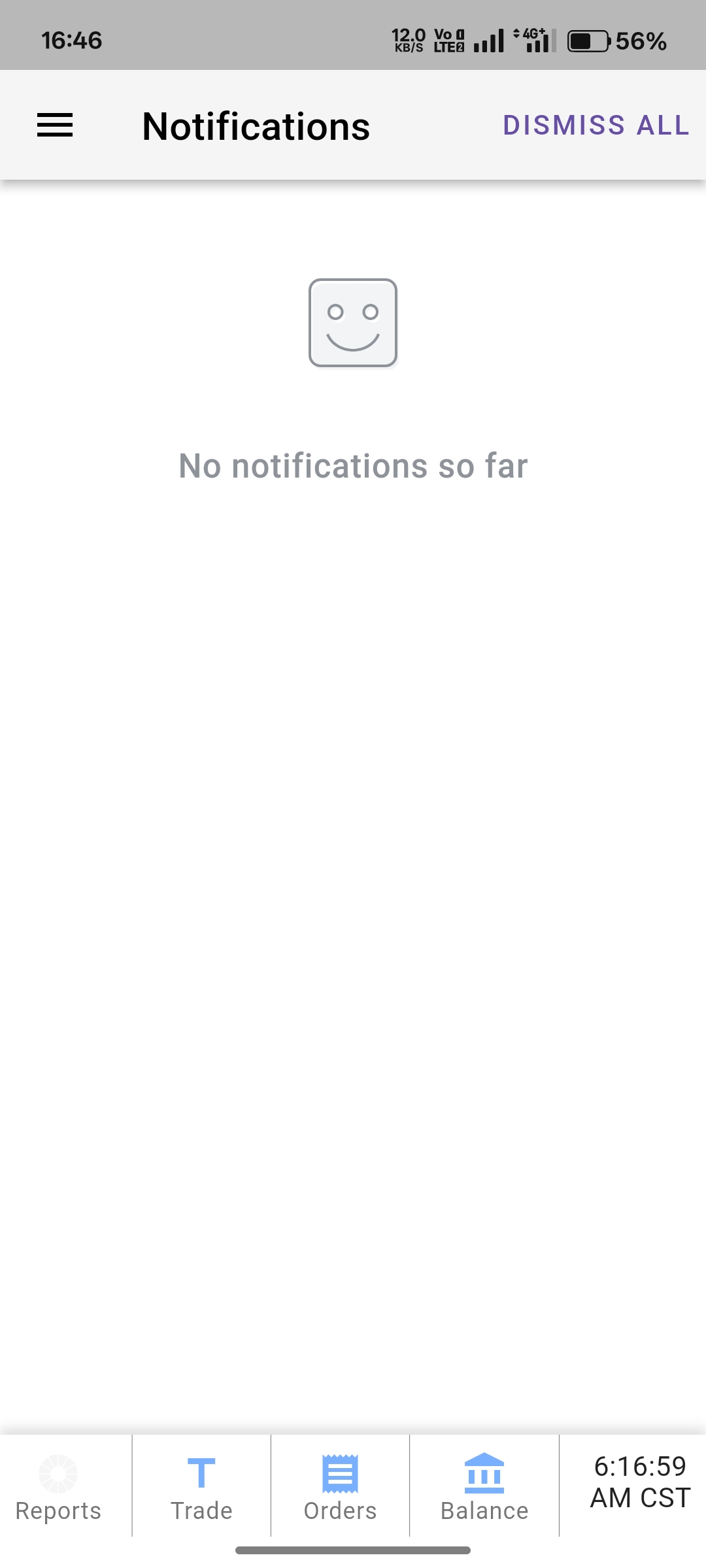
Il n’y a pas de bouton « tout effacer », ni de réglage qui désactive définitivement les notifications internes. Si plusieurs se sont accumulées, répétez donc le même glissement vers la gauche sur chaque carte jusqu’à ce que l’écran soit propre. Cela ne prend qu’une seconde par notification une fois le geste maîtrisé.
Moins de notifications sur votre téléphone ? Gérez les push séparément
Si ce qui vous dérange vraiment, c’est que votre téléphone s’allume alors que l’application est fermée, il s’agit de notifications push, qui se gèrent sur une voie distincte. Deux endroits à consulter : les réglages de notifications de votre téléphone pour l’application Tradovate, et les préférences de notification dans le trader (sur le web ou le bureau, elles se trouvent sous Application Settings). C’est là que vous décidez quels événements, exécutions d’ordres, alertes et autres, ont le droit d’atteindre votre téléphone.

Pourquoi vous voudriez les effacer
- Désencombrer en pleine séance, retirez les cartes de message de l’écran pour lire clairement le DOM et le graphique.
- Effacer les alertes périmées, écartez un avis sur lequel vous avez déjà agi pour qu’il cesse de vous fixer.
- Rester concentré, réduisez le bruit visuel pendant que vous gérez une position ouverte.
- Connaître vos options, comprenez que le glissement est la solution aujourd’hui, puisqu’il n’existe aucun interrupteur marche/arrêt pour les notifications internes.
Automatisez cela avec PickMyTrade
Si vous êtes rivé à l’application à effacer des notifications parce que vous attendez de réagir à chaque signal, l’automatisation vous en décharge. PickMyTrade achemine vos alertes TradingView directement vers votre compte Tradovate, de sorte que les entrées, les sorties et les brackets se déclenchent d’eux-mêmes. Vous pouvez toujours vérifier quand vous le souhaitez ; vous ne surveillez simplement plus l’écran en attendant la prochaine notification.
Cessez de surveiller l’écran
Laissez PickMyTrade acheminer vos alertes TradingView directement vers votre compte Tradovate afin que les entrées, les sorties et les brackets se déclenchent d’eux-mêmes.
Commencez votre essai gratuit de 7 joursQuestions fréquentes
Pas avec un seul interrupteur. Tradovate ne propose pas de bouton global pour désactiver les notifications internes ; vous les effacez donc une par une en faisant glisser chacune vers la gauche jusqu’à ce qu’elle disparaisse de l’écran.
Non. Les notifications internes apparaissent dans l’application et s’effacent d’un glissement. Les notifications push apparaissent sur votre téléphone en dehors de l’application et se gèrent séparément dans les réglages de l’appareil et dans les préférences de notification du trader.
Non. Le glissement efface uniquement le message à l’écran. Vos ordres, vos positions et vos alertes de prix continuent de fonctionner exactement comme avant.
Ce guide est fourni à des fins strictement éducatives et informatives et ne constitue pas un conseil financier, d’investissement ou de trading. Le trading de contrats à terme et d’autres produits à effet de levier comporte un risque de perte important et ne convient pas à tous les investisseurs. PickMyTrade est une plateforme d’automatisation tierce indépendante, non affiliée à Tradovate, Inc., ni approuvée ou parrainée par celle-ci. « Tradovate » ainsi que tous les noms, logos et marques associés sont la propriété de leurs détenteurs respectifs. Les fonctionnalités et les étapes de la plateforme évoluent avec le temps ; vérifiez donc toujours la procédure en vigueur dans la plateforme et la documentation officielles de Tradovate avant d’agir.