
Tradovate-Arbeitsbereiche speichern, exportieren und importieren
Charts, DOMs und eingezeichnete Level bei jedem Neuladen oder Rechnerwechsel von Grund auf neu aufzubauen, nervt schnell. Speichern Sie Ihr komplettes Tradovate-Layout einmal als benannten Arbeitsbereich und exportieren und importieren Sie es dann in Sekunden überall.
On This Page
Sie haben Ihre Charts angeordnet, ein paar DOMs gestapelt, Ihre Watchlist geladen und Ihre wichtigen Level eingezeichnet. Dann laden Sie die Seite neu oder öffnen Tradovate auf einem anderen Laptop, und alles ist weg. Arbeitsbereiche sind die Lösung. Ein Arbeitsbereich ist ein benannter Schnappschuss Ihres gesamten Layouts, den Sie speichern, mit einem Klick neu laden, in eine Datei exportieren und auf jedem Rechner wieder importieren können. So gehen Sie bei allen drei Schritten vor.
Was sind Tradovate-Arbeitsbereiche?
Ein Arbeitsbereich speichert, wo jedes Modul auf Ihrem Bildschirm sitzt, welche Symbole geladen sind, Ihre Chart-Zeitrahmen und -Stile sowie die Trendlinien, Zonen und Unterstützungs-/Widerstandslinien, die Sie gezeichnet haben. Laden Sie ihn neu, und Ihr Schreibtisch kehrt genau so zurück, wie Sie ihn verlassen haben.
Ein Detail, das Sie früh festhalten sollten, weil es viele ins Stolpern bringt: Ihre Zeichnungen werden im Arbeitsbereich gespeichert, nicht in einer Chart-Vorlage. Eine Chart-Vorlage enthält nur Indikatoreinstellungen und das Chart-Styling. Wenn Sie also auf Ihre eingezeichneten Level angewiesen sind, schützt der Arbeitsbereich sie, nicht die Vorlage.
| Was gespeichert wird | Arbeitsbereich | Chart-Vorlage |
|---|---|---|
| Modul-Layout und Fensterpositionen | Ja | Nein |
| Geladene Symbole und Zeitrahmen | Ja | Nein |
| Indikatoren und Chart-Styling | Ja | Ja |
| Trendlinien, Zonen und S/R-Zeichnungen | Ja | Nein |
Tradovate-Arbeitsbereiche speichern, exportieren und importieren: Schritt für Schritt
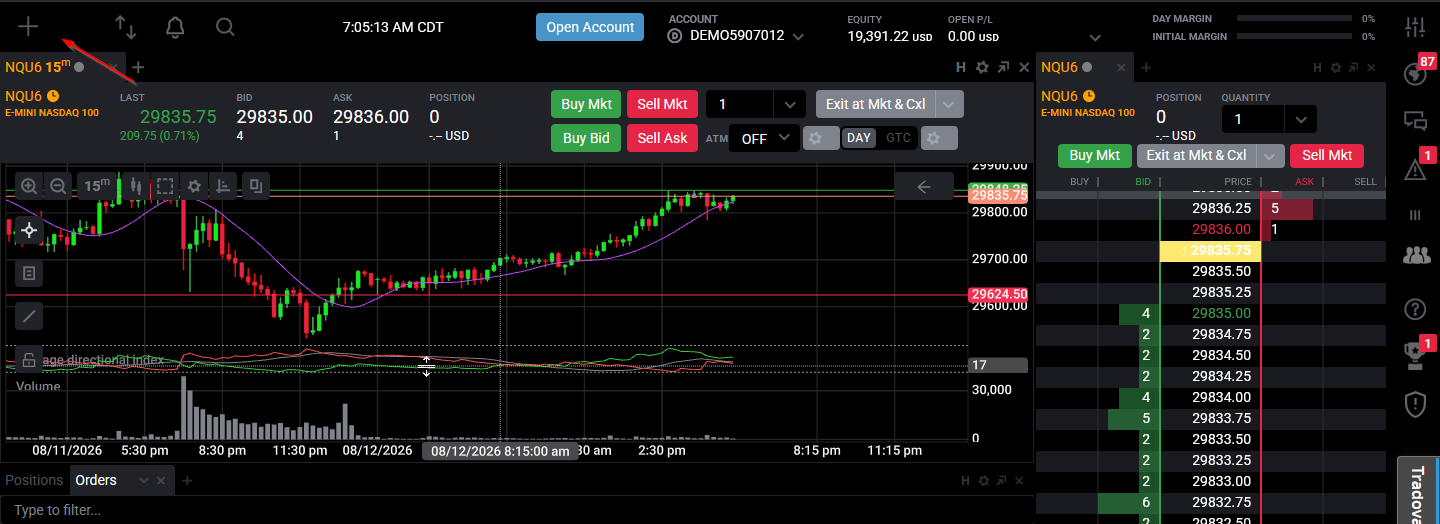
Die Steuerelemente für Arbeitsbereiche befinden sich im Menü oben links in der Tradovate-Web- und -Desktop-App. Die Namen der Schaltflächen haben sich zwischen Plattformversionen etwas verschoben. Wenn eine Bezeichnung unten also nicht exakt zu Ihrem Bildschirm passt, suchen Sie im selben Menü oben links nach dem passenden Symbol.
Arbeitsbereich-Menü öffnen
Gehen Sie in die obere linke Ecke der App und öffnen Sie das Arbeitsbereich-Menü. Sie sehen den Namen Ihres aktuellen Arbeitsbereichs sowie alle bereits gespeicherten Layouts, dazu Optionen zum Erstellen eines neuen, Laden eines vorhandenen, Exportieren und Importieren. Alles in dieser Anleitung beginnt hier.
Neuen Arbeitsbereich erstellen und benennen
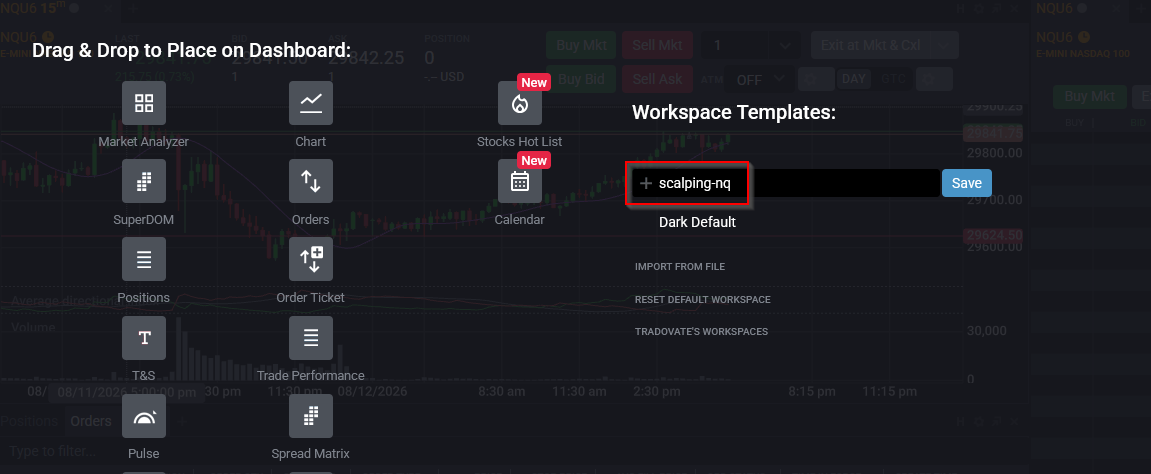
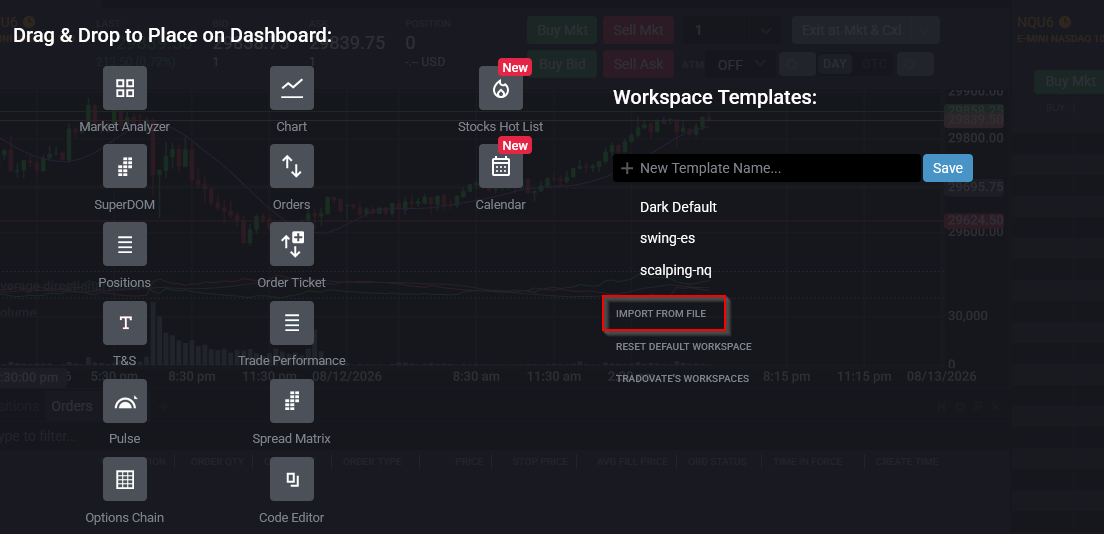
Richten Sie Ihre Charts, DOMs und Module so ein, wie Sie sie haben möchten, und wählen Sie dann die Option zum Erstellen eines neuen Arbeitsbereichs. Geben Sie ihm einen klaren Namen, etwa scalping-nq oder swing-es, und bestätigen Sie. Aussagekräftige Namen zahlen sich schnell aus, wenn Sie mitten in der Sitzung zwischen mehreren Setups wechseln, statt auf “Workspace 3.” zu starren.
Änderungen speichern
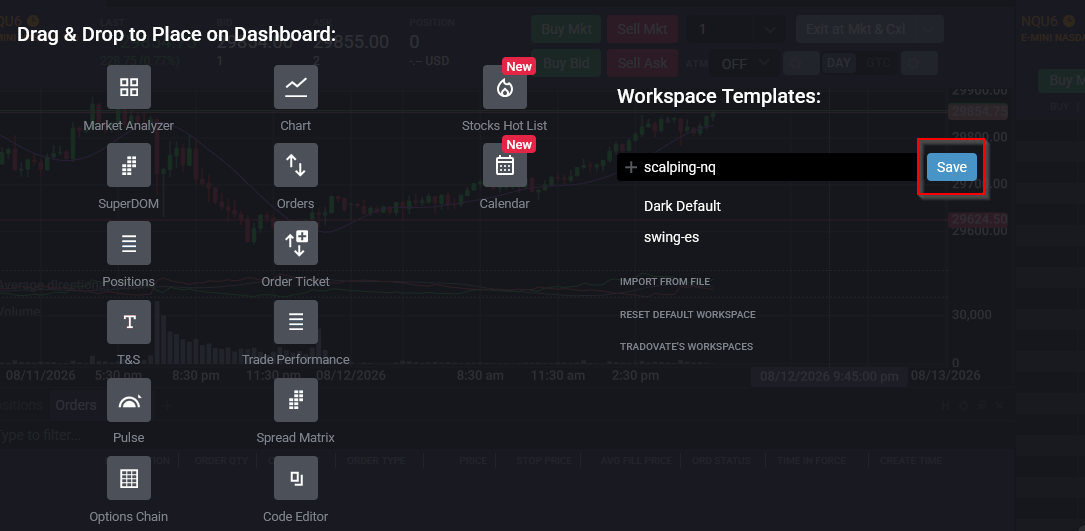
Ein Arbeitsbereich übernimmt nicht jede Änderung in dem Moment, in dem Sie sie vornehmen. Sobald Ihr Layout stimmt, speichern Sie es also. Jedes Mal, wenn Sie Level neu einzeichnen, einen Indikator hinzufügen oder ein Fenster verschieben, speichern Sie erneut, um die Änderungen in den benannten Arbeitsbereich zu übernehmen. Wenn Sie ständig Zonen neu markieren, machen Sie häufiges Speichern zur Gewohnheit, es ist die günstigste Versicherung gegen den Verlust der Vorbereitung eines ganzen Vormittags.
Arbeitsbereich in eine Datei exportieren
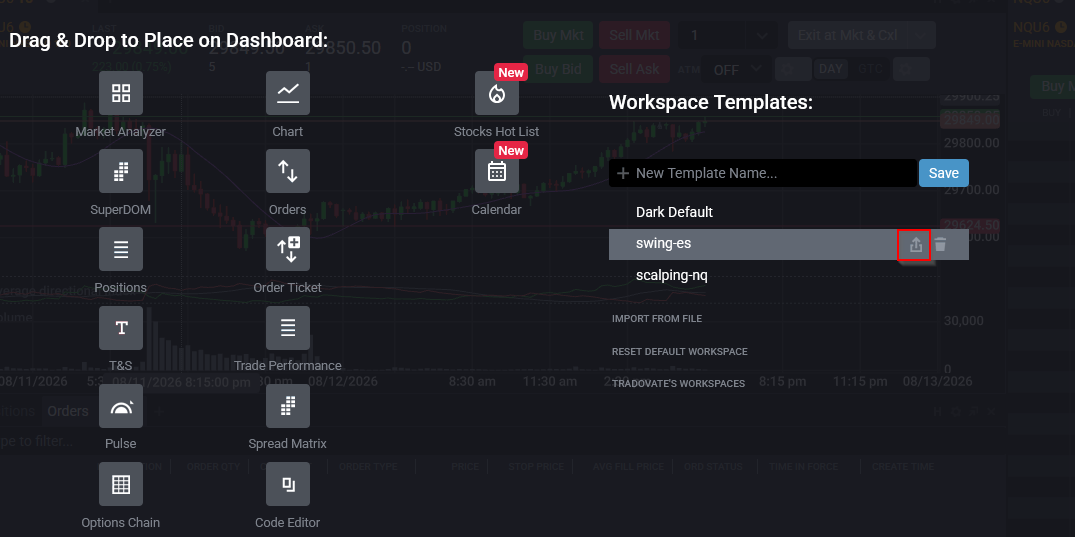
Um einen Arbeitsbereich zu sichern oder anderswohin zu verschieben, exportieren Sie ihn. Öffnen Sie das Arbeitsbereich-Menü, suchen Sie das gewünschte Layout und nutzen Sie das Export-Steuerelement neben seinem Namen (ein Pfeil-nach-oben-Symbol). Tradovate lädt den Arbeitsbereich als .json-Datei auf Ihren Computer herunter. Bewahren Sie diese Datei sicher auf, sie ist eine vollständige Kopie Ihres Setups, die Sie jederzeit wiederherstellen können, und es kostet nichts, vor einem großen Plattform-Update eine anzulegen.
Arbeitsbereich aus einer Datei importieren
Auf einem anderen Rechner, mit einem anderen Login oder nachdem ein Trading-Partner Ihnen sein Layout geschickt hat, wählen Sie im Arbeitsbereich-Menü Import From File und wählen die gespeicherte .json-Datei aus. Ihr importierter Arbeitsbereich erscheint in der Liste und ist bereit zum Laden. Eine Einschränkung vorab: Arbeitsbereiche der Tradovate-Web-App sind nicht mit der NinjaTrader-Desktop-App kompatibel, Sie können also kein Layout zwischen diesen beiden hin- und herschieben.
Warum Sie das brauchen
- Verlieren Sie Ihr Layout nie wieder durch ein Neuladen, einen Absturz oder einen Gerätewechsel.
- Führen Sie getrennte Arbeitsbereiche für getrennte Strategien und wechseln Sie mit einem Klick zwischen ihnen.
- Sichern Sie Ihr gesamtes Setup als Datei vor einem Plattform-Update oder einer Neuinstallation.
- Übertragen Sie Ihr exaktes Layout auf einen neuen Laptop, ohne es von Grund auf neu aufzubauen.
- Geben Sie ein bewährtes Setup als einzelne Datei an einen Trading-Partner oder Mentor weiter.
Automatisieren Sie das mit PickMyTrade
Ein gespeicherter Arbeitsbereich hält Ihre Charts und Level bereit, aber Sie sind weiterhin derjenige, der jede Order platziert. Wenn Ihre Einstiege, Stopps und Ausstiege lieber von selbst ausgelöst werden sollen: PickMyTrade leitet Ihre TradingView-Alerts direkt an Ihr Tradovate-Konto weiter, sodass Trades automatisch ausgeführt werden, während Ihr Layout genau so bleibt, wie Sie es aufgebaut haben.
Automatisieren Sie Ihre Tradovate-Trades
Behalten Sie Ihre Charts, DOMs und eingezeichneten Level genau so, wie Sie sie aufgebaut haben, und überlassen Sie Einstiege, Stopps und Ausstiege automatisch PickMyTrade.
Starten Sie Ihre kostenlose 7-Tage-TestphaseHäufig gestellte Fragen
Sie werden in Ihrem Konto gespeichert und folgen Ihnen daher, wenn Sie sich in der Web- oder Desktop-App anmelden. Exportieren Sie einen Arbeitsbereich in eine .json-Datei, wenn Sie eine Offline-Sicherung möchten oder ein Layout auf ein anderes Login übertragen müssen.
Ja. Trendlinien, Zonen sowie Unterstützungs- und Widerstandslinien liegen im Arbeitsbereich, nicht in der Chart-Vorlage. Speichern Sie den Arbeitsbereich, nachdem Sie Ihre Level eingezeichnet haben, sonst riskieren Sie, sie beim nächsten Neuladen des Layouts zu verlieren.
Nein. Arbeitsbereiche der Web-App und Arbeitsbereiche von NinjaTrader Desktop sind nicht austauschbar. Export und Import funktionieren zwischen der Tradovate-Web-App und der Desktop-App, nicht hinüber zu NinjaTrader.
Diese Anleitung dient ausschließlich Bildungs- und Informationszwecken und stellt keine Finanz-, Anlage- oder Handelsberatung dar. Der Handel mit Futures und anderen gehebelten Produkten birgt ein erhebliches Verlustrisiko und ist nicht für jeden Anleger geeignet. PickMyTrade ist eine unabhängige Automatisierungsplattform eines Drittanbieters und steht in keiner Verbindung zu Tradovate, Inc., wird weder von Tradovate, Inc. unterstützt noch gesponsert. Alle zugehörigen Namen, Logos und Marken sind Eigentum ihrer jeweiligen Inhaber. Funktionen und Schritte der Plattform ändern sich im Laufe der Zeit. Prüfen Sie daher stets den aktuellen Ablauf in der offiziellen Tradovate-Plattform und -Dokumentation, bevor Sie handeln.