
Save, Export & Import Tradovate Workspaces
Rebuilding your charts, DOMs, and drawn levels from scratch every time you refresh or switch machines gets old fast. Save your full Tradovate layout as a named workspace once, then export and import it anywhere in seconds.
On This Page
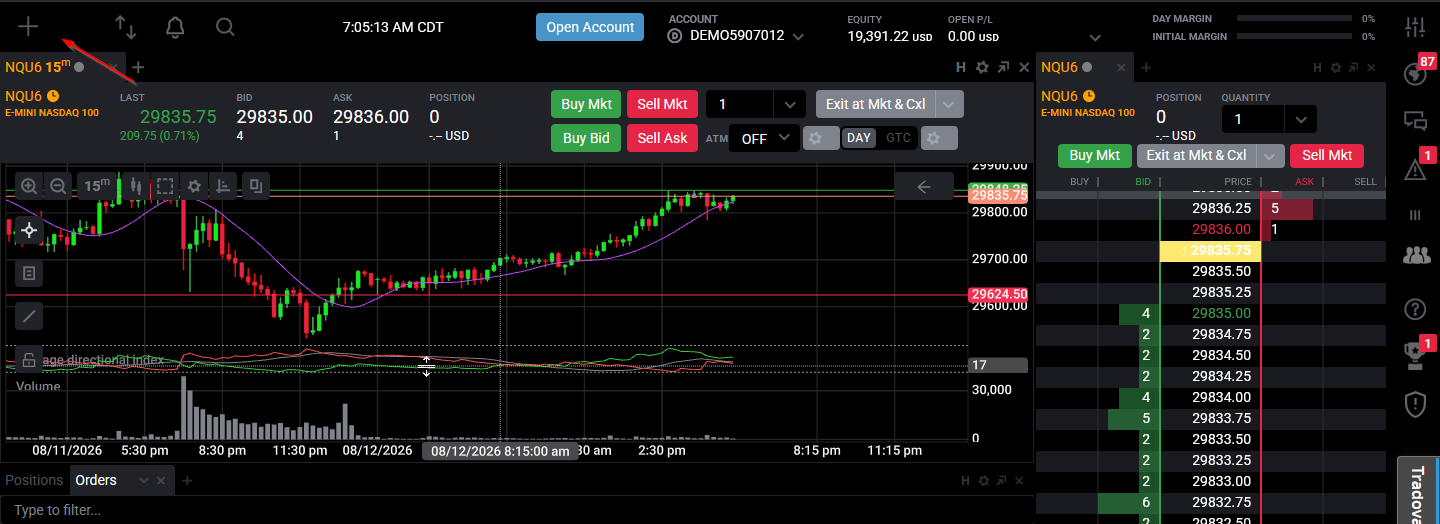
You've arranged your charts, stacked a couple of DOMs, loaded your watchlist, and marked up your key levels. Then you refresh the page, or open Tradovate on a different laptop, and it's all gone. Workspaces are the fix. A workspace is a named snapshot of your whole layout, and you can save it, reload it in one click, export it to a file, and pull it back in on any machine. Here's how to do all three.
What Are Tradovate Workspaces?
A workspace stores where every module sits on your screen, which symbols are loaded, your chart timeframes and styles, and the trendlines, zones, and support/resistance lines you've drawn. Reload it and your desk comes back exactly how you left it.
One detail worth pinning down early, because it trips people up: your drawings save inside the workspace, not inside a chart template. A chart template only carries indicator settings and chart styling. So if you live and die by your marked-up levels, the workspace is what protects them, not the template.
| What it holds | Workspace | Chart template |
|---|---|---|
| Module layout and window positions | Yes | No |
| Loaded symbols and timeframes | Yes | No |
| Indicators and chart styling | Yes | Yes |
| Trendlines, zones, and S/R drawings | Yes | No |
Save, Export & Import Tradovate Workspaces: Step-by-Step
The workspace controls live in the menu at the top-left of the Tradovate web and desktop apps. Button names have shifted a little between platform versions, so if a label below doesn't match your screen exactly, look for the matching icon in that same top-left menu.
Open the Workspace Menu
Head to the top-left corner of the app and open the workspace menu. You'll see the name of your current workspace plus any layouts you've already saved, with options to create a new one, load an existing one, export, and import. Everything in this guide starts from here.
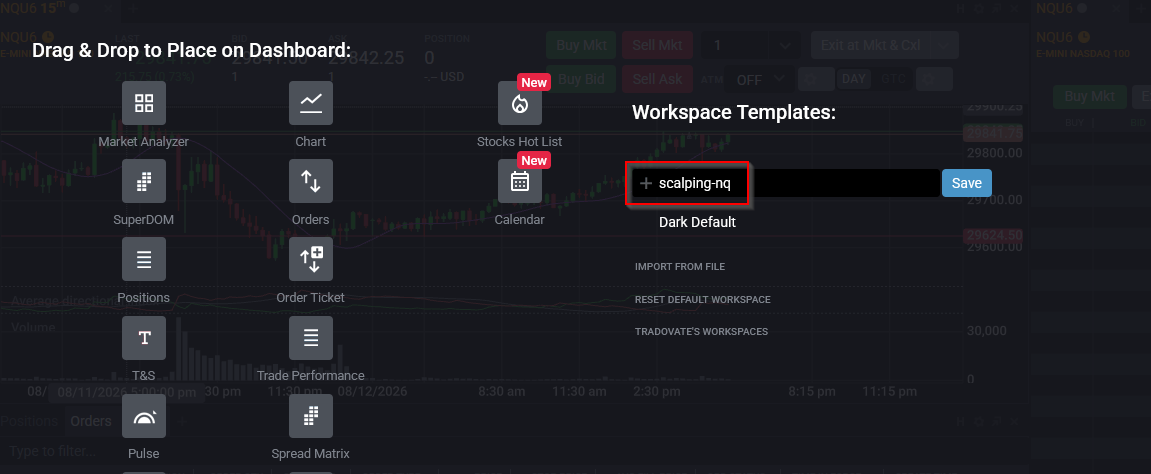
Create and Name a New Workspace
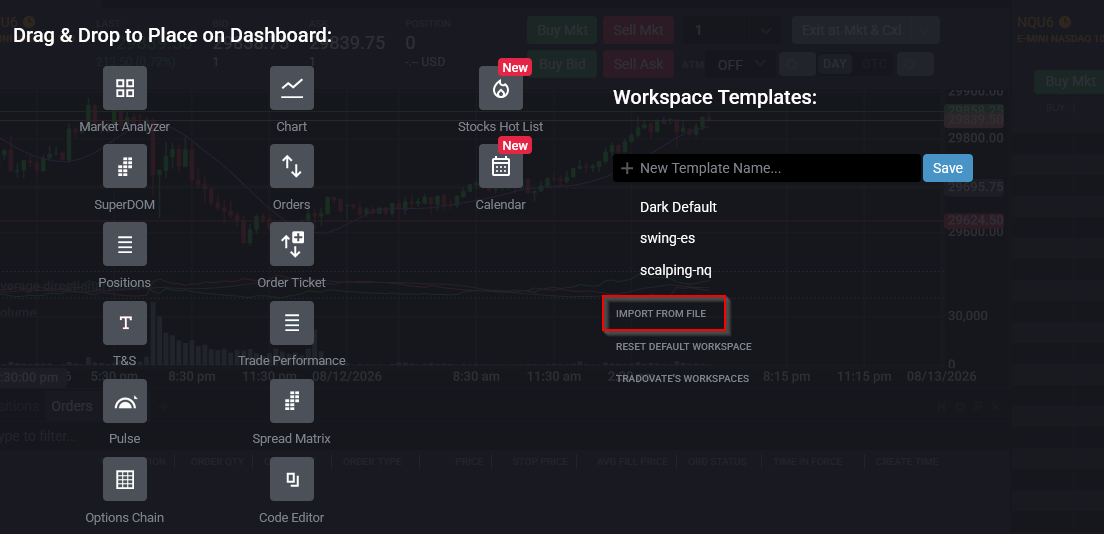
Set your charts, DOMs, and modules the way you want them, then choose the option to create a new workspace. Give it a clear name, something like scalping-nq or swing-es, and confirm. Descriptive names pay off fast once you're flipping between several setups mid-session instead of squinting at “Workspace 3.”
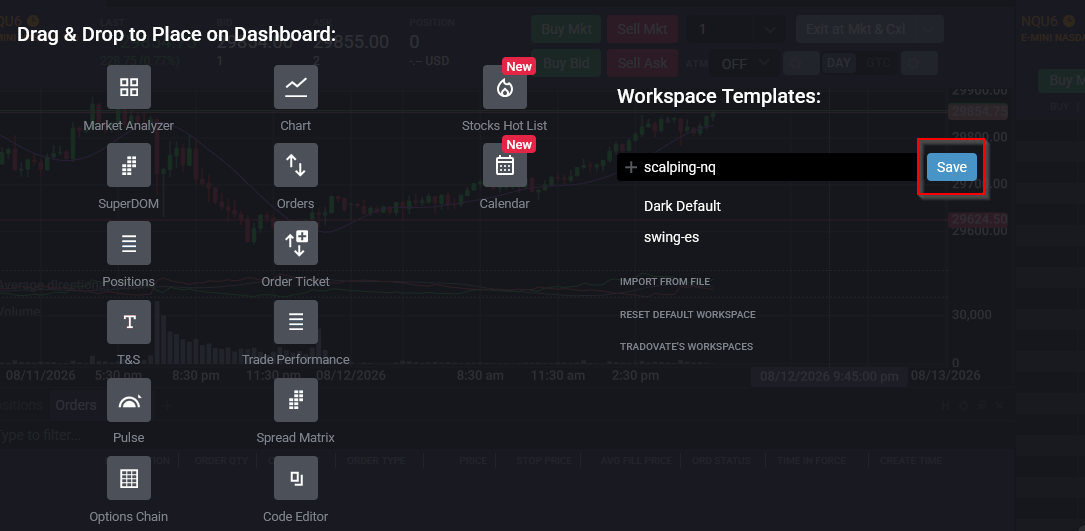
Save Your Changes
A workspace doesn't lock in every tweak the instant you make it, so once your layout looks right, save it. Any time you redraw levels, add an indicator, or move a panel, save again to fold those changes into the named workspace. If you're constantly re-marking zones, build the habit of saving often, it's the cheapest insurance there is against losing a morning's prep.
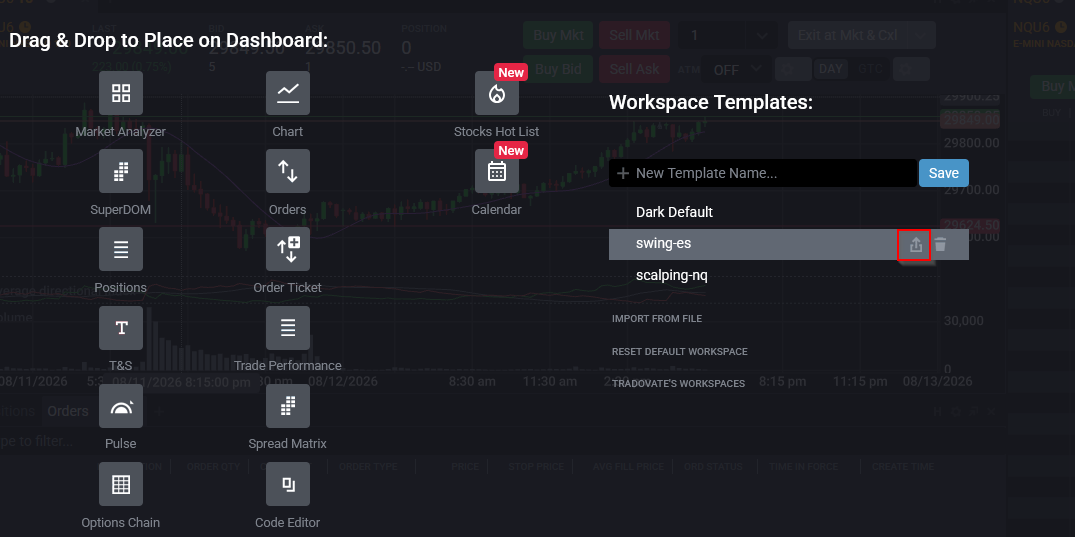
Export a Workspace to a File
To back a workspace up or move it somewhere else, export it. Open the workspace menu, find the layout you want, and use the export control next to its name (an up-arrow icon). Tradovate downloads the workspace as a .json file to your computer. Keep that file somewhere safe, it's a full copy of your setup you can restore any time, and it costs nothing to make one before a big platform update.
Import a Workspace From a File
On another machine, a different login, or after a trading partner sends you their layout, choose Import From File in the workspace menu and pick the .json you saved. Your imported workspace shows up in the list, ready to load. One limit to know up front: workspaces from the Tradovate web app aren't compatible with the NinjaTrader Desktop app, so you can't shuttle a layout between those two.
Why You'd Need This
- Never lose your layout to a refresh, a crash, or a switch to a new device again.
- Keep separate workspaces for separate strategies and jump between them in one click.
- Back up your whole setup as a file before a platform update or a reinstall.
- Move your exact layout to a new laptop without rebuilding it from scratch.
- Hand a proven setup to a trading partner or mentor as a single file.
Automate This With PickMyTrade
A saved workspace keeps your charts and levels ready, but you're still the one placing every order. If you'd rather your entries, stops, and exits fire on their own, PickMyTrade wires your TradingView alerts straight to your Tradovate account so trades execute automatically while your layout stays exactly how you built it.
Automate Your Tradovate Trades
Keep your charts, DOMs, and drawn levels exactly how you built them, and let PickMyTrade handle entries, stops, and exits automatically.
Start Your Free 7-Day TrialFrequently Asked Questions
They're saved to your account, so they follow you when you log in on the web or desktop app. Export a workspace to a .json file when you want an offline backup or need to move a layout to a different login.
Yes. Trendlines, zones, and support/resistance lines live inside the workspace, not the chart template. Save the workspace after you mark up your levels, or you risk losing them the next time the layout reloads.
No. Web-app workspaces and NinjaTrader Desktop workspaces aren't interchangeable. Export and import work between the Tradovate web and desktop apps, not across to NinjaTrader.
This guide is for educational and informational purposes only and is not financial, investment, or trading advice. Trading futures and other leveraged products carries a substantial risk of loss and is not suitable for every investor. PickMyTrade is an independent third-party automation platform and is not affiliated with, endorsed by, or sponsored by Tradovate, Inc. All related names, logos, and trademarks are the property of their respective owners. Platform features and steps change over time, so always confirm the current process in the official Tradovate platform and documentation before acting.