
Apra un conto di trading simulato Tradovate gratuito
Vuole esercitarsi nel trading di futures senza rischiare un solo dollaro? Un conto demo Tradovate è il modo più pulito per farlo. Ecco come aprirne uno, passo dopo passo.
On This Page
Vuole esercitarsi nel trading di futures senza rischiare un solo dollaro? Un conto demo Tradovate è il modo più pulito per farlo. Che stia imparando la piattaforma, mettendo alla prova una strategia o configurando un'automazione come PickMyTrade, questa guida Le mostra come aprirne uno, passo dopo passo.
Che cos'è un conto di trading simulato Tradovate?
Un conto di trading simulato Tradovate (lo troverà chiamato anche demo o prova gratuita) è una copia priva di rischi della piattaforma live, finanziata con denaro di pratica anziché con contanti reali. Ottiene dati di futures in tempo reale e l'interfaccia di trading completa per un periodo di prova limitato. Ciò significa che può inviare ordini simulati illimitati e familiarizzare con ogni strumento prima ancora di finanziare un conto live.
Avvii la Sua demo Tradovate gratuita: passo dopo passo
Apra la pagina della prova gratuita di Tradovate
Vada sul sito web di Tradovate e apra la pagina della prova gratuita / trading simulato, quindi faccia clic sul pulsante che avvia la registrazione alla demo gratuita. Tradovate la presenta come un conto di trading di futures gratuito di 14 giorni con 50.000 $ di fondi di pratica e dati di mercato in tempo reale gratuiti.

Inserisca i Suoi dati e crei il conto
Compili il modulo di registrazione con nome ed e-mail, scelga una password e accetti i termini di servizio. Tutto qui. La demo richiede soltanto i dati di contatto essenziali, quindi per iniziare non servono né carta di credito né deposito.
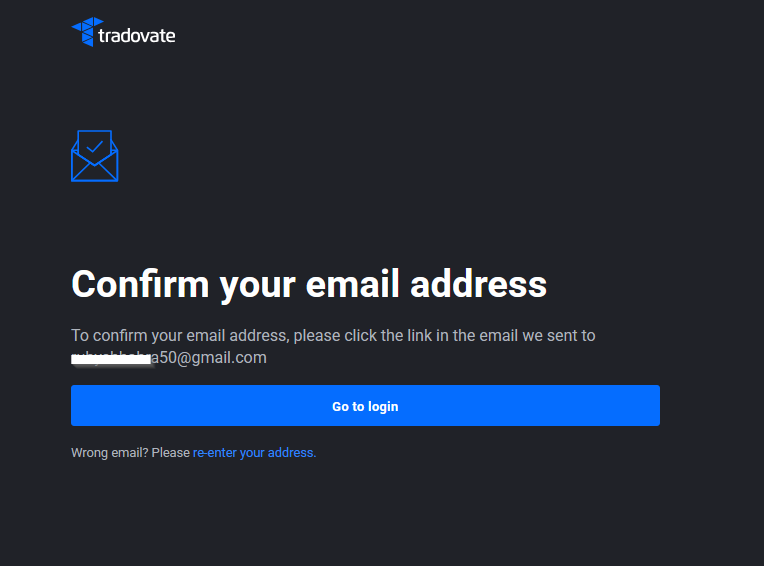
Verifichi il Suo indirizzo e-mail
Dopo la registrazione, Tradovate Le invia un'e-mail di conferma. La apra e faccia clic sul link di verifica per attivare il Suo conto di trading simulato. Se non è arrivata entro pochi minuti, controlli la cartella spam o promozioni prima di pensare che qualcosa sia andato storto.
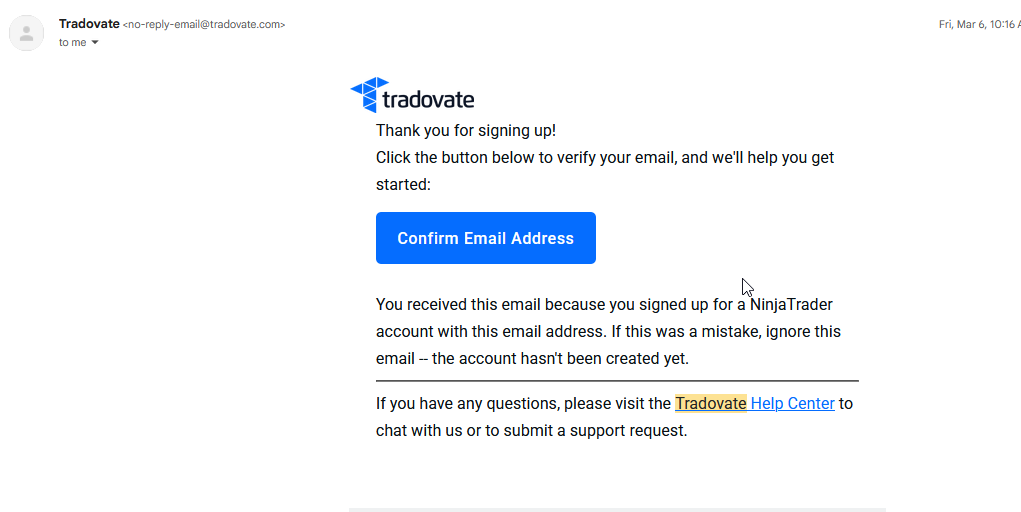
Acceda e selezioni la modalità Simulation
Acceda con le Sue nuove credenziali dal web, dal desktop o dall'app mobile. Al momento della connessione, scelga l'ambiente Simulation (demo) anziché Live. È questo l'interruttore che indirizza i Suoi ordini al motore di pratica e non a uno reale, quindi lo ricontrolli prima di inserire qualsiasi ordine.
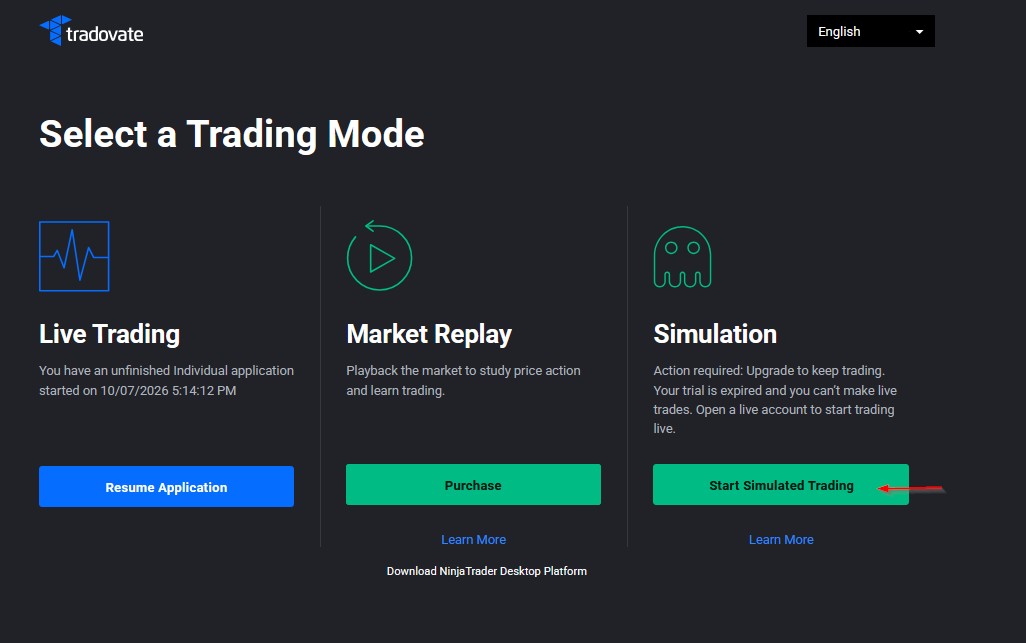
Inizi a inserire trade simulati
Ora dispone di un conto di pratica finanziato. Apra un grafico o il DOM, inserisca ordini di acquisto e di vendita e provi bracket, trailing stop e Market Replay. Tradovate Le consente inoltre di modificare il saldo iniziale, così può dimensionare il conto in base a come intende davvero operare.
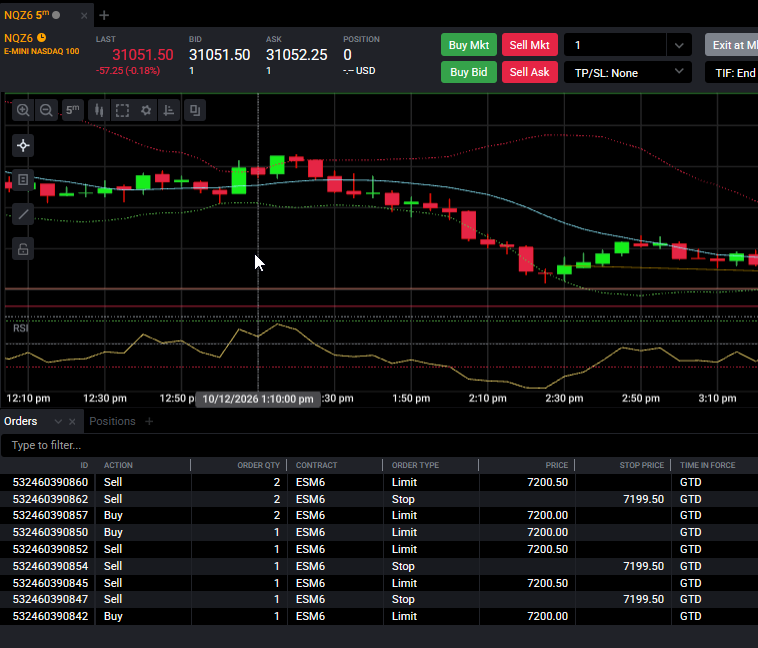
Perché potrebbe servirLe
- Imparare la piattaforma: acquisisca dimestichezza con il DOM, i grafici e i tipi di ordine prima di mettere in gioco denaro reale.
- Testare una strategia: operi su mercati in movimento con fondi di pratica e osservi come si comporta davvero un'idea.
- Provare l'automazione: colleghi un webhook o un bridge e verifichi in un ambiente sicuro che i Suoi alert si attivino correttamente.
- Valutare il broker: decida se Tradovate si adatta al Suo modo di lavorare prima di aprire e finanziare un conto live.
Automatizzi tutto con PickMyTrade
Una volta avviata la demo, PickMyTrade collega direttamente i Suoi alert di TradingView al Suo conto Tradovate, così ingressi, uscite e bracket si attivano automaticamente, senza clic manuali. È il modo più rapido per scoprire se una strategia automatizzata regge su dati simulati prima di passare al live.
Automatizzi i Suoi trade su Tradovate
Una volta avviata la demo, lasci che PickMyTrade colleghi i Suoi alert di TradingView direttamente al Suo conto Tradovate, così ingressi, uscite e bracket si attivano automaticamente.
Inizi la Sua prova gratuita di 7 giorniDomande frequenti
Tradovate pubblicizza una prova gratuita di 14 giorni (due settimane). Quando questo periodo termina, l'accesso demo scade e di norma non può essere reimpostato con la stessa e-mail, quindi dovrebbe aprire un conto live o registrare una nuova prova per continuare a fare pratica.
No. Il conto simulato richiede soltanto un nome e un indirizzo e-mail. Non servono carta di credito né finanziamento per cominciare.
Sì. Tradovate include dati di futures in tempo reale gratuiti nell'ambiente simulato, anche se alcuni feed di dati avanzati o premium possono richiedere un abbonamento separato.
Questa guida ha esclusivamente finalità educative e informative e non costituisce consulenza finanziaria, di investimento o di trading. Il trading di futures e di altri prodotti a leva comporta un rischio sostanziale di perdita e non è adatto a tutti gli investitori. PickMyTrade è una piattaforma di automazione indipendente di terze parti e non è affiliata, approvata né sponsorizzata da Tradovate, Inc. «Tradovate» e tutti i nomi, loghi e marchi correlati sono di proprietà dei rispettivi titolari. Le funzionalità e i passaggi della piattaforma cambiano nel tempo: confermi sempre la procedura attuale nella piattaforma e nella documentazione ufficiali di Tradovate prima di agire.