
Accedere alle notizie di mercato in Tradovate
I futures si muovono in fretta quando esce un titolo. Ecco come aprire il feed di notizie integrato di Tradovate, leggere le notizie che contano e tenere un pannello news sullo schermo mentre lavora sulla ladder.
On This Page
I futures si muovono in fretta quando esce un titolo, e passare a un sito di notizie separato nel mezzo di un trade è un buon modo per perdere il fill che voleva. Per le basi non servono né un secondo monitor né un terminale di notizie a pagamento. Tradovate ha un feed di notizie in tempo reale integrato nella piattaforma, che attinge a più di una dozzina di fonti. Ecco come aprirlo, leggere le notizie che contano e tenere un pannello news sullo schermo mentre lavora sulla ladder.
Risposta rapida: faccia clic sull'icona del globo nell'angolo in alto a destra della barra degli strumenti di Tradovate. Si apre il feed di notizie attuale con gli ultimi titoli. Faccia clic su un titolo per leggerlo, quindi scelga View Full Article per aprire l'articolo completo in una nuova finestra.
Cosa offre il feed di notizie integrato
Il feed è un elenco continuo di titoli aggregati da un mix RSS di oltre una dozzina di fornitori, così ottiene una copertura generale del mercato e i commenti sui rilasci economici senza lasciare lo schermo di trading. Serve a rimanere aggiornati, non per le quotazioni in tempo reale. I prezzi in streaming sono un'altra cosa, legata al suo abbonamento ai dati di mercato: leggere le notizie non comporta quindi alcun costo per i dati, ma non sostituisce nemmeno un feed in tempo reale.
Aprire le notizie di mercato di Tradovate: passo dopo passo
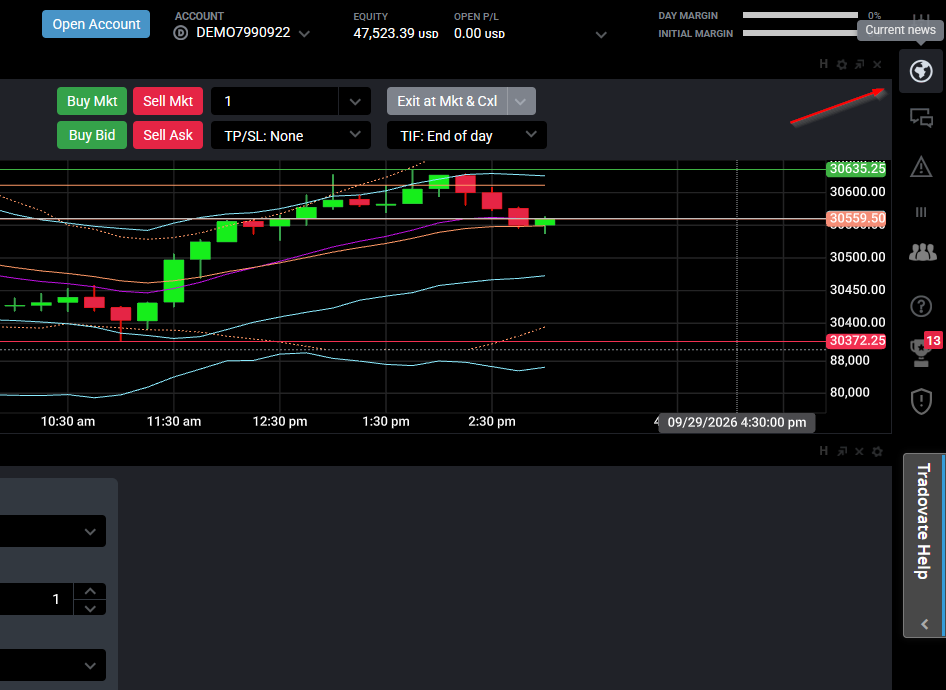
Trovi l'icona del globo
Acceda a Tradovate dal web o dal desktop e guardi l'angolo in alto a destra della barra degli strumenti principale. La piccola icona del globo è la scorciatoia per le notizie attuali. Si trova vicino ai controlli di account e impostazioni, lontano dagli strumenti per ordini e grafici sulla sinistra.
Apra i titoli
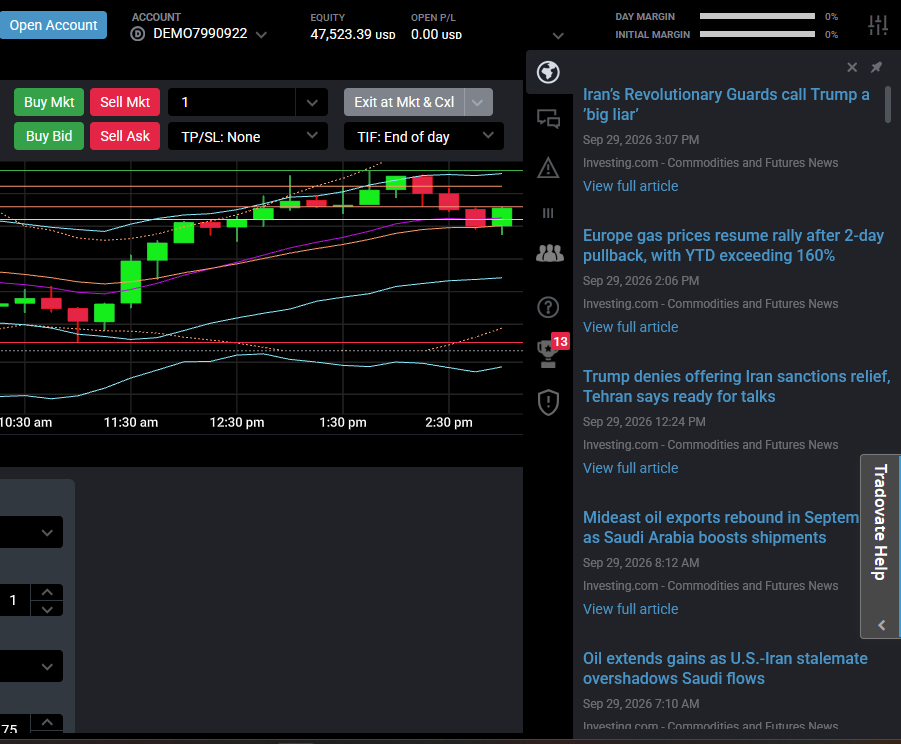
Faccia clic sul globo. Si apre un pannello con le notizie più recenti in alto, ciascuna con un titolo e un orario. Scorra per tornare agli elementi più vecchi. Poiché il feed unisce più di una dozzina di fonti, vedrà un'ampia gamma di copertura finanziaria ed economica anziché una singola agenzia.
Legga la notizia completa
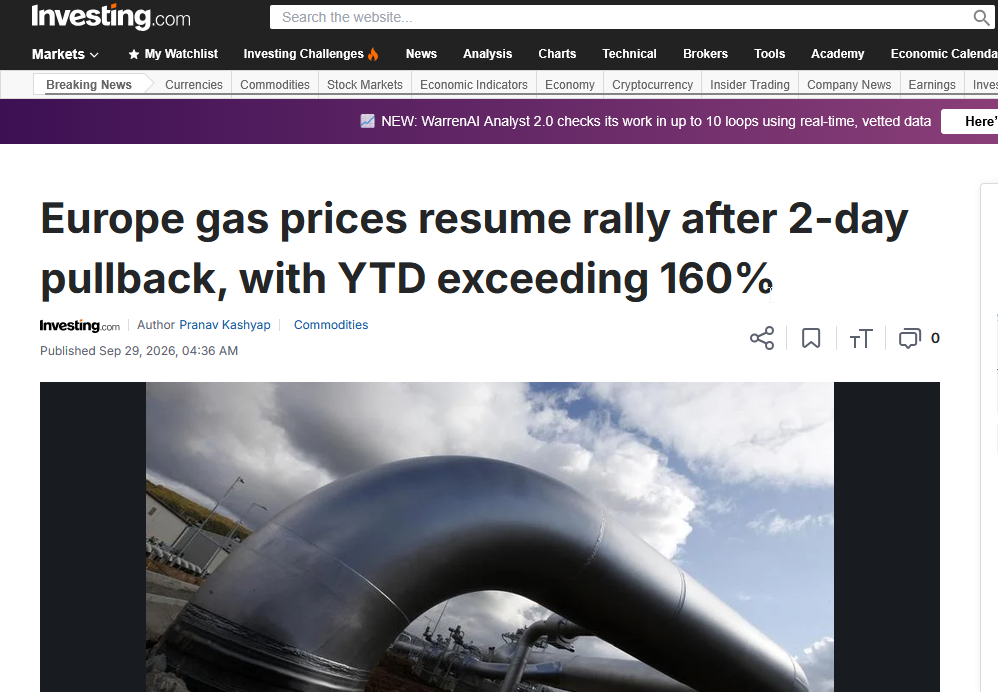
I titoli da soli raramente bastano. Ne selezioni uno per espandere l'anteprima, poi faccia clic su View Full Article per aprire l'articolo completo in una nuova finestra del browser. Il suo spazio di lavoro Tradovate resta esattamente dove lo ha lasciato, così può leggere i dettagli e tornare subito alle sue posizioni.
Tenga un pannello news nel suo spazio di lavoro
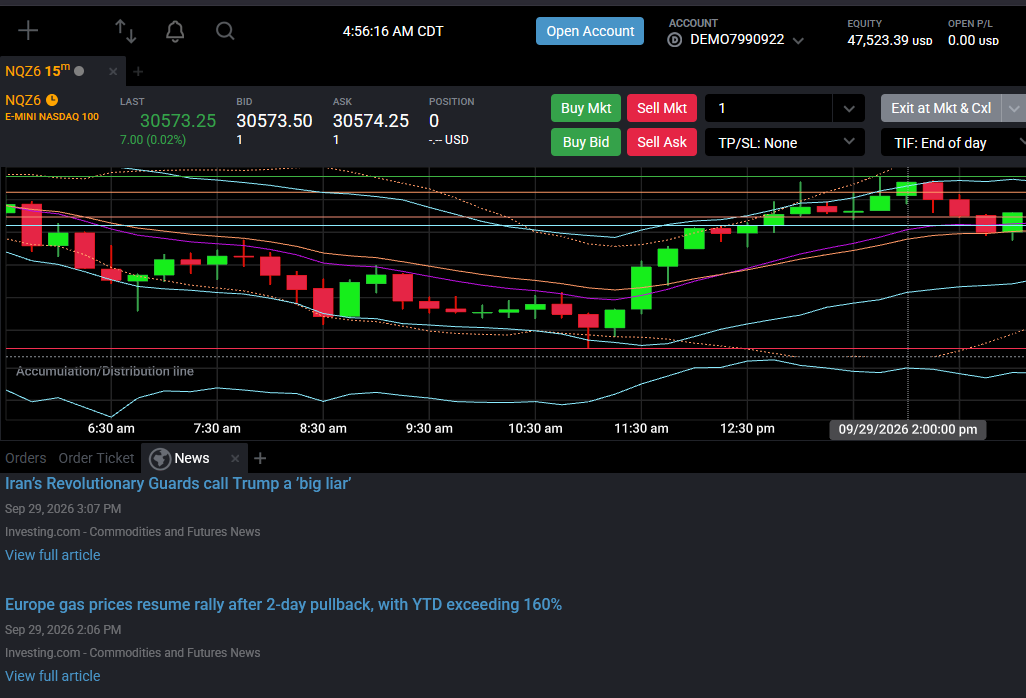
Se preferisce avere i titoli sempre visibili invece di fare clic ogni volta sul globo, aggiunga News come modulo ancorato. Faccia clic sul pulsante + (New) in alto a sinistra nella piattaforma, trovi il modulo News e lo trascini dove vuole nel suo layout. Si comporta come qualsiasi altro pannello: può ridimensionarlo e salvarlo insieme al resto dello spazio di lavoro. Da quel momento si caricherà automaticamente a ogni accesso.
Gestire i pop-up delle notizie
Tradovate può mostrare un piccolo pop-up quando arriva una notizia nuova, utile nei giorni tranquilli e fastidioso durante una sessione intensa. Se questi avvisi la distraggono nel momento sbagliato, apra le impostazioni della piattaforma e cerchi l'interruttore delle notizie o delle notifiche per disattivarli. La dicitura esatta di questo controllo cambia da una versione all'altra, quindi consulti il menu delle impostazioni attuale anziché cercare un'etichetta vecchia.
Account prop firm e di valutazione
Il feed di notizie funziona allo stesso modo sia che abbia un account personale sia una valutazione con una prop firm. Ciò che cambia sono i suoi dati in tempo reale. Le quotazioni in tempo reale dipendono da un abbonamento ai dati di mercato e, sugli account di valutazione, tale diritto è di solito controllato dalla sua firm, non da lei. Le regole sui dati, lo stato ritardato o in tempo reale ed eventuali costi variano in base alla firm e alle dimensioni dell'account, quindi controlli le regole attuali della sua firm se i prezzi le sembrano errati mentre le notizie continuano ad arrivare.
Automatizzi tutto con PickMyTrade
Vuole i titoli e un'esecuzione senza interventi? PickMyTrade collega i suoi alert di TradingView direttamente al suo account Tradovate, così i suoi segnali partono in automatico mentre lei tiene d'occhio le notizie.
Operi sulle notizie, automatizzi l'esecuzione
Tenga aperto il feed di notizie per avere il contesto e lasci che PickMyTrade trasformi i suoi alert di TradingView in ingressi, uscite e bracket automatici.
Inizi la prova gratuita di 7 giorniQuesta guida ha esclusivamente scopo educativo e informativo e non costituisce consulenza finanziaria, di investimento o di trading. Il trading di futures e di altri prodotti a leva comporta un rischio sostanziale di perdita e non è adatto a tutti gli investitori. PickMyTrade è una piattaforma di automazione indipendente di terze parti e non è affiliata, approvata né sponsorizzata da Tradovate, Inc. «Tradovate» e tutti i nomi, loghi e marchi correlati sono di proprietà dei rispettivi titolari. Le funzionalità e i passaggi della piattaforma cambiano nel tempo, quindi confermi sempre la procedura attuale nella piattaforma e nella documentazione ufficiali di Tradovate prima di agire.