
Acceda a las noticias del mercado dentro de Tradovate
Los futuros se mueven rápido cuando sale un titular. Así se abre el feed de noticias integrado de Tradovate, se leen las noticias que importan y se mantiene un panel de noticias en pantalla mientras trabaja en la escalera.
On This Page
Los futuros se mueven rápido cuando sale un titular, y saltar a un sitio de noticias aparte en plena operación es una buena forma de perder el fill que quería. No necesita un segundo monitor ni un terminal de noticias de pago para lo básico. Tradovate incluye un feed de noticias en vivo integrado en la plataforma, que reúne más de una docena de fuentes. Así se abre, se leen las noticias que importan y se mantiene un panel de noticias en pantalla mientras trabaja en la escalera.
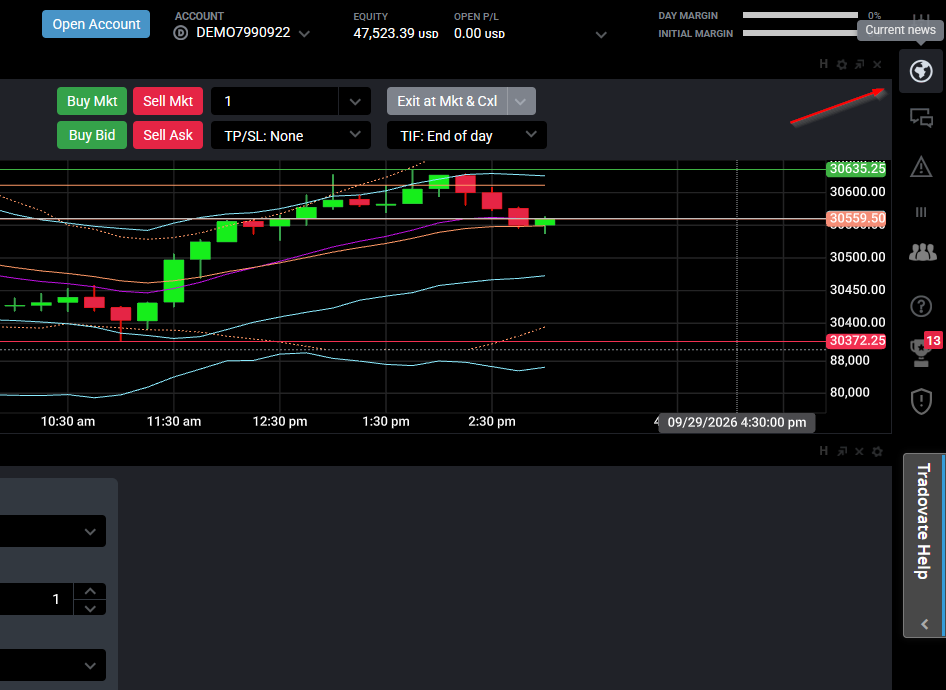
Respuesta rápida: haga clic en el icono del globo en la esquina superior derecha de la barra de herramientas de Tradovate. Se abre el feed de noticias actual con los últimos titulares. Haga clic en cualquier titular para leerlo y luego elija View Full Article para abrir la noticia completa en una ventana nueva.
Lo que ofrece el feed de noticias integrado
El feed es una lista continua de titulares agregados a partir de una combinación RSS de más de una docena de proveedores, de modo que obtiene cobertura general del mercado y comentarios sobre publicaciones económicas sin salir de su pantalla de trading. Está pensado para mantenerse informado, no para cotizaciones en vivo. Los precios en streaming son un asunto aparte, vinculado a su suscripción de datos de mercado, así que leer noticias no le costará una tarifa de datos, pero tampoco sustituye un feed en tiempo real.
Abrir las noticias de mercado de Tradovate: paso a paso
Localice el icono del globo
Inicie sesión en Tradovate en la web o en el escritorio y mire la esquina superior derecha de la barra de herramientas principal. El pequeño icono del globo es el acceso directo a las noticias actuales. Se encuentra cerca de los controles de cuenta y configuración, lejos de las herramientas de órdenes y gráficos de la izquierda.
Abra los titulares
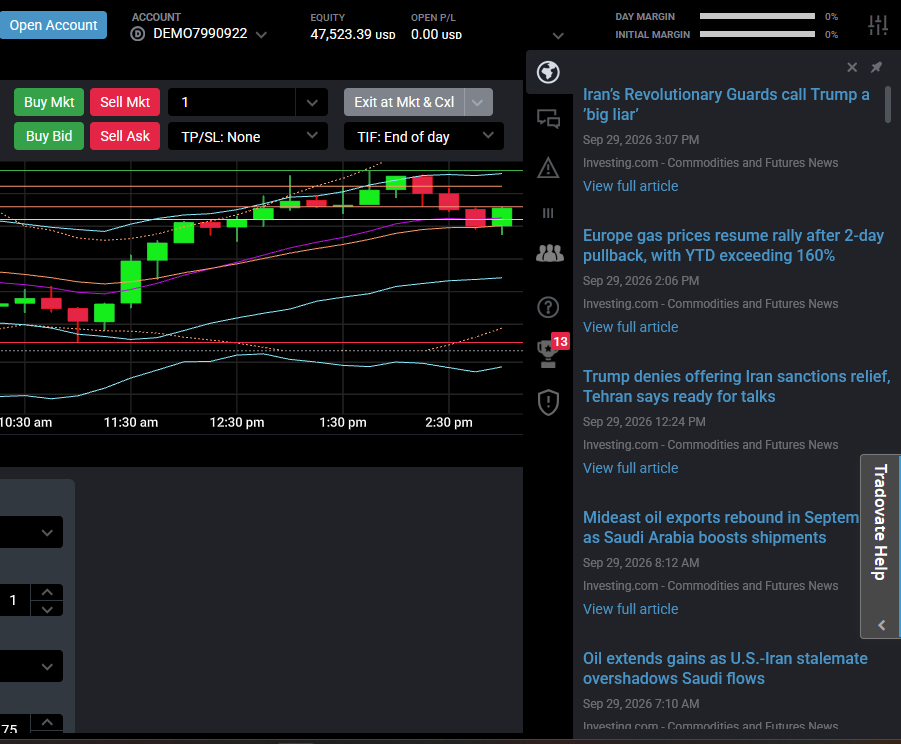
Haga clic en el globo. Se despliega un panel con las noticias más recientes arriba, cada una con su titular y una marca de tiempo. Desplácese para retroceder por los elementos más antiguos. Como el feed combina más de una docena de fuentes, verá una amplia variedad de cobertura financiera y económica en lugar de una sola agencia.
Lea la noticia completa
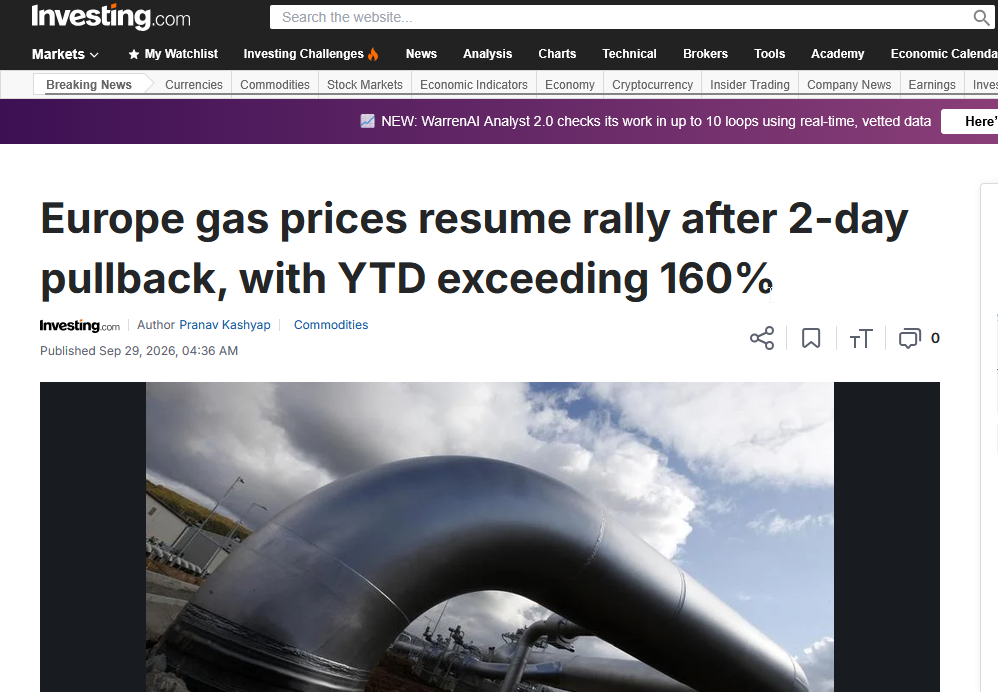
Los titulares por sí solos rara vez bastan. Haga clic en uno para ampliar la vista previa y luego en View Full Article para abrir el artículo completo en una ventana nueva del navegador. Su espacio de trabajo de Tradovate queda exactamente donde lo dejó, así que puede leer el detalle y volver de inmediato a sus posiciones.
Mantenga un panel de noticias en su espacio de trabajo
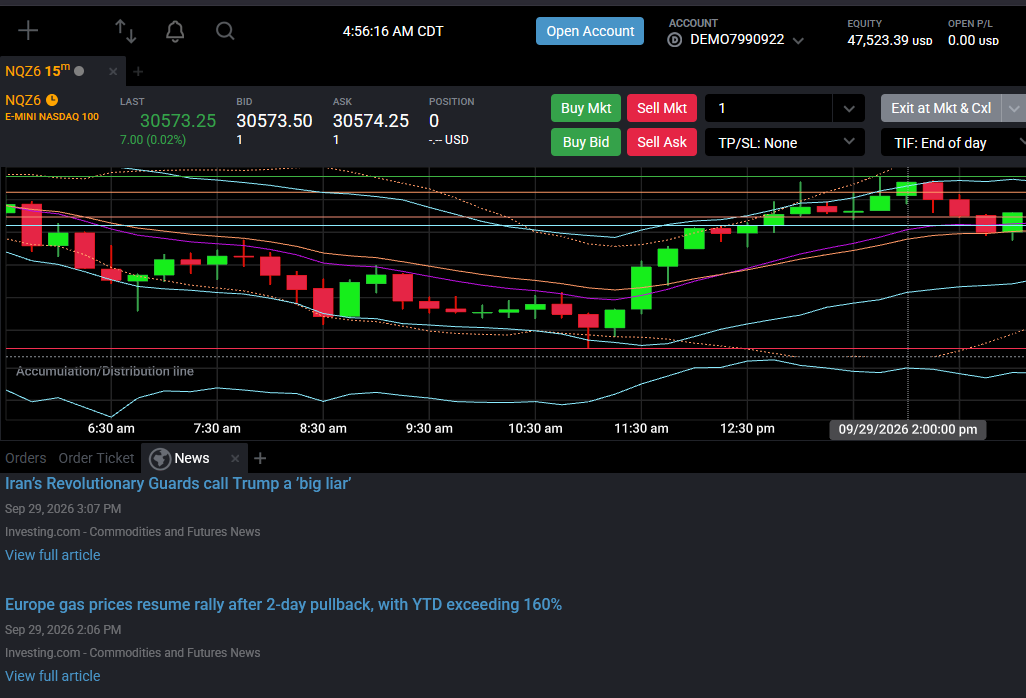
Si prefiere tener los titulares siempre visibles en lugar de hacer clic en el globo cada vez, agregue News como módulo acoplado. Haga clic en el botón + (New) en la parte superior izquierda de la plataforma, busque el módulo News y arrástrelo y suéltelo en cualquier lugar de su diseño. Se comporta como cualquier otro panel, así que puede cambiarle el tamaño y guardarlo junto con el resto de su espacio de trabajo. A partir de entonces se cargará automáticamente cada vez que inicie sesión.
Gestión de las ventanas emergentes de noticias
Tradovate puede mostrar una pequeña ventana emergente cuando llega una noticia nueva, algo útil en días tranquilos y molesto durante una sesión intensa. Si esos avisos le distraen en el peor momento, abra la configuración de la plataforma y busque el interruptor de noticias o notificaciones para desactivarlos. El texto exacto de ese control cambia entre versiones, así que consulte el menú de configuración actual en lugar de buscar una etiqueta antigua.
Cuentas de prop firm y de evaluación
El feed de noticias funciona igual tanto si tiene una cuenta personal como una evaluación de prop firm. Lo que cambia son sus datos en vivo. Las cotizaciones en tiempo real dependen de una suscripción de datos de mercado y, en las cuentas de evaluación, ese derecho suele controlarlo su firma, no usted. Las reglas de datos, el estado diferido o en vivo y las posibles tarifas varían según la firma y el tamaño de la cuenta, así que revise las reglas actuales de su firma si sus precios parecen incorrectos mientras las noticias siguen llegando.
Automatice esto con PickMyTrade
¿Quiere titulares y ejecución automática? PickMyTrade conecta sus alertas de TradingView directamente con su cuenta de Tradovate, para que sus señales se ejecuten solas mientras usted sigue las noticias.
Opere con las noticias, automatice la ejecución
Mantenga abierto el feed de noticias para tener contexto y deje que PickMyTrade convierta sus alertas de TradingView en entradas, salidas y brackets automáticos.
Comience su prueba gratuita de 7 díasEsta guía tiene fines exclusivamente educativos e informativos y no constituye asesoramiento financiero, de inversión ni de trading. Operar con futuros y otros productos apalancados conlleva un riesgo sustancial de pérdida y no es adecuado para todos los inversores. PickMyTrade es una plataforma de automatización independiente de terceros y no está afiliada, respaldada ni patrocinada por Tradovate, Inc. «Tradovate» y todos los nombres, logotipos y marcas relacionados son propiedad de sus respectivos titulares. Las funciones y los pasos de la plataforma cambian con el tiempo, así que confirme siempre el proceso actual en la plataforma y la documentación oficiales de Tradovate antes de actuar.