
Instale la aplicación móvil de Tradovate (iOS y Android)
Estar atado a un ordenador de escritorio no es realista cuando opera con futuros. Así se instala la aplicación nativa de Tradovate en un iPhone, un iPad o un dispositivo Android, y qué probar si la descarga se detiene.
On This Page
Estar atado a un ordenador de escritorio no es realista cuando opera con futuros. El precio sigue moviéndose mientras usted está lejos de la pantalla y, como mínimo, querrá revisar sus posiciones y cerrar una operación desde el teléfono. La aplicación nativa de Tradovate pone eso en su bolsillo: gráficos, el DOM, brackets y su cuenta real o simulada, todo adaptado al teléfono.
Así se instala en un iPhone, un iPad o un dispositivo Android, y qué probar si la descarga se detiene.
Antes de empezar
- Ya necesita una cuenta de Tradovate. Si está en una evaluación de prop firm, sus credenciales las proporciona la firma, no Tradovate directamente; consulte el panel de su firma para ver el nombre de usuario y la contraseña exactos. Esos datos varían según la firma y la cuenta, así que use lo que indiquen las reglas actuales de su firma.
- Su dispositivo debe ser lo bastante reciente. Si tiene un sistema operativo antiguo o discontinuado, es posible que la aplicación ni siquiera aparezca como instalable en la tienda. En ese caso, actualizar el sistema operativo suele solucionarlo.
| iPhone / iPad | Android | |
|---|---|---|
| Nombre de la app en la tienda | Tradovate: Trade & Invest | Tradovate: Futures Trading |
| Publicada por | Tradovate LLC | Tradovate LLC |
| Precio | Gratis | Gratis |
| Dónde obtenerla | Apple App Store | Google Play Store |
Instálela en cinco pasos
Confirme que su dispositivo puede ejecutarla
Antes de buscarla, asegúrese de que su teléfono o tableta sea lo bastante reciente. La aplicación para iPhone y iPad funciona en iOS 12.4 o posterior; la de Android requiere Android 7.0 o superior. Esos mínimos aumentan con el tiempo a medida que se actualiza la aplicación, así que tome la ficha de la tienda como fuente de referencia. Si su dispositivo es demasiado antiguo, la aplicación simplemente no aparecerá como instalable.
Abra su tienda de aplicaciones
En un iPhone o iPad, abra la App Store. En Android, abra la Google Play Store. Ambas vienen preinstaladas en el dispositivo, así que no hay nada extra que descargar para empezar.
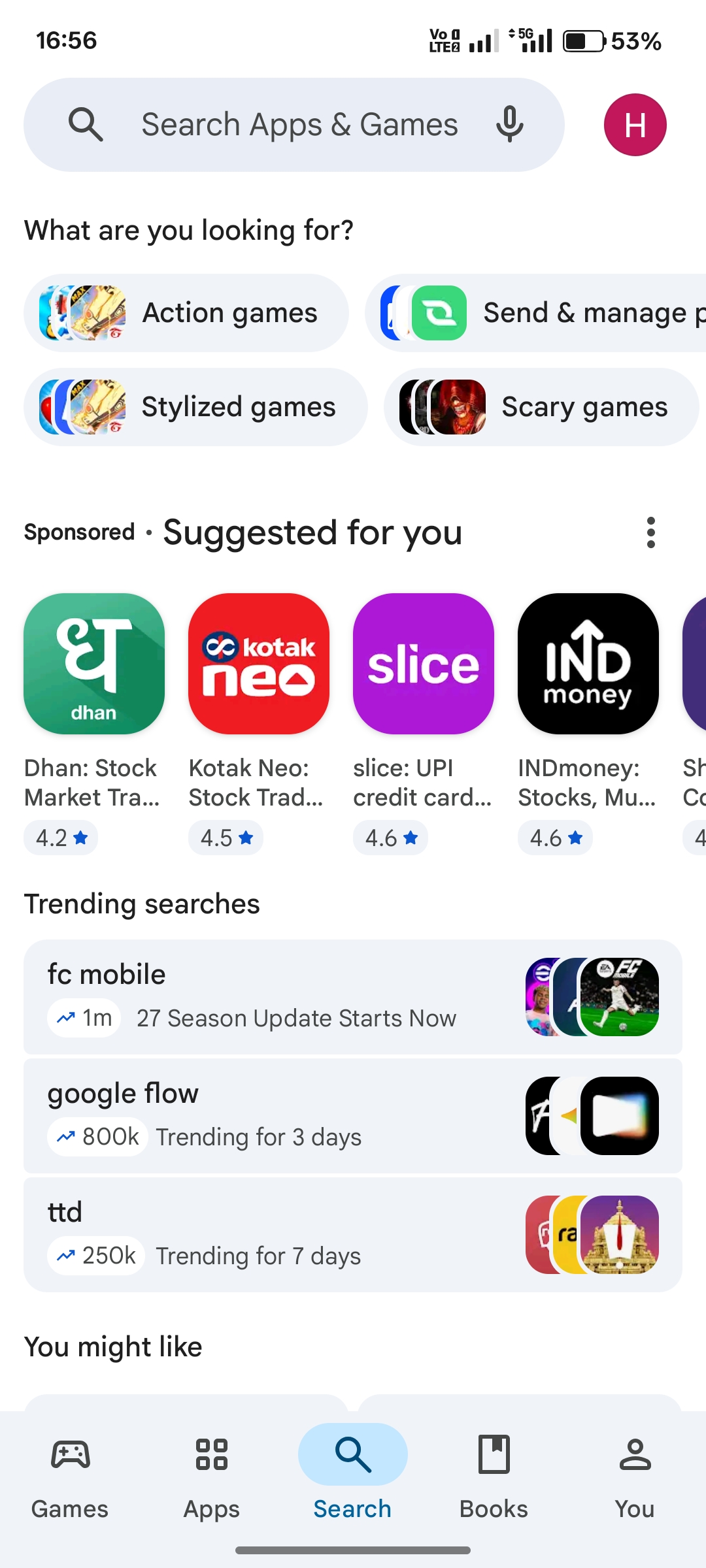
Busque Tradovate y elija la aplicación correcta
Toque la búsqueda y escriba Tradovate. En iOS necesita Tradovate: Trade & Invest; en Android es Tradovate: Futures Trading. Ambas están publicadas por Tradovate LLC y ambas son gratuitas. Compruebe el nombre del desarrollador antes de tocar: a las aplicaciones financieras imitadoras les encanta aprovecharse de una marca conocida, y no querrá entregar sus credenciales a la equivocada.
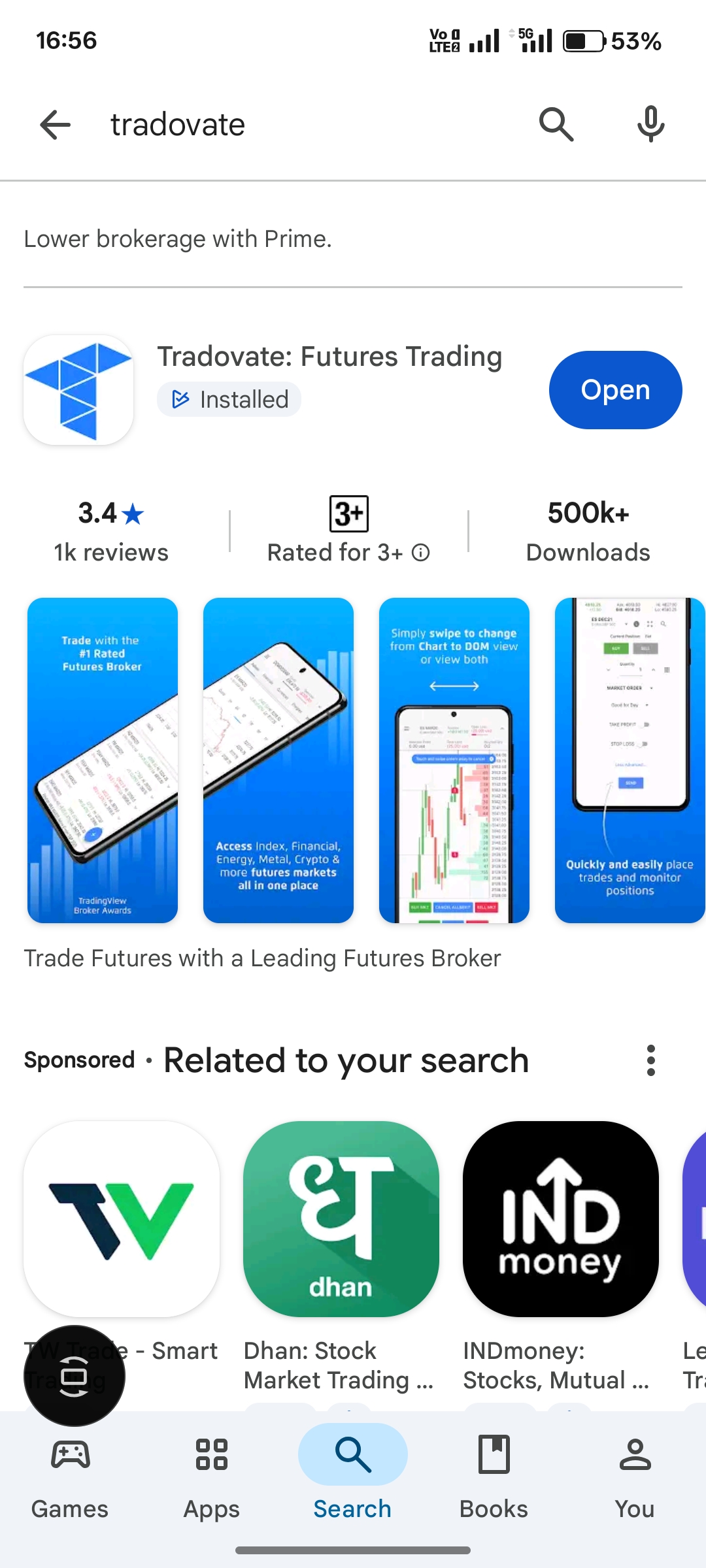
Descárguela y ábrala
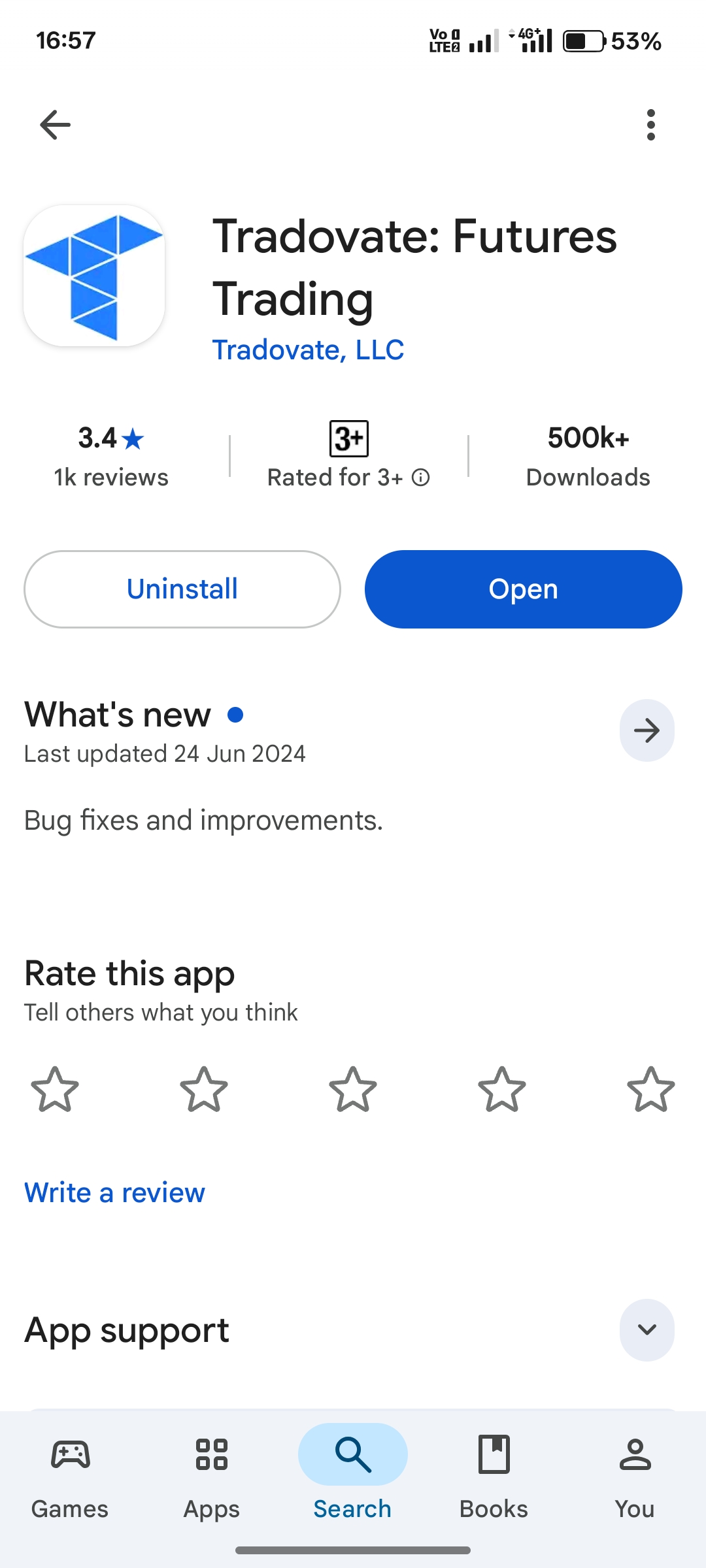
Toque Get en iOS o Install en Android. Es posible que se le pida Face ID, una huella dactilar o la contraseña de su cuenta para aprobar la descarga. Cuando termine, ábrala directamente desde el botón de la tienda o busque el icono en su pantalla de inicio o en el cajón de aplicaciones.
Inicie sesión y elija su cuenta
Inicie sesión con el mismo correo electrónico y la misma contraseña que usa en la plataforma web de Tradovate. Los traders de prop firm usan las credenciales que emitió la firma, que son independientes de un inicio de sesión personal de Tradovate. Tras aceptar los acuerdos habituales, elige la cuenta con la que operar: una cuenta de Simulation (demo) para practicar o su cuenta Live para dinero real. El selector está justo en la pantalla de inicio de sesión y de cuenta; toque el que desee y ya está dentro. Como la aplicación se actualiza con regularidad, la etiqueta exacta de ese interruptor puede cambiar, así que elija el tipo de cuenta que corresponda a lo que quiere hacer.
Si la aplicación no se instala
- Sistema operativo antiguo. Es la causa habitual. Actualice iOS o Android a una versión compatible y vuelva a intentarlo en la tienda.
- Almacenamiento o límites de la cuenta. Asegúrese de tener espacio libre y de que su cuenta de App Store o Google Play no tenga restringidas las aplicaciones financieras.
- ¿Sigue sin funcionar? Use la plataforma web mientras tanto. Abra trader.tradovate.com en cualquier navegador móvil y tendrá su cuenta allí mismo.
¿Quiere el diseño completo de escritorio en su teléfono?
La aplicación está deliberadamente simplificada para una pantalla pequeña. Si prefiere el diseño web completo, abra trader.tradovate.com en Safari o Chrome y use la opción «Add to Home Screen» de su navegador. Eso le da un acceso directo con todas las funciones que se comporta como una aplicación, sin pasar por ninguna tienda de aplicaciones.
Automatice esto con PickMyTrade
Vigilar su cuenta desde el teléfono es una cosa; no tener que estar pendiente de ella es mejor. PickMyTrade automatiza sus estrategias de TradingView directamente en Tradovate, de modo que sus entradas y salidas se ejecutan solas, con la aplicación móvil abierta o no.
Opere desde cualquier lugar, sin intervención manual
Instale la aplicación móvil para supervisar sobre la marcha y deje que PickMyTrade ejecute sus entradas y salidas de TradingView automáticamente, con la aplicación abierta o no.
Comience su prueba gratuita de 7 díasEsta guía tiene fines exclusivamente educativos e informativos y no constituye asesoramiento financiero, de inversión ni de trading. Operar con futuros y otros productos apalancados conlleva un riesgo sustancial de pérdida y no es adecuado para todos los inversores. PickMyTrade es una plataforma de automatización independiente de terceros y no está afiliada, respaldada ni patrocinada por Tradovate, Inc. «Tradovate» y todos los nombres, logotipos y marcas relacionados son propiedad de sus respectivos titulares. Las funciones y los pasos de la plataforma cambian con el tiempo, así que confirme siempre el proceso actual en la plataforma y la documentación oficiales de Tradovate antes de actuar.