
Caricare grafici e SuperDOM su Tradovate mobile
Su Tradovate mobile il grafico e il SuperDOM non stanno in due finestre separate. Condividono un’unica vista espandibile e si passa dall’uno all’altro con un solo divisore. Ecco la guida completa.
On This Page
L’app mobile di Tradovate racchiude nello schermo di un telefono lo stesso grafico dei prezzi e la stessa scaletta degli ordini che usa sul desktop. Ciò che confonde la maggior parte delle persone è che il grafico e il SuperDOM qui non stanno in due finestre separate. Condividono un’unica vista espandibile e si passa dall’uno all’altro con un solo divisore. Una volta capito questo, caricare entrambi per qualsiasi contratto richiede ben meno di un minuto.
Ecco la guida completa, dal tocco sul menu fino al layout affiancato finito.
Prima di iniziare: installi l’app dall’App Store o da Google Play e acceda. Sia i grafici sia la scaletta richiedono che lei sia connesso e che i dati di mercato arrivino.
Caricare grafici e SuperDOM su Tradovate mobile: passo dopo passo
Apra il menu
Tocchi l’icona hamburger a tre barre nell’angolo in alto a sinistra. Si apre il menu Opzioni, il suo punto di partenza per tutto sul mobile, dal cambio di conto alla lista dei mercati.
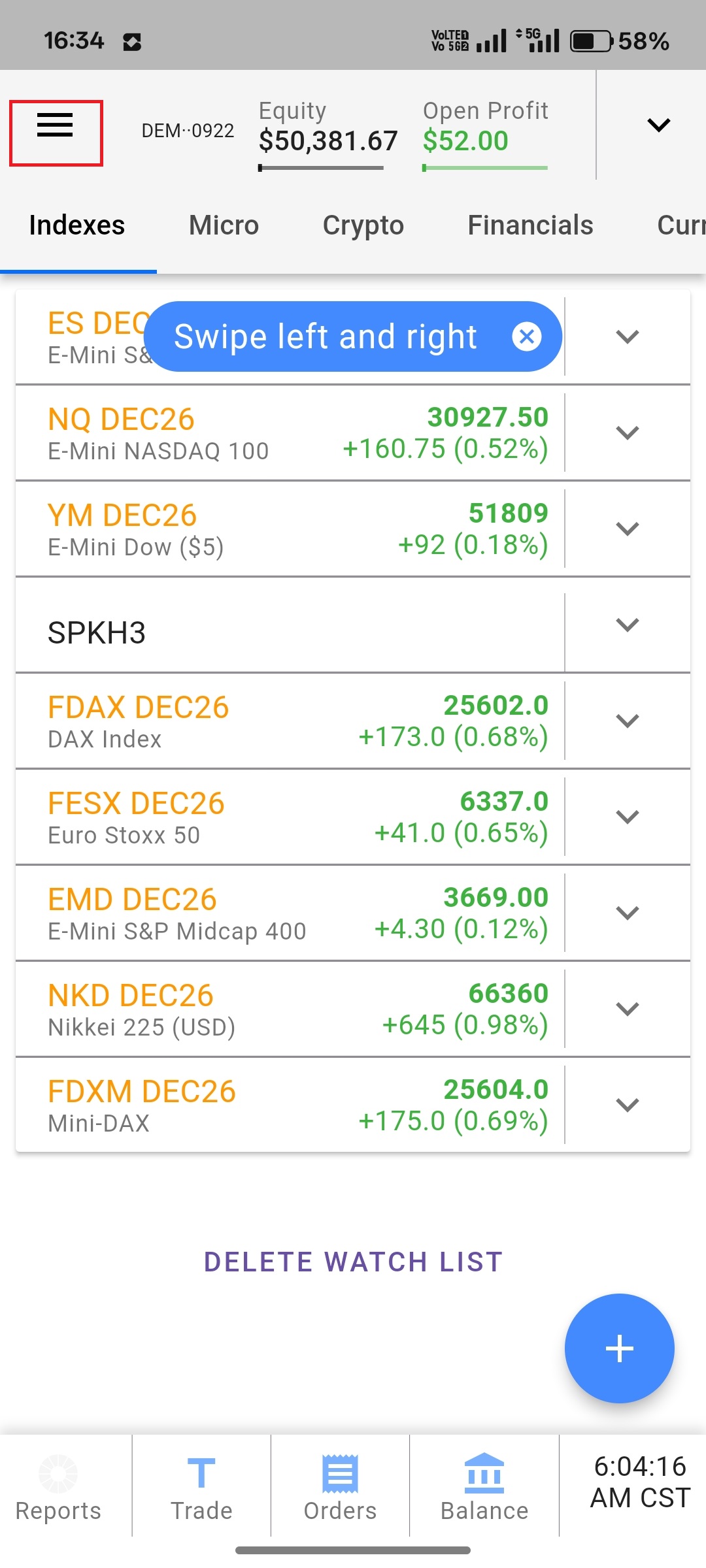
Apra Markets e scelga un contratto
Tocchi Markets. Otterrà l’elenco completo dei contratti futures raggruppati per categoria, così indici azionari, energia, metalli e il resto stanno ciascuno nella propria sezione. Scorra fino al prodotto che negozia e tocchi il contratto specifico, ad esempio l’ES o l’NQ del mese front, per caricarlo. Opera su un conto prop o di valutazione? I contratti a cui può accedere e il fatto che i dati siano in tempo reale o ritardati dipendono dalla sua società e dal suo piano, quindi controlli le regole attuali della sua società se un simbolo appare bloccato o le quotazioni sembrano obsolete.
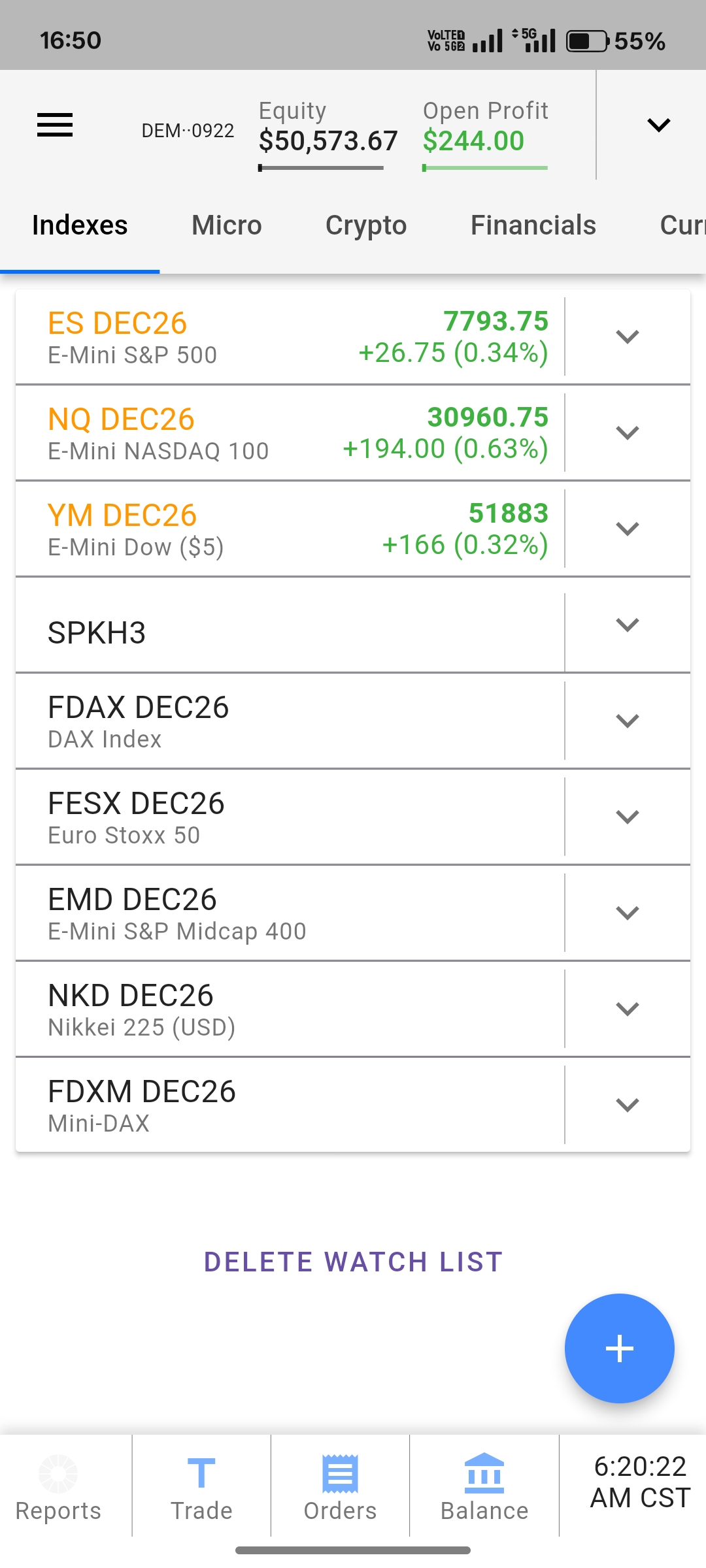
Espanda a schermo intero
Con il contratto aperto, tocchi l’icona espandi, quella che sembra quattro frecce rivolte verso gli angoli. La vista si ingrandisce fino a riempire lo schermo. Ruoti il telefono in orizzontale mentre è qui. Grafico e scaletta hanno molto più spazio in quell’orientamento, e questo conta quando osserva i livelli di prezzo su uno schermo piccolo.
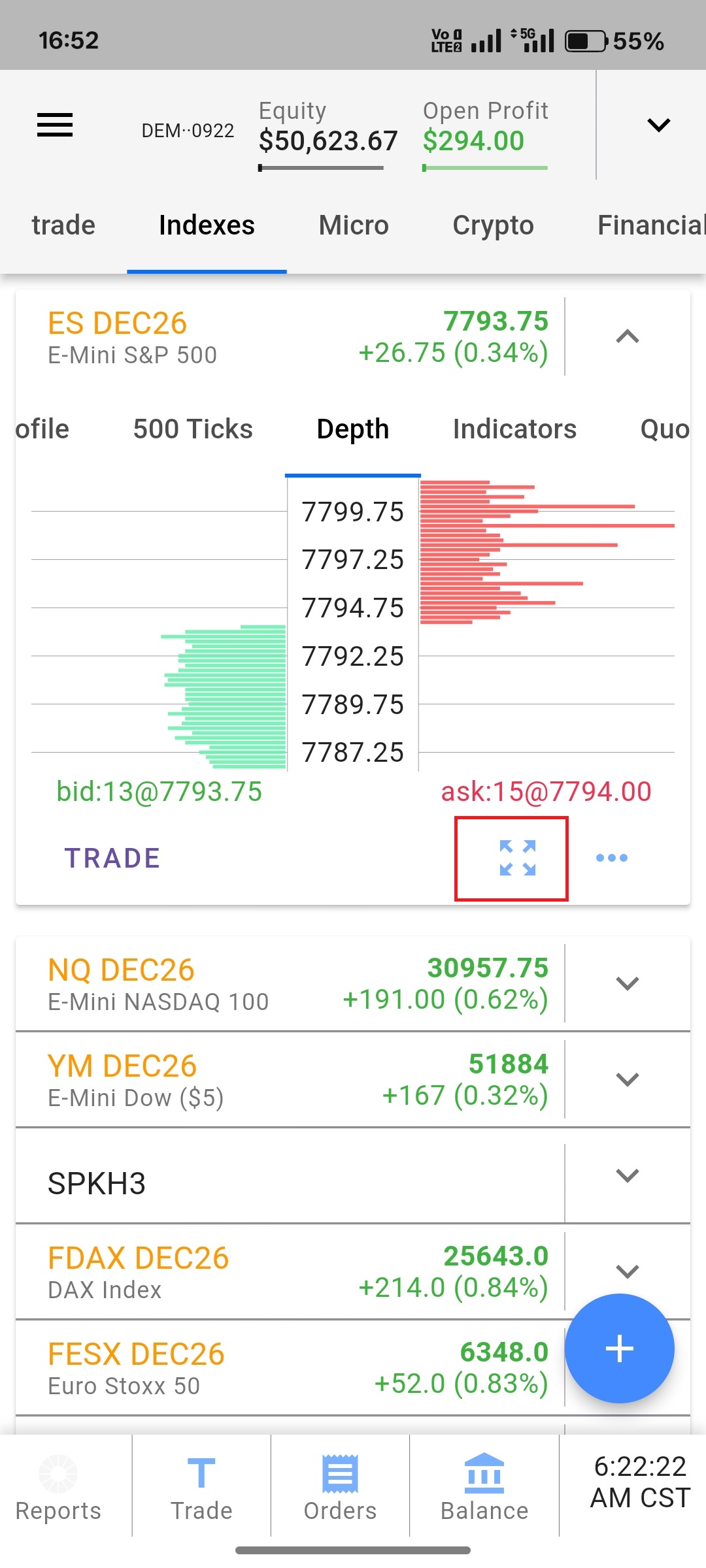
Scorra tra grafico e SuperDOM
Cerchi la sottile linea verticale che attraversa lo schermo espanso. È il divisore tra il grafico da un lato e il SuperDOM dall’altro. Tenga premuta la piccola tacca vicino alla parte superiore di quella linea e la trascini a sinistra o a destra. Trascinando in un senso il grafico occupa più schermo; nell’altro prende il sopravvento la scaletta del SuperDOM. La lasci al centro e avrà entrambi affiancati, che è ciò che la maggior parte delle persone desidera per leggere il tape tenendo d’occhio il grafico.
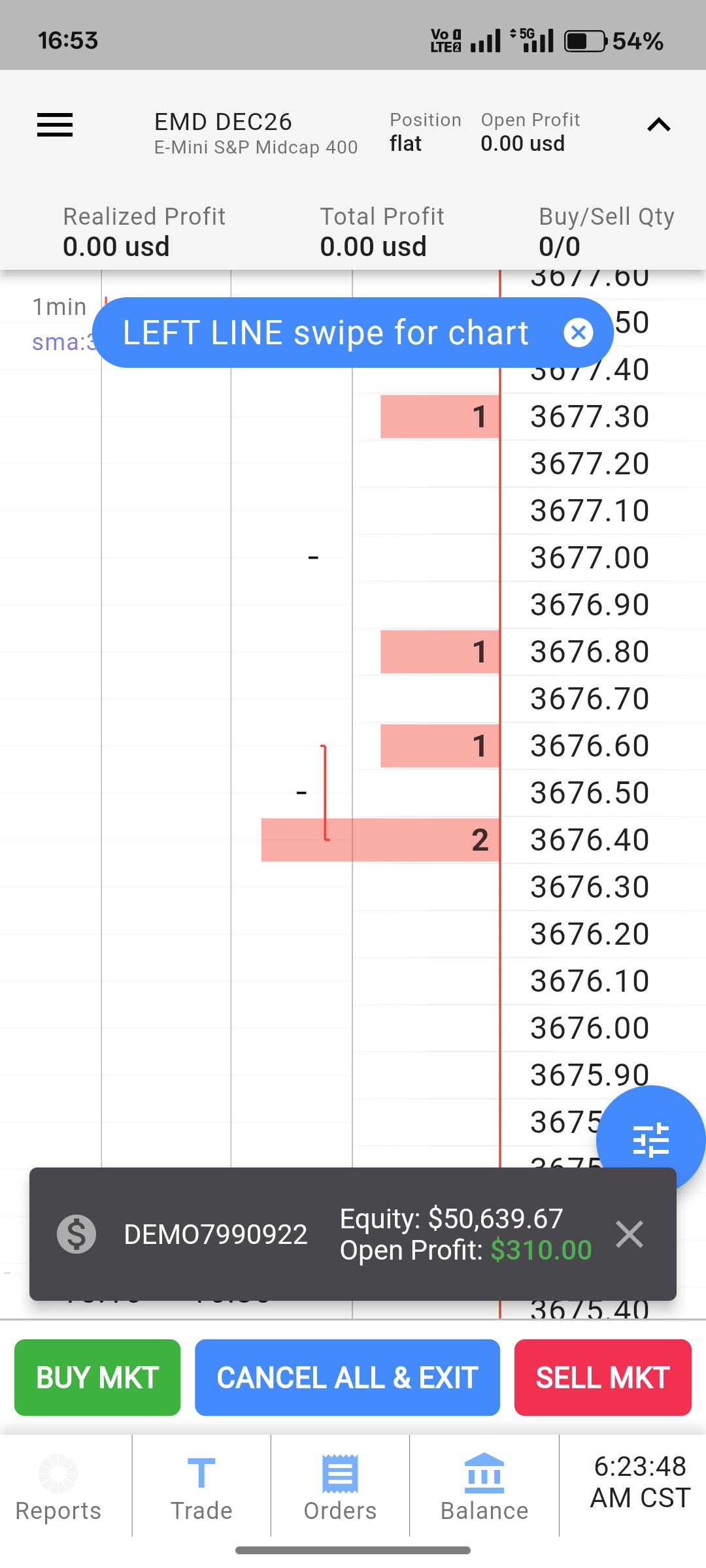
Lavorare nella vista affiancata
Una volta caricati entrambi, l’app mobile si comporta in modo molto simile al desktop. Può inserire e gestire ordini e bracket direttamente dalla scaletta o dal grafico, e i grafici mobili offrono la stessa libreria di oltre 40 indicatori integrati.
Se un grafico si carica vuoto o le quotazioni si bloccano, torni alla lista Markets e riapra il contratto, oppure chiuda e riavvii l’app. Di solito questo forza la riconnessione del flusso di dati. Interruzioni persistenti indicano un problema di abbonamento ai dati o di connessione, non dell’app in sé.
Automatizzi tutto questo con PickMyTrade
Stanco di toccare il telefono per eseguire ogni trade? PickMyTrade automatizza i suoi ordini Tradovate così i suoi segnali di TradingView vengono instradati direttamente al suo conto, senza interventi manuali.
Questo è l’intero flusso. Menu, Markets, scegliere un contratto, espandere, poi trascinare la tacca. L’unico cambio di mentalità è considerare grafico e SuperDOM come due metà di un’unica schermata tra cui si scorre, non come due finestre da gestire. Etichette e icone cambiano tra un aggiornamento dell’app e l’altro, quindi se qualcosa si è spostato, cerchi la stessa funzione anziché la formulazione esatta descritta qui.
Legga il tape, automatizzi il trade
Una volta configurati grafico e SuperDOM su mobile, lasci che PickMyTrade instradi i suoi segnali di TradingView direttamente al suo conto, senza interventi manuali.
Inizi la prova gratuita di 7 giorniQuesta guida ha esclusivamente scopo educativo e informativo e non costituisce consulenza finanziaria, di investimento o di trading. Il trading di futures e di altri prodotti a leva comporta un rischio di perdita sostanziale e non è adatto a tutti gli investitori. PickMyTrade è una piattaforma di automazione indipendente di terze parti e non è affiliata, approvata né sponsorizzata da Tradovate, Inc. «Tradovate» e tutti i nomi, loghi e marchi correlati sono di proprietà dei rispettivi titolari. Le funzionalità e i passaggi della piattaforma cambiano nel tempo, quindi confermi sempre la procedura aggiornata nella piattaforma e nella documentazione ufficiali di Tradovate prima di agire.