
How to Log Out of Tradovate
Logging out of Tradovate is a two-click job once you know where the button lives, but it sits in a different spot on each platform. Here's how to end your session cleanly wherever you're signed in.
On This Page
Logging out of Tradovate is a two-click job once you know where the button lives. It's the same idea on web, desktop, and mobile: open your account menu and hit Logout. The reason it trips people up is that the control sits in a different spot on each platform, and Tradovate also runs behind TradingView and prop-firm dashboards, so "logging out" can mean a few different things. Here's how to end your session cleanly wherever you're signed in.
When You Actually Need to Log Out
You don't have to sign out every time you step away, but there are a handful of moments where it matters:
- Shared or public computer, never leave a live trading session open behind you.
- Freeing a session slot. Tradovate limits how many places you can be logged in at once. If you're bouncing between the web app, the desktop app, mobile, and a TradingView connection, a stale session can trigger disconnects and a DeviceQuotaReached error. Logging out where you're not actively trading frees that slot.
- Switching accounts, say, moving from a personal account to a prop-firm evaluation login.
- Fixing a login loop. A clean log out and back in clears a surprising number of frozen-chart and stuck-session problems.
How to Log Out of Tradovate: Step-by-Step
Open the Account Menu (Web & Desktop)
In the Tradovate web platform or the downloadable desktop app, look to the top corner of the screen for your account name or avatar. Click it to drop open the account menu. This is the same menu that holds your settings and profile, so if you've ever adjusted risk settings, you've been here before.

Click Logout
Select Logout from the menu. Tradovate closes your session and drops you back at the login screen. One important thing to know: logging out does not flatten your positions or cancel your working orders. Resting stops, targets, and any open trades live on the broker's servers, not in your browser, so they keep running after you sign out. If you want to be flat before you leave, close your positions and cancel orders first, then log out.

Log Out of the Mobile App
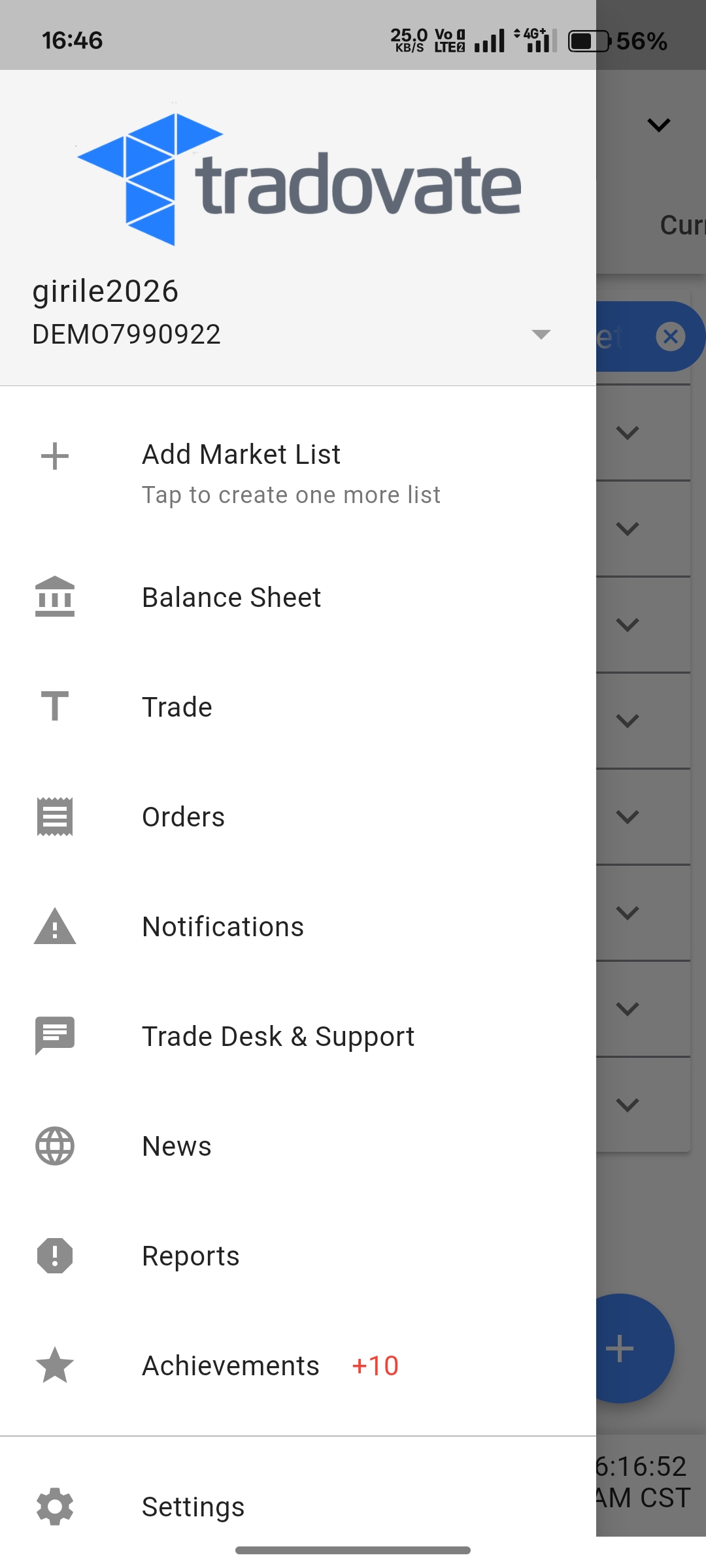
On the Tradovate mobile app, the menu sits on the opposite side. Tap the Menu (hamburger) icon in the top-left corner to slide out the navigation panel, then tap Logout at the bottom. Same result as the desktop: your session ends and the app returns to the sign-in screen.
Sign Out From a TradingView Connection
If you route your Tradovate account through TradingView, closing the Tradovate web app doesn't disconnect that link. Open your chart, find the Tradovate tab in the trading panel at the bottom, and click the dropdown or gear next to your connected account. Choose Log Out to cut the broker connection. Do this whenever you're wrestling with session conflicts, since each TradingView browser tab can count as its own session.
Does Tradovate Log You Out on Its Own?
There's no aggressive inactivity timer that boots you after a few idle minutes, so a session can stay open for a long stretch. If you're getting kicked out unexpectedly, the usual culprits aren't a Tradovate timeout at all: a browser putting an inactive tab to sleep, an unstable connection, or hitting the concurrent-session limit from being logged in on too many devices at once. Signing out of the places you're not using is the quickest fix. Session and device limits vary by account and prop firm, so check your firm's current rules if you're on an evaluation.
Automate This with PickMyTrade
The catch with signing off is that your strategy signs off too. PickMyTrade runs in the cloud, so it routes your TradingView alerts straight into Tradovate and keeps executing even when you've closed every tab and shut the laptop.
Automation That Doesn't Log Out When You Do
PickMyTrade runs in the cloud, routing your TradingView alerts into Tradovate and keeps executing even when you've shut the laptop.
Start Your Free 7-Day TrialFrequently Asked Questions
No. Positions and working orders are held on the broker's servers, not your device, so they stay live after you log out. Flatten your positions and cancel orders first if you want to be flat before leaving.
It's usually not a built-in timeout. Check for a browser tab-sleep setting, a shaky connection, or too many active sessions across web, desktop, mobile, and TradingView. Log out of the ones you aren't using.
Sign out of each surface individually, web, desktop, the mobile app, and any TradingView connection. That clears every session slot and stops the disconnect and DeviceQuotaReached errors that come from stale logins.
This guide is for educational and informational purposes only and is not financial, investment, or trading advice. Trading futures and other leveraged products carries a substantial risk of loss and is not suitable for every investor. PickMyTrade is an independent third-party automation platform and is not affiliated with, endorsed by, or sponsored by Tradovate, Inc. "Tradovate" and all related names, logos, and trademarks are the property of their respective owners. Platform features and steps change over time, so always confirm the current process in the official Tradovate platform and documentation before acting.