TradingView Automated Trading: Automate Your Strategies, Indicators & Alerts
Turn your TradingView strategies, indicators, and alerts into live futures, forex, options, and CFD broker orders automatically. PickMyTrade is the execution bridge that auto-trades your TradingView signals on Tradovate, Rithmic, Interactive Brokers and more, with no coding and no VPS.

TradingView
Your Signals

PickMyTrade
Automation Engine

Tradovate
Live Execution
This guide covers everything from account setup to multi-account management
Start LearningDoes TradingView have automated trading?
Not on its own. TradingView is where you chart, build strategies in Pine Script, and generate alerts, but it does not place live orders with your broker by itself. To turn a TradingView signal into a real trade, you need an execution bridge that receives the alert and sends the order to your broker. That is exactly what PickMyTrade does.
In one line: PickMyTrade listens for your TradingView alert through a webhook, reads the symbol, side, size, and risk settings, and processes the matching order in under 200ms on our side, 24/7 in the cloud. Your total fill time also depends on your broker, network latency and how quickly TradingView sends the alert. It works for retail futures traders, Pine Script developers, and funded prop-firm traders, with no coding and no VPS to rent.
How TradingView automation works: the webhook flow
TradingView automation runs on a simple three-step chain: TradingView alert to PickMyTrade to your broker. When your strategy or indicator triggers, TradingView sends a small message (a webhook) to PickMyTrade. PickMyTrade reads it and instantly places the order on your connected broker account. You paste a ready-made message and a webhook URL into your TradingView alert once, and the rest is automatic.
What is a webhook? A webhook is just a URL that TradingView posts your alert to the moment it fires. Think of it as TradingView calling PickMyTrade and saying "buy 2 NQ now." PickMyTrade generates that URL and the exact message for you, so there is nothing to code.
Why there is no VPS or plugin. Older automation tools make you rent a virtual private server (VPS) or keep a program running on your computer. PickMyTrade runs entirely in the cloud, so your trades execute even when your laptop is off. Nothing to install, nothing to babysit. The one requirement is a paid TradingView plan (Pro, Pro+, or Premium), because free TradingView accounts cannot send webhooks.
For a broker-specific walkthrough, see our Tradovate automation guide and Tradovate trade copier pages.
Looking for the bigger picture? Our futures trading bot hub covers every supported broker and prop firm in one place.
First, Let's Get You Connected
Setting up your PickMyTrade account and connecting to Tradovate takes just a few minutes.
Account Creation & Login
Standard signup process: register and verify your email.
Important Note
No Extra CostYou do not need to purchase API access from Tradovate. PickMyTrade is an authorized vendor, and API access is included with your PickMyTrade subscription.
Connecting Your Tradovate Account
Click "Connect to Tradovate"
Choose Mode (Demo or Live)
Enter credentials
Demo Mode
For paper trading, prop firm accounts (Apex, TopStep, etc.), and evaluations.
Live Mode
Use exclusively for live, funded trading accounts.
Automate a TradingView Strategy, Indicator, or Alert
Whatever fires your signal in TradingView, a Pine Script strategy, an indicator condition, or a manual price alert, PickMyTrade can automate it. The setup differs slightly for each, so start by identifying which one you are working with. The way you configure alerts in PickMyTrade depends entirely on what you're automating from TradingView. Understanding this distinction is key to a successful setup.
TradingView
STRATEGY
How to Identify
Shows a back-testing report in the Strategy Tester tab.
Alert Setup
Requires only one alert. Uses placeholders like {{strategy.order.action}} to handle buys, sells, and closes automatically.
Order Types
Supports Market Orders & Limit Order (Need manual changes: View Here )
Best For
Fully coded, back-tested systems with complete entry and exit logic built into the Pine Script. The simplest path to automation.
TradingView
INDICATOR
How to Identify
No back-testing report. You create alerts based on conditions (e.g., RSI crosses 70).
Alert Setup
Requires three separate alerts: one for Buy, one for Sell, and one for Close.
Order Types
Highly flexible. Supports Market, Limit, and Stop orders.
Best For
Traders using standard indicators (RSI, MACD, Bollinger Bands) or those who require advanced order types and precise control over Take Profit/Stop Loss parameters within PickMyTrade.
Not Sure Which One You Have?
Open your TradingView chart and look for the "Strategy Tester" tab at the bottom. If it's there with performance metrics and a trade list, you have a Strategy. If not, you're working with an Indicator.
Automate a TradingView strategy, indicator, or alert
Whatever fires your signal, PickMyTrade can automate it. Here is how each type maps to a live order.
Automate a strategy
A Pine Script strategy already knows its entries and exits, so its alert can carry the full order and PickMyTrade places it directly. This is the most hands-off path: the strategy decides, PickMyTrade executes.
Automate an indicator
An indicator only flags a condition (for example an RSI cross), so you set the entry, size, stop-loss, and take-profit once inside PickMyTrade, and the indicator alert simply triggers that pre-set order. You keep more control over how the trade is sized and managed.
Automate an alert
Any alert works, including a manual price or drawing alert you set by hand on the chart. Paste the PickMyTrade message into the alert, point its webhook at PickMyTrade, and every trigger becomes a live order. Same webhook, three ways to fire it.
Your Risk Management Toolkit: 5 Ways to Set TP/SL
PickMyTrade gives you precise control over your exits. Choose the method that best fits your strategy.
Points (or Dollar Value)
Set TP/SL based on a fixed point/dollar move from entry.
Example:
(NQ, Qty: 2, Lot Size: 20): A 1-point SL = 1 * 20 * 2 =
$40 risk.
Percentage
Set TP/SL based on a percentage of the entry price.
Example:
Entry at $100, 1% SL ->
Stop placed at $99.
Price (Dynamic Levels)
Use dynamic price levels directly from your indicator's plots in TradingView.
Pro-Tip:
Extremely powerful for strategies using levels like Bollinger Bands, pivot points, or ATR bands. You must plot the value in your Pine Script. PickMyTrade can then use the {{plot_0}} to {{plot_19}} placeholders.
Ticks
Set TP/SL based on a specific number of ticks. Mandatory to specify the symbol.
Example:
(NQ, Qty: 2, Tick Size: 0.25): 10-tick SL = 10 * 0.25 * 20 * 2 = $100 risk.
Total Profit/Loss
Set TP/SL based on a total P/L amount for the entire position.
Example:
(Qty: 2): $10 TP/SL per contract = $20 total P/L target.
Trailing Stop Loss
Lock in profits while letting winners run. Defined by three key parameters.
Trail Value: Distance from current price
Trail Trigger: Profit to activate trailing
Trail Frequency: How often SL updates
Advanced Risk: Mastering the Trailing Stop Loss
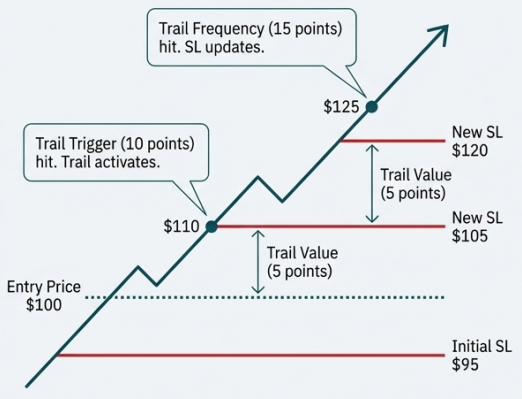
The trailing stop loss is a powerful tool to lock in profits while letting winners run. It's defined by three key parameters:
Trail Value
What it is: The distance the stop loss maintains from the current price.
Example: "Trail Value = 5 points". If price is $115, the stop is at $110.
Trail Trigger
What it is: The amount of profit required to activate the trailing mechanism for the first time.
Example: "Entry = $100", "Initial SL = $95", "Trail Trigger = 10 points". When price reaches $110, the trail activates, and the stop moves from $95 up to $105.
Trail Frequency
What it is: How often the stop loss updates after being triggered.
Example: "Trail Frequency = 15 points". After activating at $110, the stop will only move up again each time the market makes another 15-point move in your favor.
Trail Value
The distance the stop loss maintains from the current price.
Example: "Trail Value = 5 points". If price is $115, the stop is at $110.
Trail Trigger
The amount of profit required to activate the trailing mechanism for the first time.
Example: "Entry = $100", "Initial SL = $95", "Trail Trigger = 10 points". When price reaches $110, the trail activates, and the stop moves from $95 up to $105.
Trail Frequency
How often the stop loss updates after being triggered.
Example: "Trail Frequency = 15 points". After activating at $110, the stop will only move up again each time the market makes another 15-point move in your favor.
Position Sizing Options
Control exactly how many contracts are entered on each signal.
Fixed Quantity
Absolute value. Enters a fixed number of contracts on every signal. Simple and direct.
Example:
Set Quantity = 2, every signal enters 2 contracts.
Risk Percentage
Dynamic sizing based on your account value. Stop Loss is mandatory for this calculation.
How it works (Example)
| Account Value: | $1,000 |
| Risk %: | 10% (Total Risk = $100) |
| Symbol: | NQ (Lot Size = $20) |
| Stop Loss: | 5 points ($5 * $20 = $100 risk per contract) |
Total Risk ($100)
÷
Risk per Contract ($100)
= 1 Contract
Warning:
If the calculated quantity is less than 1, the trade will not be placed.
The Indicator Workflow: Crafting Your Entry
If you're automating an indicator, here's how to configure your alerts and order types in PickMyTrade.
Alert & Order Types
Buy Alert
Closes any existing open position (buy or sell) and cancels any open orders before entering a new buy position.
Sell Alert
Closes any existing open position (buy or sell) and cancels any open orders before entering a new sell position.
Close Alert
Squares off the current position and cancels open orders. It does not enter a new trade.
Order Type
Choose between Market, Limit (with optional fill-or-kill timeout in seconds), or Stop orders.
Position Sizing
Fixed Quantity
Absolute value. Enters a fixed number of contracts on every signal. Simple and direct.
Risk Percentage
Dynamic sizing based on your account value. Stop Loss is mandatory for this calculation.
Account Value: $1,000
Risk %: 10% (Total Risk = $100)
Symbol: NQ (NQ (Lot Size = $20))
Stop Loss: 5 points (5 points ($5 * $20 = $100 risk))
→ Calculation: $100 / $100 = 1 Contract
The Strategy Workflow: A More Streamlined Path
Automating a strategy is simpler because TradingView handles the buy/sell logic. Your main decision is how to manage exits.
The Key Question
Does your Pine Script strategy already contain multiple Take Profit and Stop Loss levels (strategy.exit, etc.)?
YES
My strategy handles all exits.
In PickMyTrade, under "Exit Strategy Type," select YES.
The platform will not allow you to set risk parameters. PickMyTrade will simply execute the exit orders exactly as they are sent from your TradingView script. This is for traders who want full control within their code.
NO
I want PickMyTrade to manage my exits.
In PickMyTrade, under "Exit Strategy Type," select NO.
Consequence: The platform will now allow you to use its full suite of risk management tools (the 5 TP/SL types, Trailing Stop, Break-Even) just like in the indicator workflow.
The Final Step: Generating and Placing Your Alert
Once your settings are configured, activating your automation is a simple copy-and-paste process.
In PickMyTrade, click the "Generate Alert" button. Select the Tradovate account(s) you want to trade on.
A popup will appear with your alert code (JSON). Click "Copy Code".
From the PickMyTrade dashboard, copy the unique Webhook URL.
Open the alert creation window in TradingView. Paste the JSON into the "Message" box. Paste the Webhook URL into the "Notifications" tab. Click "Create". Your automation is now live.
Critical Rule
Never manually edit the JSON code. If you need to make a change, go back to the UI, adjust the settings, and regenerate a fresh code. Manual edits are the most common source of errors.
Scaling Your Operation with Multi-Account Management
A single TradingView alert can execute trades across multiple Tradovate accounts simultaneously. This is built for traders who run several prop firm accounts of their own under one or more logins.
Method 1: Sub-Accounts (Under a Single Tradovate Login)
Who it's for
You have multiple accounts (e.g., several Apex or TopStep accounts) all accessible under one Tradovate username.
How it works
In the "Add Account" section, simply select the desired sub-accounts from the dropdown menu. PickMyTrade handles the rest. This requires only one PickMyTrade subscription.
All accounts under one Tradovate login
Method 2: External Accounts (Different Tradovate Logins)
Who it's for
You need to trade for a friend, family member, or on a prop firm account that requires a separate Tradovate login.
How it works
Your client/friend needs their own PickMyTrade account connected to their Tradovate login. They provide you with their PickMyTrade Token and Tradovate Account Name. You add this as an external account.
Link separate Tradovate logins via PickMyTrade tokens
Quantity Multiplier
For every account you add (sub-account or external), you can set a quantity multiplier (e.g., 0.5 for half size, 2.0 for double size) to manage risk proportionally across different account sizes.
Supported brokers and markets
PickMyTrade transmits orders from your own TradingView alerts to a growing list of futures, stock and options brokers. Pick your broker to see the exact setup.
Non-Tradovate brokers are set up on pickmytrade.io, and each has its own step-by-step page. To keep expectations clear: PickMyTrade does not support MT4, MT5, DXtrade, or NinjaTrader. If your broker is on the list above, your TradingView alerts can auto-trade there.
Automating on a prop firm account
If you trade a funded or evaluation account, you can automate it with PickMyTrade wherever your firm's rules allow. The honest distinction most tools skip: routing your own TradingView strategy across your own funded accounts (internal automation) is allowed at most major futures prop firms, while subscribing to a third-party signal seller or letting someone else trade your account is not. PickMyTrade only ever runs your own alerts on your own accounts, so you stay in control and stay compliant.
PickMyTrade works with Apex, Topstep, Bulenox, Alpha Futures, Take Profit Trader, FundedNext Futures, MyFundedFutures, TradeDay, and Tradeify, plus any prop firm running on a supported platform. Firm rules on automation and copying do change, so always confirm your specific firm's current policy before you go live. See the full list on our supported prop firms page.
Beyond Signal Automation: The Manual Trade Copier
A tool that copies a trade you place by hand on one source account to every other account you have connected, in real time. This is separate from TradingView alert automation.
Who It's For
Traders managing multiple prop firm accounts who want to place a single manual trade and have it replicated everywhere.
Discretionary traders who place trades by hand and want the same trade to reach every account they have connected.
How It Works (Visual Process Flow)
Add Destination Accounts
Add your sub-accounts or external accounts (using their PickMyTrade token) in the Manual Trade Copier section.
Set Multipliers
Assign a quantity multiplier for each destination account to scale trade sizes appropriately.
Activate
You must click 'Click to Start' at the beginning of each day to activate the copier.
Trade
Place trades on your designated source account. They will be instantly copied to all active destination accounts.
Trade History
View master and slave order IDs for easy tracking.
Liquidate All
A single button to square off all open positions and orders across all destination accounts.
Monitoring Your System & Essential Settings
Understanding the Alert Logs, Symbol Mapping, and Global Risk Settings
Understanding the Alert Logs
The Alert Log is your mission control. It's the first place to look if you have any questions about a trade. It shows every alert received from TradingView and its execution status.
Alert Time
The exact timestamp the alert was received from TradingView.
Alert Status
The most important column. Shows if the order was Filled, Rejected, or Paused.
Entry Order ID
The broker's unique ID for the trade. Essential for cross-referencing with Tradovate.
Alert Data
Click the icon to see the raw JSON data received from TradingView, invaluable for debugging.
Filter logs by date and symbol
Download your complete history as a CSV file
Pro-Tip for Support
If you encounter an issue you can't solve, take a screenshot of the relevant row in your Alert Log and send it to the support team. It provides them with all the necessary data to diagnose the problem quickly.
Behind the Scenes: Essential Settings & Symbol Mapping
1. Symbol Mapping - The Translator
TradingView uses continuous symbols (e.g., NQ1!), while Tradovate requires specific contract month symbols (e.g., NQZ24).
NQ1! NQZ24 Error: The "Symbol mapping not found" error means you're trading a symbol without a pre-configured map. Go to Settings → Create Setting to create your own (e.g., TradingView Symbol: MNQ1! → Tradovate Symbol: MNQZ24).
2. Automatic Contract Rollover
You don't need to do anything. PickMyTrade monitors expiration dates and automatically updates its internal symbol mapping to the next contract month a few days before expiration.
Continue using the continuous symbol (NQ1!) in your TradingView alerts. Your trading will continue uninterrupted.
Set it and forget it
Automatic rollover = seamless trading
3. Global Risk Settings
In the main settings, you can establish global risk parameters like daily or weekly profit/loss limits. If these limits are hit, trading is automatically paused for the defined period, providing a crucial safety net.
Example: Set a daily loss limit of $500. If you hit that threshold, all trading stops automatically until the next day.
Your Troubleshooting Checklist: Common Issues & Solutions
Problem
My TradingView alerts are firing, but they don't appear in my PickMyTrade Alert Logs.
Likely Cause
The webhook connection is broken.
Solution
- Verify the Webhook URL is pasted correctly in the 'Notifications' tab of your TV alert.
- Ensure the 'Message' box contains only the JSON code with no extra text or comments.
Problem
My trades are closing immediately after opening.
Likely Cause
Your script is sending conflicting buy and sell signals on the same bar.
Solution
In your TradingView alert settings, ensure the frequency is set to "Once Per Bar Close" to prevent signals from firing mid-bar.
Problem
The connection says "Tradovate Account is Bound With Another Account".
Likely Cause
A trial account restriction. Your Tradovate account was previously connected to a different PickMyTrade trial.
Solution
Subscribe to a paid plan to remove this restriction, or contact support to have the account manually unbound (usually a one-time courtesy).
Problem
My orders are being rejected by Tradovate.
Likely Cause
Broker-side issues like insufficient margin, expired contract, or prop firm risk limits being hit.
Solution
Check the "Order History" directly in the Tradovate platform. Rejected orders are highlighted in red and will show the specific reason from the broker.
For Advanced Users: A Look Inside the JSON
For those comfortable with Pine Script and trade logic, the JSON payload offers powerful overrides. Remember: always regenerate alerts from the UI, do not edit these values by hand.
update_tp & update_sl Default: false
When set to true, a new alert will not place a new trade. Instead, it will find the existing open position and update its Take Profit or Stop Loss order to the new price provided in the alert.
Use Case:
Moving a stop loss to break-even or trailing a stop loss based on dynamic conditions calculated in your Pine Script.
reverse_order_close Default: true true (typically)
Controls the behavior of an opposite signal.
true: Long Position → Sell Signal
Close Long → Open Short Position
false: Long Position → Sell Signal
Close Long → Flat Position
Use Case: If you are long and a sell signal arrives, it closes the long and opens a new short (true). Or if false, it only closes the long.
same_direction_ignore Default: true true (typically)
Controls pyramiding.
true: Long Position → Buy Signal
Ignored
false: Long Position → Buy Signal
Adds to Position
Use Case: true prevents stacking positions. false allows pyramiding.
You Are Now Ready to Automate with Confidence
You have the complete framework to move from a simple signal to a sophisticated, scaled, multi-account trading operation.
Connect Account & Choose Path
(Strategy/Indicator)
Master the Risk Toolkit
(TP/SL, Trail, Break-Even)
Utilize Multi-Account Trading & Manual Copier
(Scale your operation)
Leverage Alert Logs
(Full transparency)
Platform Tour
For a guided walkthrough of the UI, click the 'Tour' button on your dashboard.
Saved Alerts
Configure and save your favorite alert setups as templates using the 'Saved Alerts' feature to speed up your workflow.
Documentation
For deep dives on every feature, including advanced topics like the News Filter and Referral Program, visit the official Docs section.
Ready to Transform Your
TradingView Workflow?
Join 50,000+ traders executing 28M+ automated trades with PickMyTrade. Start your 7-day free trial today—no credit card required.
7-Day Free Trial
No credit card required
Unlimited Strategies
No limits on alerts or trades
Live Chat, Discord & Email Support
Priority assistance included
TradingView Automation FAQ
TradingView charts your strategy and can send alerts, but it does not place live orders with your broker on its own. To turn a TradingView signal into a real trade you need an execution bridge. PickMyTrade is that bridge: it receives your TradingView alert through a webhook and places the matching order on your connected broker automatically.
Not for most futures brokers. TradingView can generate the buy or sell signal, but the actual order has to be routed to a broker that can fill it. PickMyTrade connects to Tradovate, Rithmic, Interactive Brokers, TradeStation and more, so your TradingView alert becomes a live order without you clicking anything.
Connect your broker account in PickMyTrade, generate the alert message and webhook URL, then create an alert on your strategy in TradingView. Delete the default alert text, paste the PickMyTrade message, and set the webhook URL in the alert's notifications tab. When your strategy fires, PickMyTrade places the order for you. Webhook alerts need a paid TradingView plan (Pro, Pro+ or Premium).
Any TradingView alert can drive an order, whether it comes from a strategy, an indicator or a manual chart condition. You paste the PickMyTrade alert message into the alert and point its webhook at PickMyTrade. Each time the alert triggers, the order is placed on your connected account.
A strategy already knows its entries and exits, so its alerts can carry the full order and PickMyTrade places it directly. An indicator only signals a condition, so you set the entry, size and risk settings in PickMyTrade and the indicator alert simply triggers that pre-set order. Both work; the strategy path is more automatic and the indicator path gives you more manual control.
No. PickMyTrade runs in the cloud 24/7, so there is no VPS to rent and nothing to keep running on your computer. Once your broker is connected and your alert is live, trades execute even when your machine is switched off.
PickMyTrade supports Tradovate, Rithmic, Interactive Brokers, TradeStation, TradeLocker, ProjectX, Match-Trader, Tradier (Beta), cTrader (Beta) and Ironbeam (Beta). It does not support MT4, MT5, DXtrade or NinjaTrader.
Prop-firm rules on automation vary by firm and change over time, and many futures firms treat automating your own strategy across your own funded accounts (internal automation) differently from subscribing to a third-party signal seller or letting someone else trade your account. PickMyTrade runs your own alerts on your own accounts, and works with Apex, Topstep, Bulenox, Alpha Futures, Take Profit Trader, FundedNext Futures, MyFundedFutures, TradeDay and Tradeify. Always confirm your firm's current rules before going live.
PickMyTrade is $50 per month or $500 per year, and every account starts with a 7-day free trial that needs no credit card. The subscription includes unlimited tickers and live chat, Discord and email support, and works with demo, live and prop firm accounts.
Webhook automation is the standard way to connect TradingView to a broker, and PickMyTrade processes your order in under 200ms on our side, though your total fill time also depends on your broker, network latency and how quickly TradingView sends the alert. Futures trading always carries risk, and automated systems can be affected by connectivity or configuration errors, so use stop-loss settings and test on a demo account first. More than 50,000 traders run PickMyTrade, with 28M+ trades placed through it.