
Create Price Alerts on Tradovate Charts & DOM
You can't sit and watch one price level all session, and you shouldn't have to. Here's how to set up Tradovate price alerts, step by step.
On This Page
You can't sit and watch one price level all session, and you shouldn't have to. Whether you're tracking support and resistance, waiting to arm a manual entry, or wiring up automation like PickMyTrade, a price alert does the watching for you. Here's how to set them up in Tradovate, step by step.
What Is a Tradovate Price Alert?
A price alert is a notification Tradovate fires the second a condition you set becomes true, usually an instrument's price crossing or touching a level you care about. Every alert has three moving parts: a price level, a condition, and a notification type. And you're not limited to raw price. You can trigger an alert off a position or account parameter instead, so a risk milestone pings you even when you're nowhere near the chart.
Creating Price Alerts in Tradovate: Step by Step
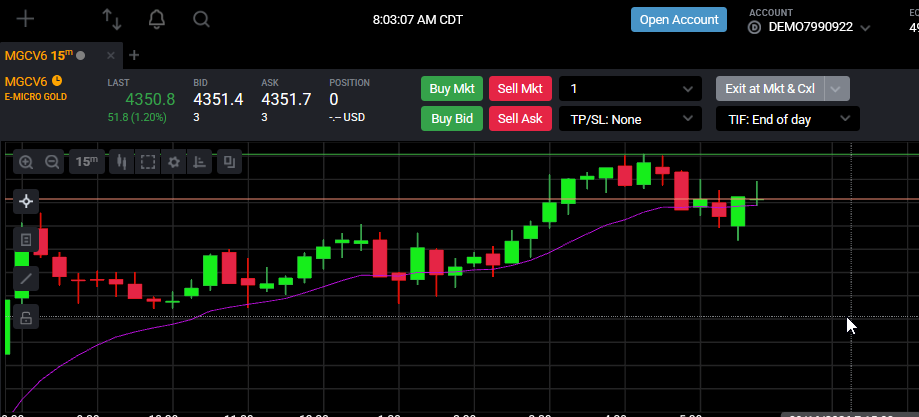
Open the Alerts Menu
In the Tradovate web app, click the bell-shaped Alerts icon in the top-left of the workspace, right next to the New + menu button. That opens the New Alert menu and gets you into your Alerts Log.
Choose What the Alert Watches
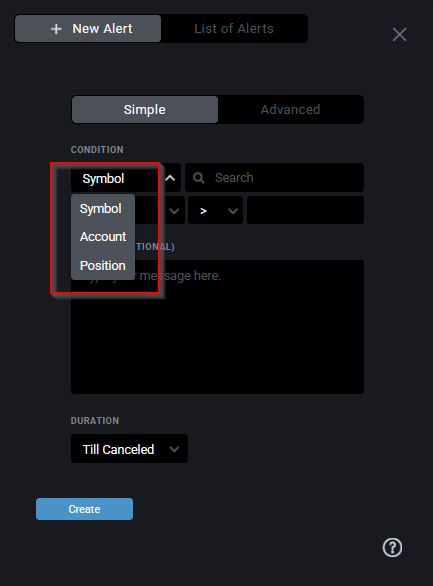
Decide what the alert keys off: an Instrument price, a Position parameter, or an Account parameter. For an instrument- or position-based alert, search for the contract by symbol or keyword and select it, so Tradovate knows exactly what to monitor.
Set the Price, Condition, and Notification Type
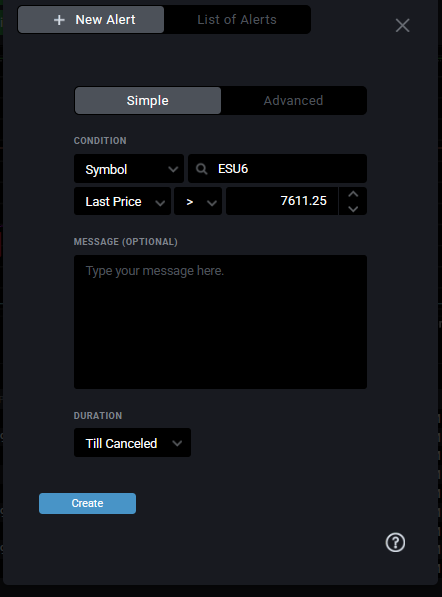
Type in the price level, then pick the condition, Price Crosses or Price Touches, for example. Choose how you want to hear about it: sound, popup, or both. Drop in an optional custom message so you'll recognize the alert the instant it fires, and save it.
Create an Alert Straight From the Chart or DOM
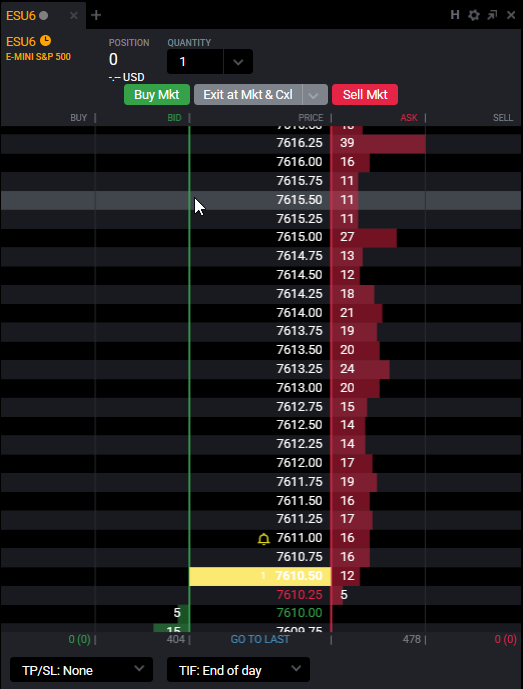
You can skip the menu entirely. Click a price level on a chart, or on the DOM price ladder, and the alert dialog opens pre-filled with that price. Tweak the condition if you need to, save, and a bell marker drops onto the chart at your level so you can spot it at a glance.
Manage Alerts in the Alerts Log
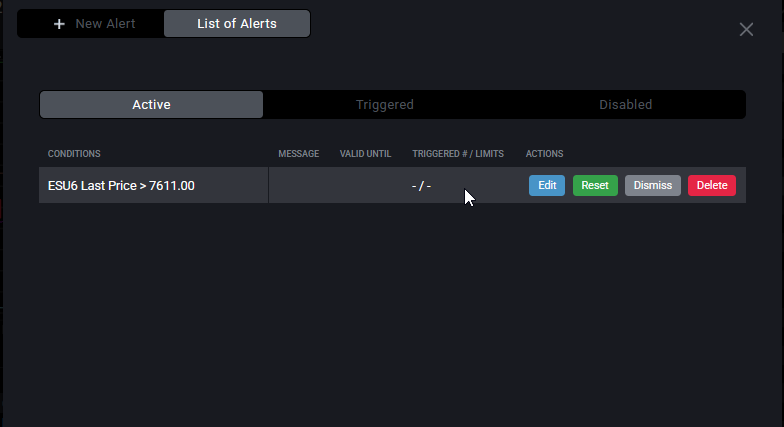
Open the Alerts Log (the List of Alerts tab) and you'll see every alert in one place, Active, Triggered, and Disabled or expired. Hover over any one to Edit, Reset to re-arm it, Disable, or Delete it, so your list stays clean instead of piling up with stale levels.
Why You'd Want This
- Watch support and resistance without babysitting the chart all day.
- Arm a manual entry, get pinged the second price hits your trigger so you can act on it.
- Track macro levels around news, session opens, or round numbers.
- Monitor a position or account parameter so risk milestones don't slip past you.
- Free up your focus, let the alert watch the ladder while you work other setups.
Automate This with PickMyTrade
An alert tells you when, but you still have to click. PickMyTrade closes that gap by wiring your TradingView alerts straight to your Tradovate account. The moment a level triggers, your order goes in automatically. No manual clicks, no missed fills while you're away from the desk.
Turn Alerts Into Automatic Orders
PickMyTrade wires your TradingView alerts straight to your Tradovate account, so the moment a level triggers, your order goes in automatically.
Start Your Free 7-Day TrialFrequently Asked Questions
Yes. Click the price level on a chart or the DOM price ladder and Tradovate opens the alert dialog pre-filled with that price. If the dialog doesn't open on your first click, check the exact interaction in your current build, chart versions can differ slightly.
When you build an alert you can pick sound, popup, or both. Once it fires, your browser plays a sound, the bell-shaped Alerts icon shows a red notification dot, and any custom message appears in a small flag beneath the bell.
Open the Alerts Log (the List of Alerts tab) and hover over the alert you want to change. From there you can Edit, Reset, Disable, or Delete it without rebuilding it from scratch.
This guide is for educational and informational purposes only and is not financial, investment, or trading advice. Trading futures and other leveraged products carries a substantial risk of loss and is not suitable for every investor. PickMyTrade is an independent third-party automation platform and is not affiliated with, endorsed by, or sponsored by Tradovate, Inc. "Tradovate" and all related names, logos, and trademarks are the property of their respective owners. Platform features and steps change over time, so always confirm the current process in the official Tradovate platform and documentation before acting.