
Tradovate Chart Templates Don't Load Data
Chart template comes up with missing bars, or worse, every trendline you drew is gone? Here's exactly what a Tradovate template does and doesn't save, and how to keep your full setup with a workspace instead.
On This Page
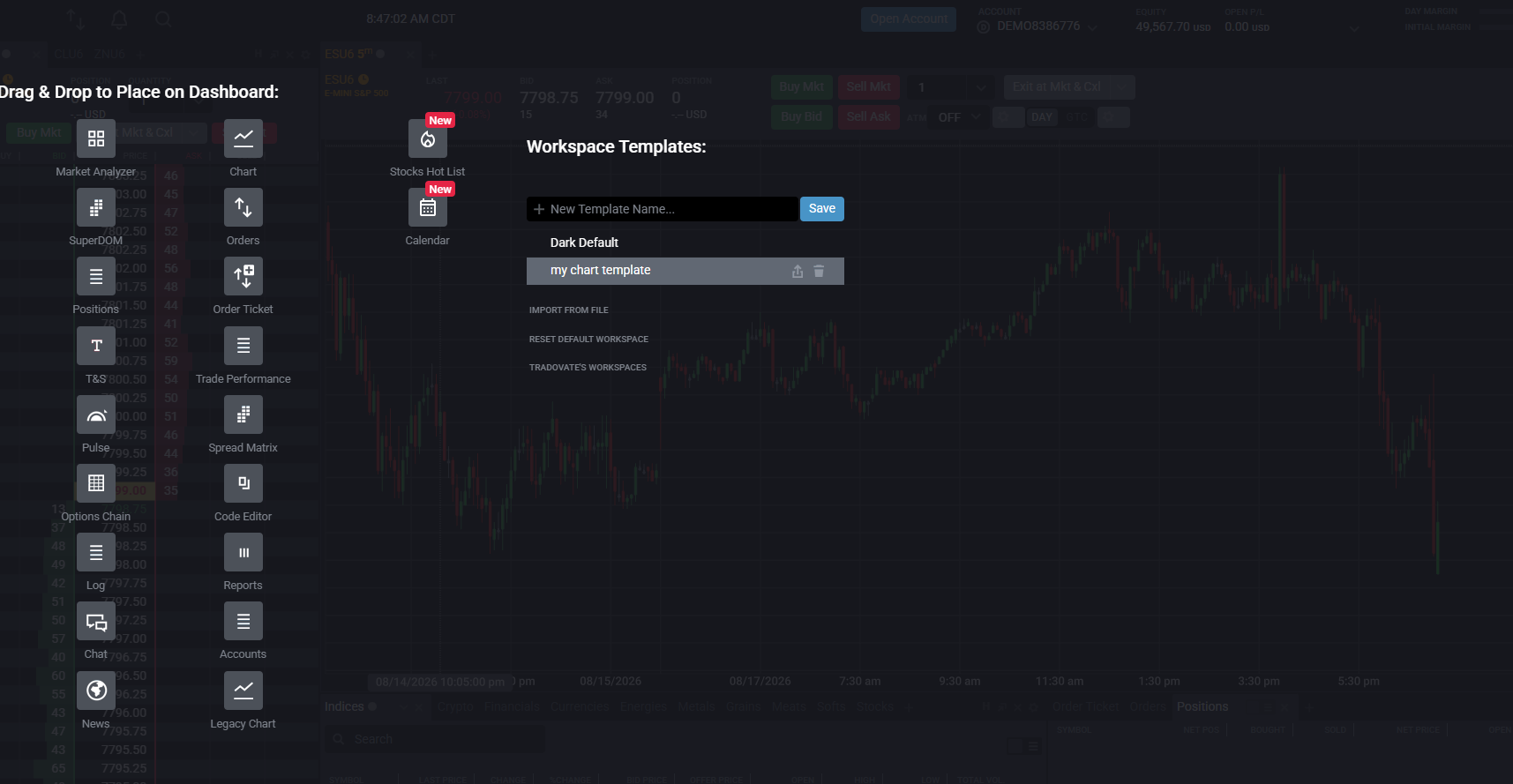
You saved a chart template, reopened it later, and the chart came up wrong. Maybe the bars are missing, maybe the space is just empty, or maybe the worst version happened and every trendline and level you drew during the session is gone. It's frustrating, because in futures your levels are the plan.
Here's the short answer before we get into the weeds: a Tradovate chart template was never designed to carry your drawings or force historical data to load. It stores your indicator setup and the chart's look, timeframe, style, colors, indicator parameters, and that's about the extent of it. Your trendlines, zones and horizontal levels belong to the workspace, not the template. So the reliable move is to save a full workspace for anything you want to keep, treat templates as a look-and-feel preset, and recreate a chart by hand when a template refuses to bring its data or markups along.
What a Chart Template Actually Saves
This is where most of the confusion starts. A template in Tradovate saves indicator settings and chart appearance. It does not save the DOM, the window layout, or your drawings. When you apply it, you're loading a visual preset onto whatever chart is already open, you're not restoring a snapshot of your analysis.
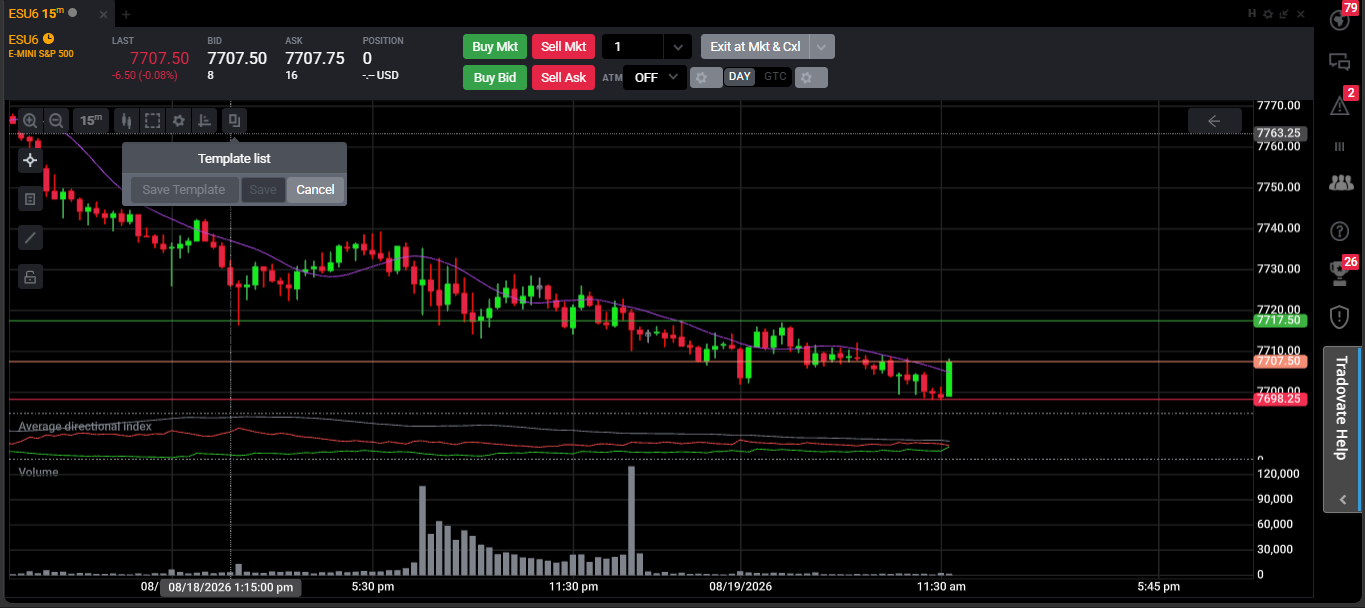
To save one, open the chart's own menu (the small menu icon in the chart's top corner), go to the Templates option, and choose Save Template. Give it a clear name so you can find it again.
Here's the split that trips people up, laid out plainly:
| Saved by a chart template | NOT saved by a template |
|---|---|
| Indicator selection and their parameters | Trendlines, rays, horizontal levels |
| Chart style (candles, bars, colors) | Zones, rectangles, boxes, text notes |
| Timeframe and chart appearance settings | Window and multi-chart layout |
| Reusable “look” you can apply to any chart | The DOM / SuperDOM setup |
| — | Historical price data (it isn't re-fetched) |
Read that right column again. Every item there is something people expect a template to hold, and none of it is included. Once you internalize that, most of the weird behavior stops being a mystery.
Why the Chart Loads With No Data
Applying a template doesn't pull in price history. It swaps settings on the chart you're looking at. So if a chart opens blank or with a stretch of empty space, you're really looking at a data-loading problem sitting on top of a fresh template, two separate things that happen to show up together.
A couple of things fix this quickly:
- Scroll back through the history. Dragging the chart to the left forces Tradovate to request older bars and fill the gap.
- Reload the chart or the app. A refresh often re-pulls the series cleanly when it loaded half-empty.
- Raise the minimum bars to load. If charts routinely open short on history, bumping this up preloads more data so indicators like EMA and VWAP have enough to calculate from the first candle.
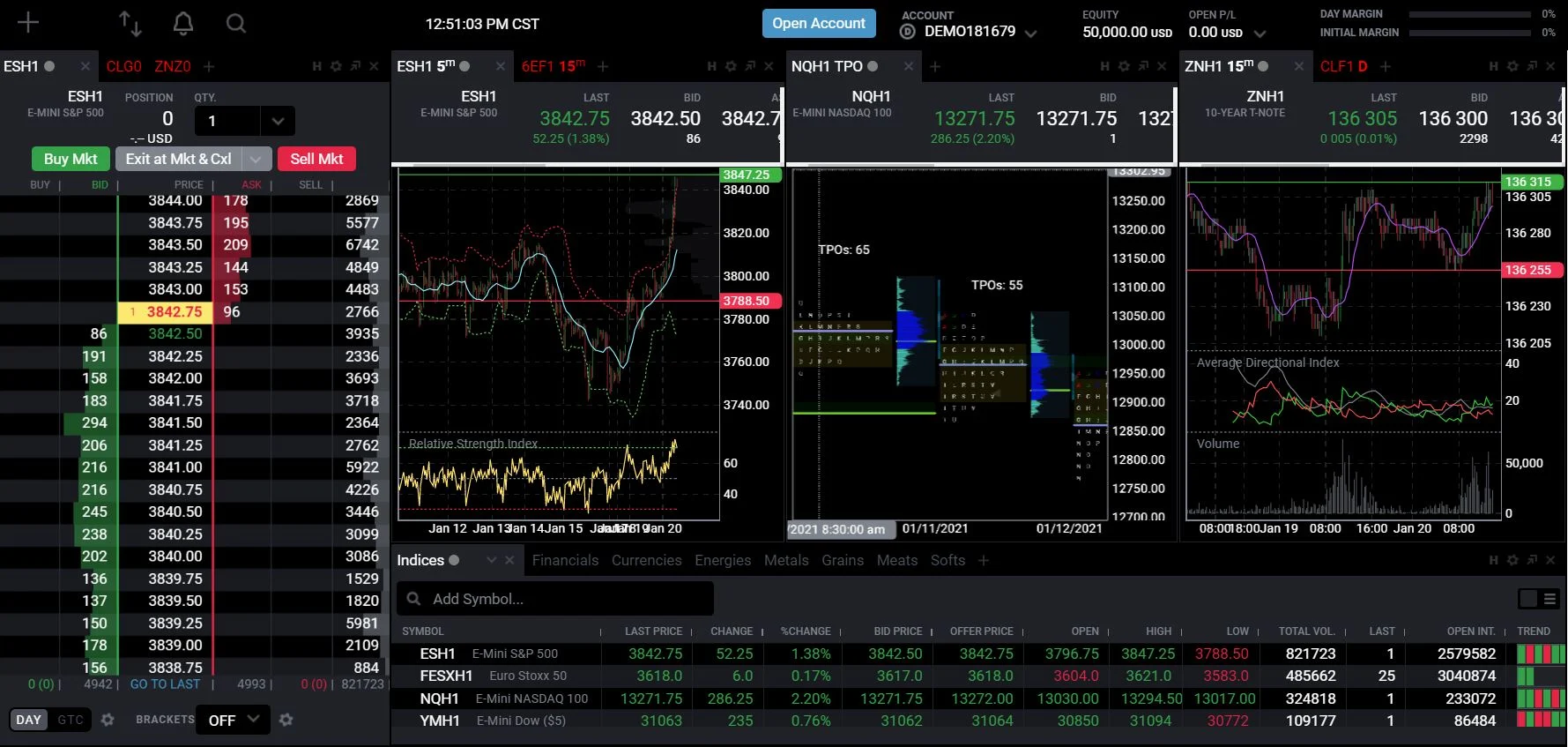
There's one more wrinkle worth knowing. A saved template has shown a habit of displaying only in the chart window it was created in, you'll see the checkmark next to its name, but it won't paint onto a different window. If that happens, apply the template from within the window you actually want it in, or just rebuild it there and save again. This is why the practical advice is to recreate charts manually where you can, rather than expecting a template to travel cleanly across every window.
Why Your Drawings Disappear
Your levels aren't hiding in the template, they were never in it. Drawings attach to the chart object list inside a workspace. So when a template loads and your lines are gone, nothing broke; the template simply has no drawings to give.
Before you assume they're lost for good, check two things:
- The object list / eye icons. Open the chart's object list (the tree of indicators and drawings) and make sure the visibility eye next to each drawing is on. It's easy to hide a level by accident.
- The date you drew it on. A line anchored to a specific candle only shows when that candle is on screen. Scroll back to the day you drew it and it should reappear.
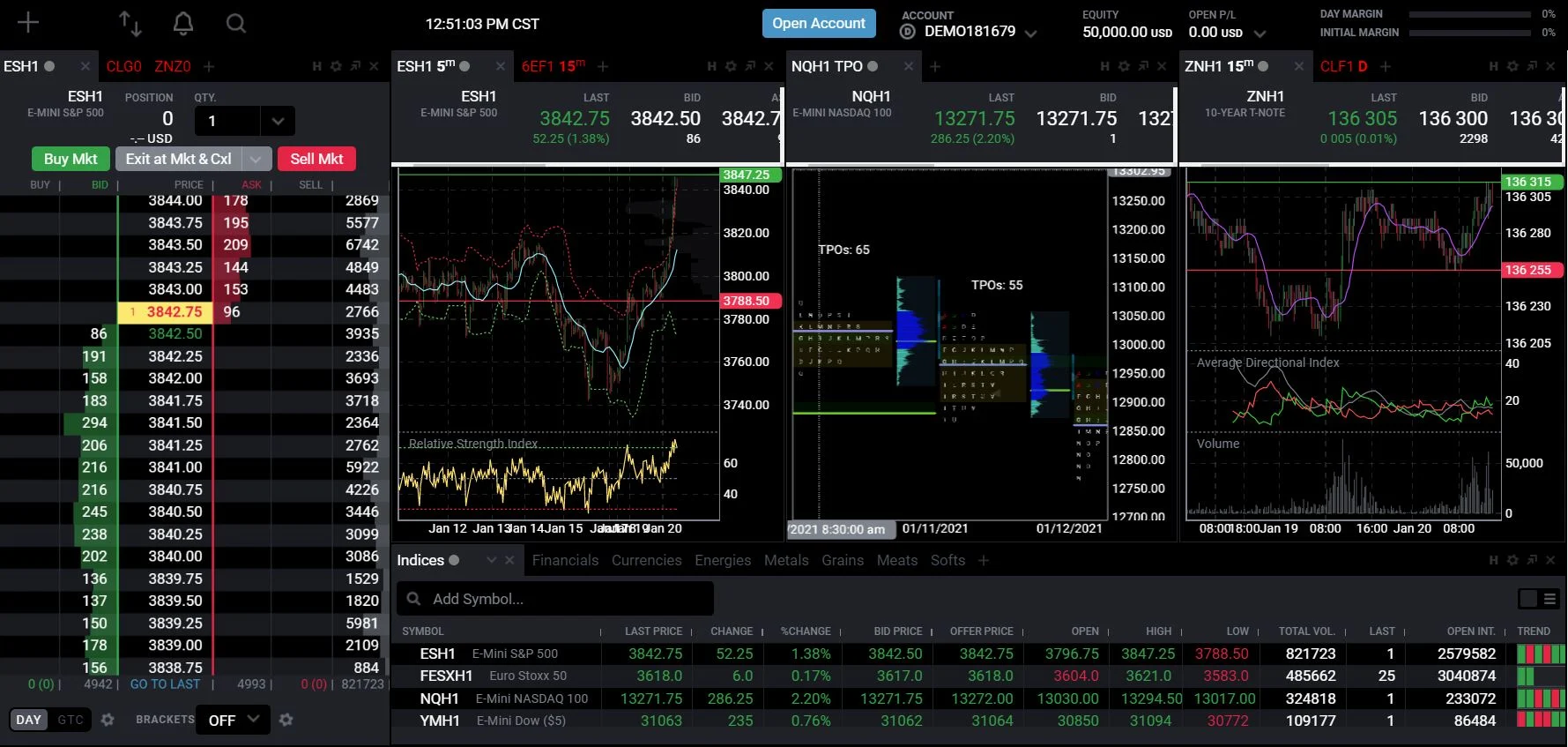
There's also a known, long-running sync quirk where drawings vanish across app restarts, across devices, or when you drop to a lower timeframe. If your markups keep evaporating even after checking the two things above, that's a separate issue worth digging into on its own, and if the chart itself is loading short, that's a data-loading problem worth chasing down separately too.
The Reliable Fix: Save a Workspace, Rebuild Where Needed
Templates are a nice-to-have for indicator presets. The thing that actually preserves your work is a workspace. A workspace captures your window layout, the charts, the indicators and the drawings on them, which is exactly the stuff a template drops.
Get the chart exactly how you want it
Timeframe set, indicators added, levels and trendlines drawn.
Save the workspace
From the Tradovate logo menu, open Workspaces and save the current workspace. Give it a name you'll recognize, like “ES intraday.”
Optionally save a chart template too
From the chart menu, so you can drop the same look onto a brand-new chart later without redrawing indicators.
Rebuild when a template won't cooperate
When a template won't bring its data or markups into a window, stop fighting it, recreate the setup in that window and re-save the workspace. It's faster than troubleshooting a feature that isn't meant to do this.
Quick Reference: Symptom, Cause, Fix
| What you see | Why it happens | What to do |
|---|---|---|
| Template loads, chart is blank / gaps | Templates don't fetch price history | Scroll back, reload, or raise minimum bars to load |
| Template loads, drawings gone | Drawings aren't stored in templates | Save a workspace; check object list eye icons |
| Template checkmarked but won't apply | Template tends to stick to its origin window | Apply it inside the target window or rebuild there |
| Lines on ES missing on MES | Drawings don't cross symbols | Redraw per contract or keep both in one workspace |
| Markups vanish after restart | Known drawing-sync defect | Scroll to the drawing's date; report to support |
Stop Losing Your Setup Again
A few habits keep this from biting you mid-session:
- Save a workspace at the end of each session, not just when you remember. That's your real backup.
- Keep one clean, no-drawings template for a fast reset when a chart gets cluttered.
- Name templates and workspaces clearly, by instrument and style, so you're not guessing later.
- Don't expect templates to cross symbols. ES and MES are different instruments as far as your drawings are concerned.
When It's Expected Behavior vs an Actual Bug
Two of these are just how the platform works, and no amount of clicking will change them: a template not carrying drawings, and a template not re-fetching data. Save a workspace and move on.
The ones worth reporting are drawings that disappear after a restart despite being saved in a workspace, and a template that stubbornly refuses to apply to any window. Reach Tradovate through the in-platform chat or email so it's logged. If you're on a prop-firm or evaluation account and the problem is really missing market data rather than templates, your data is enabled by the firm, contact them, since Tradovate can't fix data on an account it doesn't own.
Let Your Levels Trigger the Trade
Tired of a chart glitch costing you a fill? If your edge is a set of levels, you can let those levels trigger the trade instead of babysitting a chart, so a lost drawing or a blank template never means a missed setup.
Start Your Free 7-Day TrialFrequently Asked Questions
No. A chart template stores your indicator setup and the chart's appearance, timeframe, style, colors and indicator parameters. Trendlines, horizontal levels and zones are not part of the template. Those live with the workspace, so if you want your markups back you need to save a workspace, not just a template.
Applying a template changes settings on the chart in front of you; it does not fetch fresh history. If the chart opens with gaps or empty space, that is a data-load issue rather than a template problem. Scroll back through the history to pull bars in, reload the chart, or increase the minimum bars to load so more history preloads.
Save a workspace. From the Tradovate logo menu, open Workspaces and save the current one. A workspace captures your window layout, chart, indicators and the drawings on it, which a template does not. Use templates for the look-and-feel and workspaces for the actual analysis you want to keep.
Templates have shown a tendency to display only in the chart window they were built in, even with a checkmark next to the saved name. If a saved template will not apply to a different window, open the chart menu in that window and apply the template there, or recreate the setup manually and re-save it.
Not natively. Templates carry indicator and appearance settings, not drawings, so lines drawn on ES will not transfer to MES or any other symbol. You have to redraw levels on each contract, or keep both charts inside one saved workspace so the annotations persist.
This guide is for educational and informational purposes only and is not financial, investment, or trading advice. Trading futures and other leveraged products carries a substantial risk of loss and is not suitable for every investor. PickMyTrade is an independent third-party automation platform and is not affiliated with, endorsed by, or sponsored by Tradovate, Inc. “Tradovate” and all related names, logos, and trademarks are the property of their respective owners. Platform features and steps change over time, so always confirm the current process in the official Tradovate platform and documentation before acting.